Dual Monitors With Laptop Docking Station: Setup Guide
Two monitors on one dock work when your laptop's port can send video and the dock has two outputs. Check the port first, then follow the cabling checklist.
The Folio & Current Team
October 22, 2026 · 7 min read
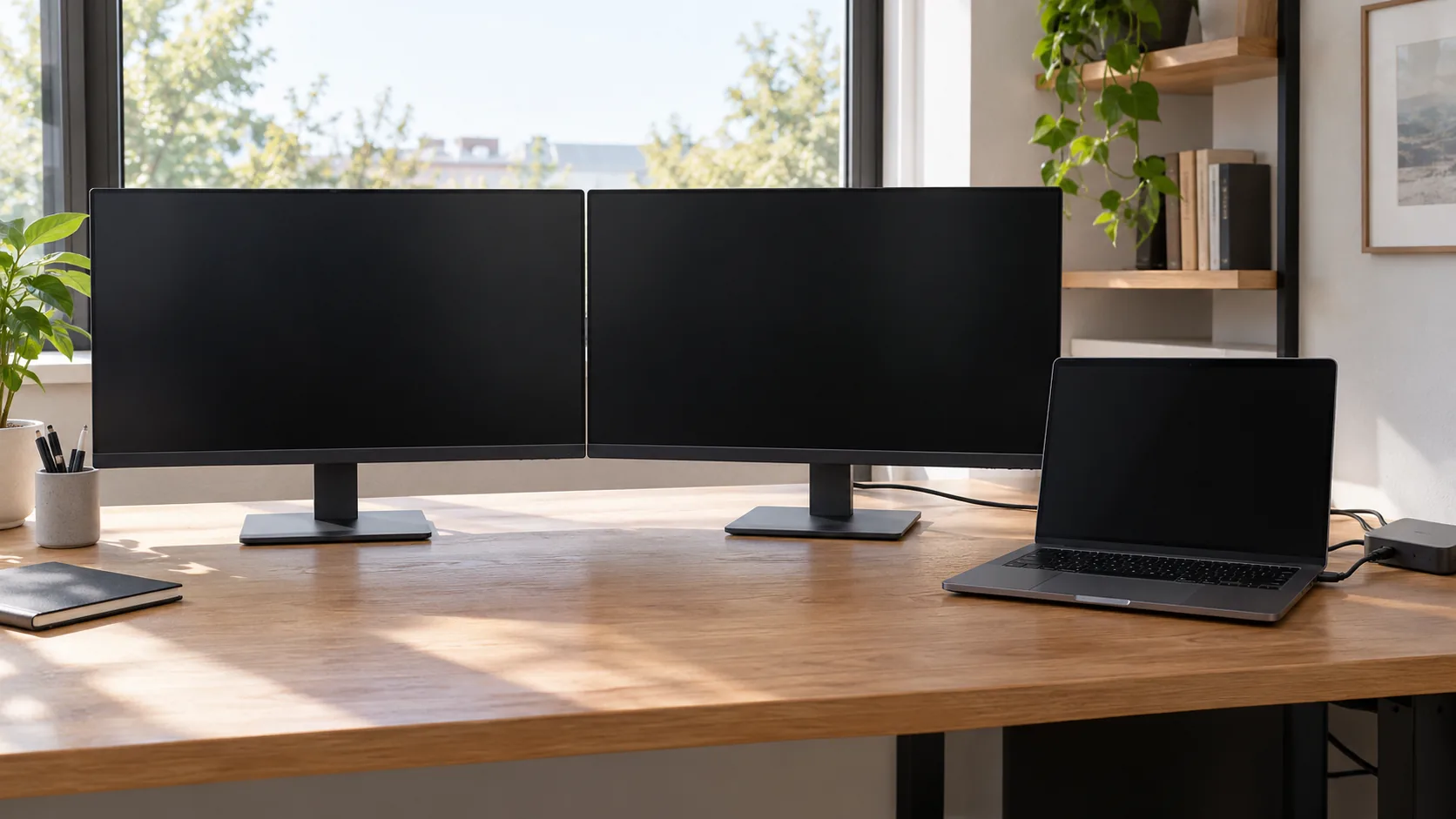
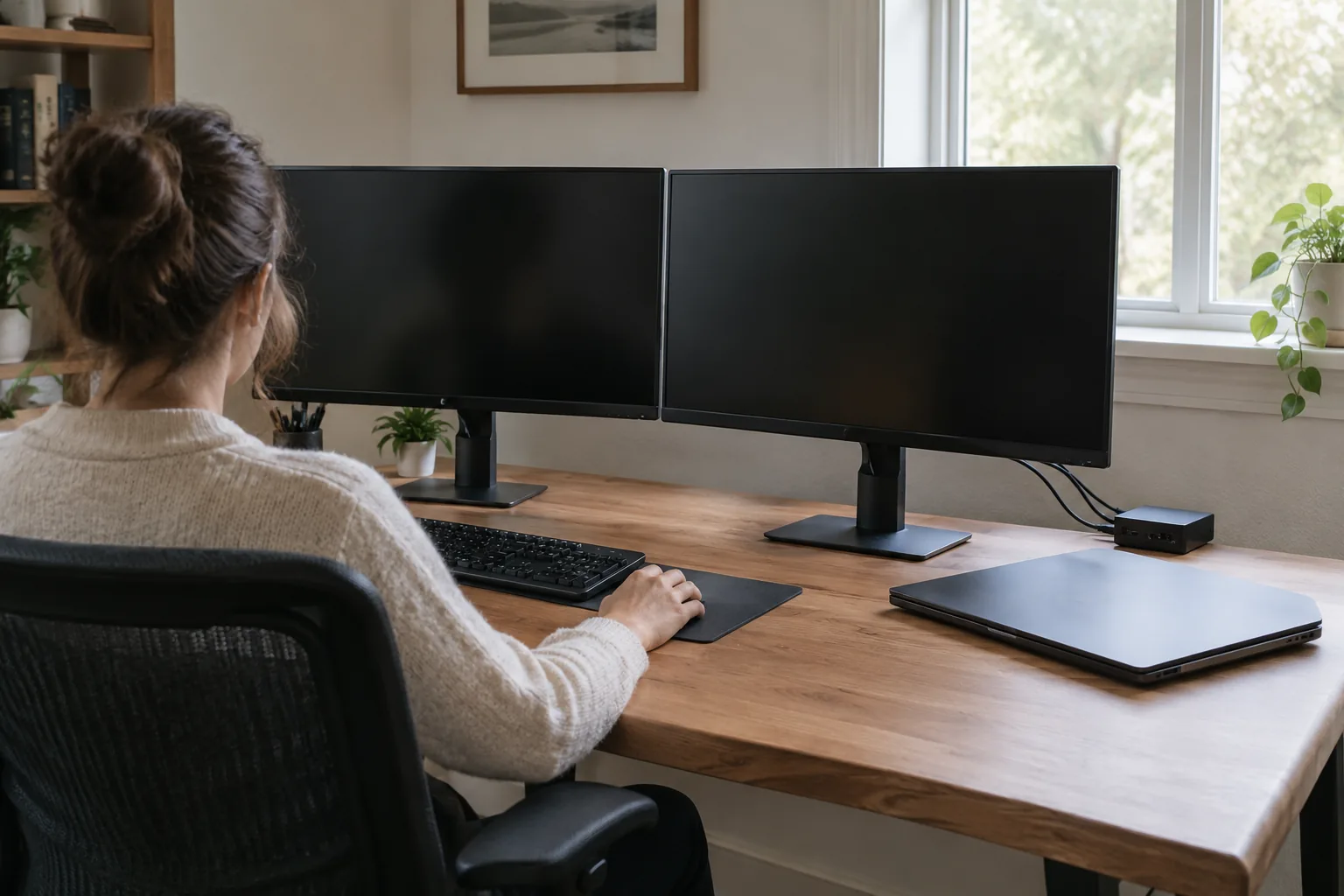
Running dual monitors with a laptop docking station works when two things line up: your laptop's port must carry video, and the dock must have two video outputs. The dock connects to the laptop with one cable, and each monitor plugs into its own output on the dock.
This guide shows how to check your laptop before you buy, how to cable the desk in the right order, and how to fix a second screen that stays dark.
Check your laptop's ports before you buy
A USB-C port is not always a video port. Some carry only data and charging. Look for a small DisplayPort or monitor symbol beside the port, or open your laptop's manual and look up video output over USB-C. Before you pick a dock for dual monitors with a laptop, four terms decide whether two screens will work.
| Term | What it means | What to check |
|---|---|---|
| DisplayPort Alt Mode | Lets a USB-C port send a video signal to a dock or monitor | Laptop manual or spec sheet lists video output over USB-C |
| MST (Multi-Stream Transport) | Splits one DisplayPort stream into several monitor feeds | Dock and laptop both state support; some operating systems show the same image on both screens |
| Driver-based docks | Use a driver to draw extra screens over a data connection | Dock lists a driver or software download |
| Dual video outputs | Two physical ports on the dock, such as HDMI and VGA | Count the outputs on the dock itself |
If the manual does not mention video over USB-C, ask the laptop maker before you buy a dock. A dock cannot add a video signal that the port does not provide.
If you rely on MST, read the laptop maker's documentation on extended displays through a dock before you buy. Some laptops show the same image on both screens of an MST dock instead of two separate workspaces.
Decide in five steps
- Find a video-capable USB-C port on the laptop, or note which other video ports it has.
- List the inputs on both monitors (HDMI, DisplayPort or VGA) and note each monitor's native resolution.
- Choose a dock whose two outputs match those inputs, so you avoid extra adapters.
- Compare the laptop's charging requirement with the dock's power delivery specification.
- Count the accessories you need to plug in: keyboard, mouse, Ethernet, drives, memory cards.
Dock or hub: what is the difference
A multiport hub is a small adapter that plugs into one USB-C port and adds a few connections, often a single HDMI port, some USB ports and a charging pass-through. A docking station is a larger desk unit that usually has more ports, including more than one video output, and connects by cable so the laptop can sit away from the clutter.
For two monitors, count the video outputs first. A hub with one HDMI port drives one display. A dock with HDMI and a second video output can drive two.
How many monitors a docking station can support
The number is set by the dock's video outputs and by what your laptop's port and operating system allow. If you are planning dual monitors for a laptop with a docking station, a dock with two outputs is built for two screens. A dock with three outputs may still drive fewer active screens, depending on the laptop.
Check three items on the dock's spec list: the number of video outputs, the maximum resolution per output, and whether the dock lists a driver. Then compare them with your monitors' inputs. If your monitors have only DisplayPort and the dock has HDMI, you need a matching cable or adapter.
A dock built for two displays
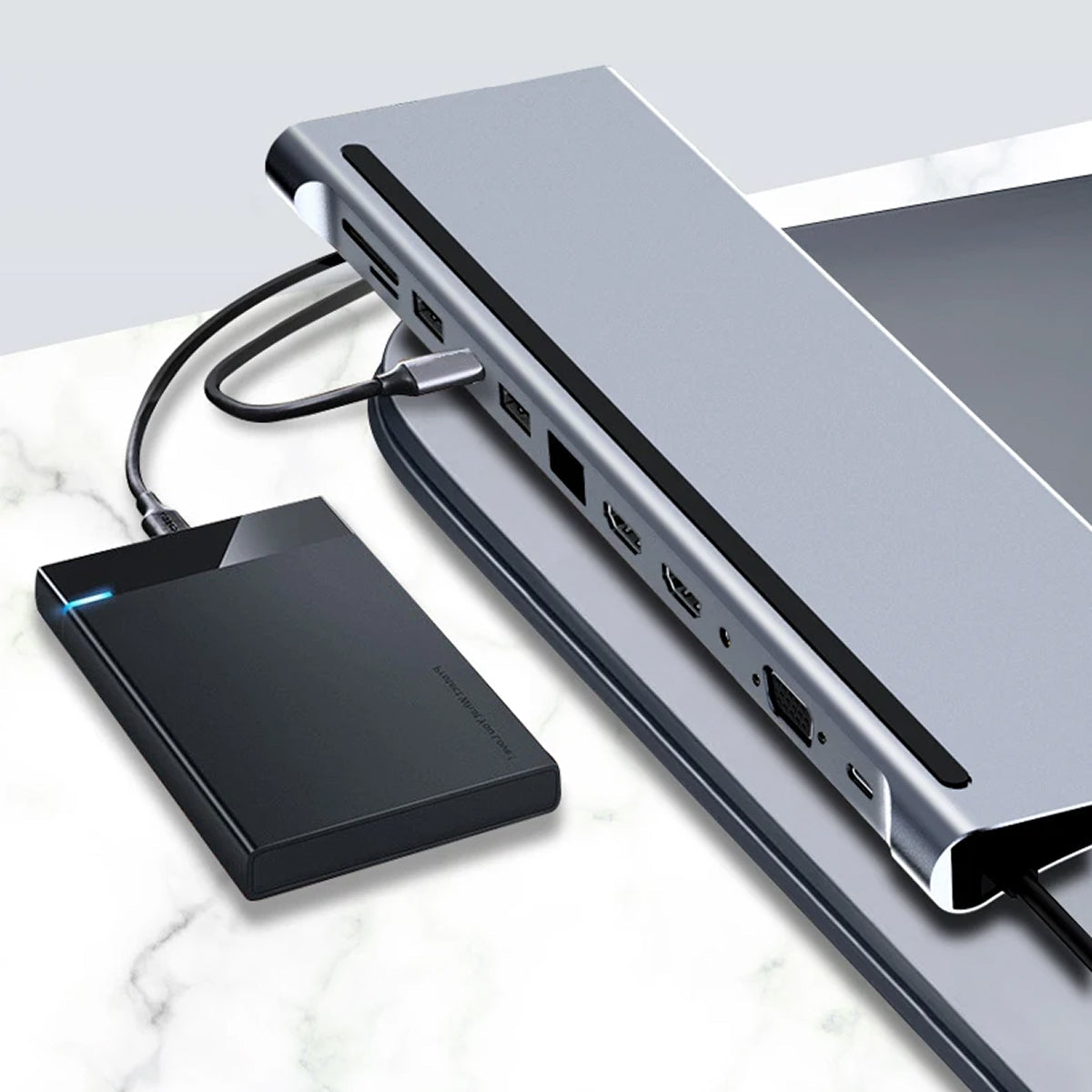
NexaDock is a 12-in-1 laptop docking station that connects to the laptop with one cable. Its HDMI and VGA outputs connect two monitors, and the HDMI output supports 4K resolution at 60Hz. It also adds USB ports at 5Gbps, a Type-C port at 10Gbps, Ethernet, dual SD/TF card slots, a 3.5mm audio port and a power delivery port for charging the laptop. Check your laptop's power requirement against the dock's specification.
The product page lists no drivers or setup software. Confirm in the user manual which connector the cable uses and that your laptop's port is supported.
 In this guideNexaDock$99.99View
Dual monitors with laptop docking station: cabling checklist
Work through these steps in order. Follow the manual for each device, and unplug power before you move cables around.
- Place both monitors on the desk and plug them into wall power.
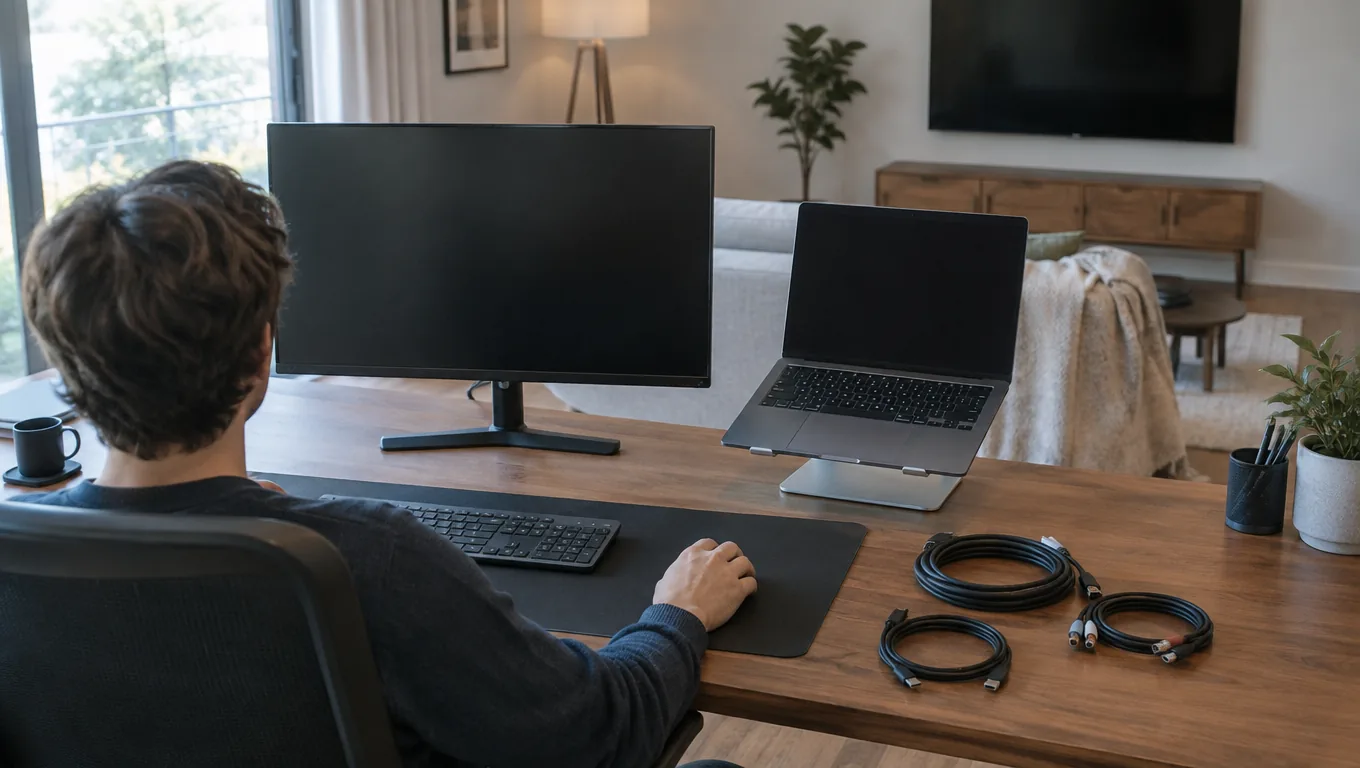
- Match each monitor input to a dock output. Use HDMI to HDMI, and a VGA cable for a VGA monitor.
- Connect the dock's power supply if the dock needs one, according to its manual.
- Connect the keyboard, mouse, Ethernet cable and any drives to the dock.
- Plug the dock's cable into the laptop's video-capable port that the cable fits. Check the connector type in the dock's user manual.
- Switch each monitor to the input you used (HDMI or VGA) using its on-screen menu.
- Open display settings and confirm both screens appear.
Use the cable that came with the dock. A different cable may carry power or data only and no video.
Set up the screens in display settings
Once both monitors show a picture, open your operating system's display settings and select detect displays if one is missing. You will see two numbered rectangles that match your screens.
- Drag the rectangles so they match the physical left and right positions of the monitors.
- Choose extend for two separate workspaces, or mirror for the same image on both.
- Pick your primary display, which holds the taskbar or menu bar and opens new windows.
- Set each monitor to its native resolution from the resolution list.
If you close the laptop lid and want to keep working on the monitors, look for the lid-close option in power settings.
Field note
Label each cable at both ends with a small piece of tape, such as "left HDMI" and "right VGA". When a screen goes dark, you can trace the problem without pulling the whole desk apart.
Two monitors without a docking station
You can connect two monitors to a laptop without a dock if the laptop itself has two video outputs, for example one HDMI port and one video-capable USB-C port. Plug one monitor into each and use the same display settings as above.
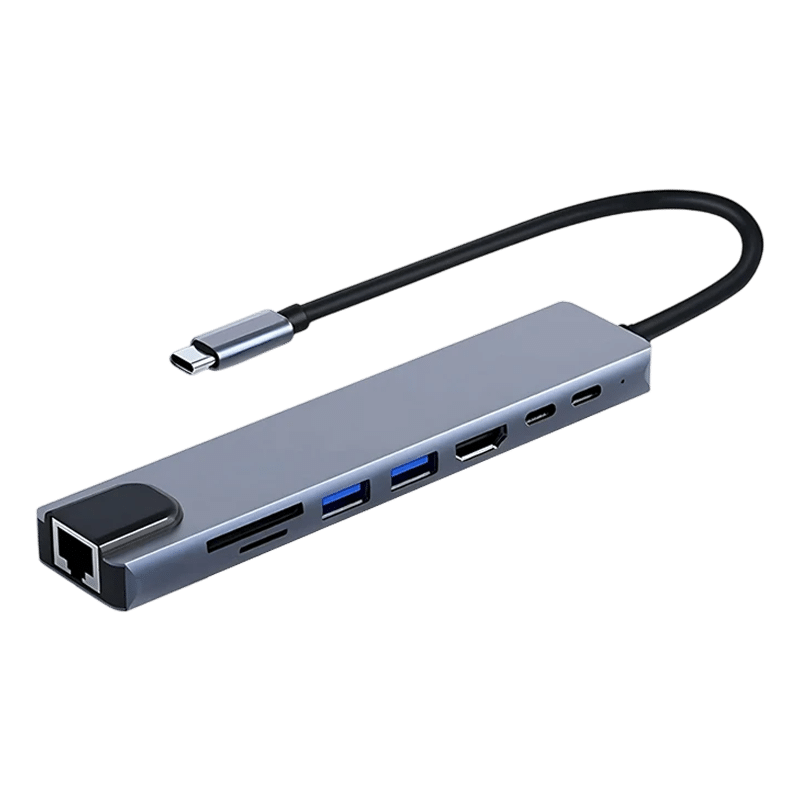
If the laptop has only one video-capable port, a multiport adapter adds connections but not always a second screen. HubVantage is an 8-in-1 USB-C multiport adapter with an aluminum shell that plugs directly into the laptop's USB-C port. It has one HDMI port with 4K output at 30Hz, an 87W Power Delivery port, and a 100Mbps RJ45 ethernet port. With one HDMI port, it serves one monitor, so it suits a laptop screen plus one external display. Check that your device's port supports video output and power delivery.
 In this guideHubVantage$59.99View
One HDMI port and two monitors
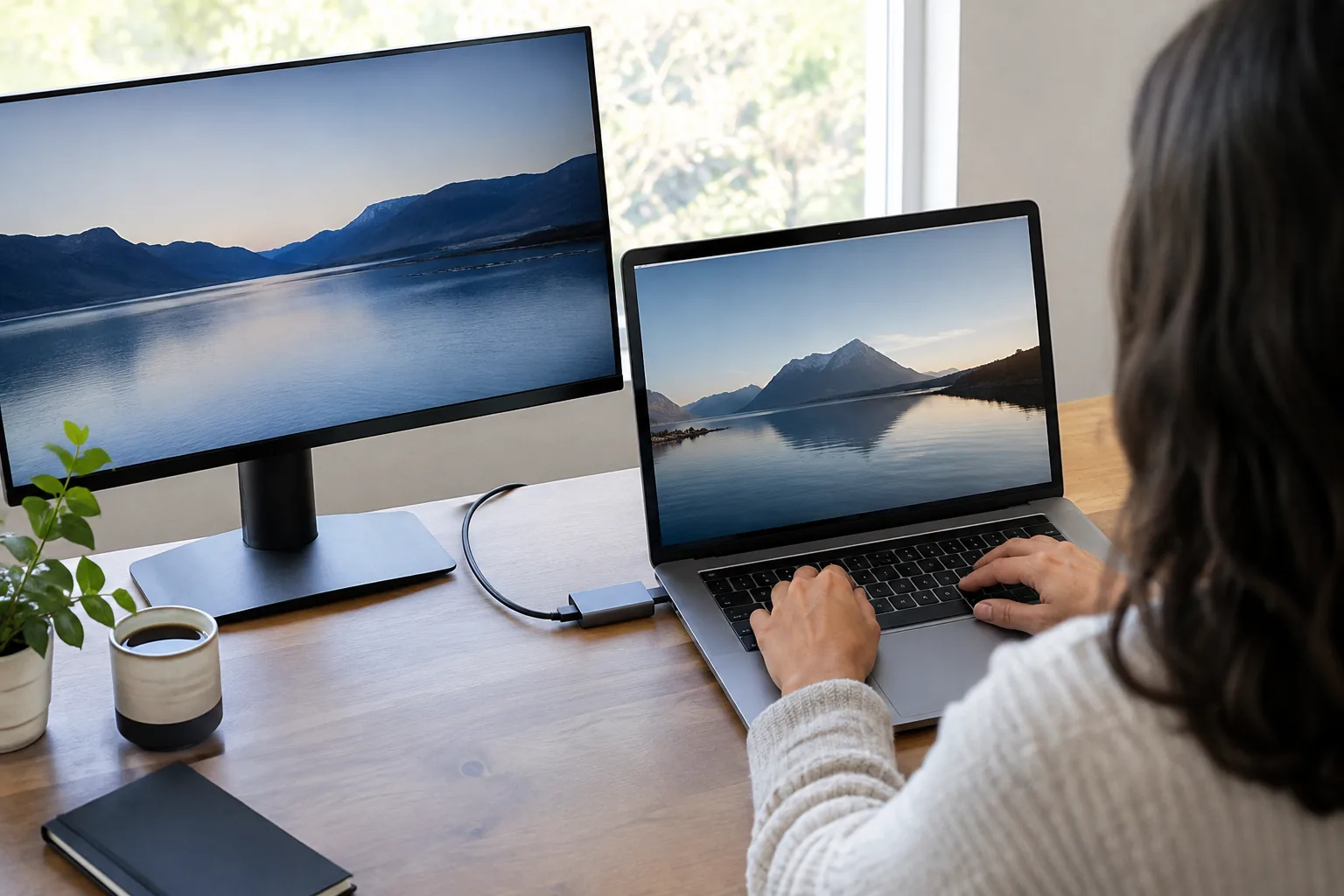
A single HDMI output sends one picture. A splitter on that output copies the same image to two screens, which is mirroring, not two separate workspaces. For separate screens, use a dock with two different video outputs, or a laptop and dock that both state MST support.
Fix a second monitor that is not detected
If one screen stays dark in your dual monitors with laptop docking station setup, move through these checks in order.
- Reseat the dock cable at both ends and try a different USB-C port on the laptop if it has more than one.
- Try each monitor on the dock's other output to tell a bad cable from a bad port.
- Confirm the monitor is on the correct input in its own menu.
- Install pending system updates and restart the laptop with the dock attached.
- Check the laptop maker's support page for graphics or firmware updates.
- If the issue persists, connect only one monitor, then add the second.
Common mistakes to avoid
- Assuming every USB-C port carries video.
- Buying a dock with one video output for a two-monitor desk.
- Using a charge-only cable between the dock and the laptop.
- Leaving a monitor on the wrong input.
- Skipping the dock's power delivery check against the laptop's requirement.
Plan the rest of the desk
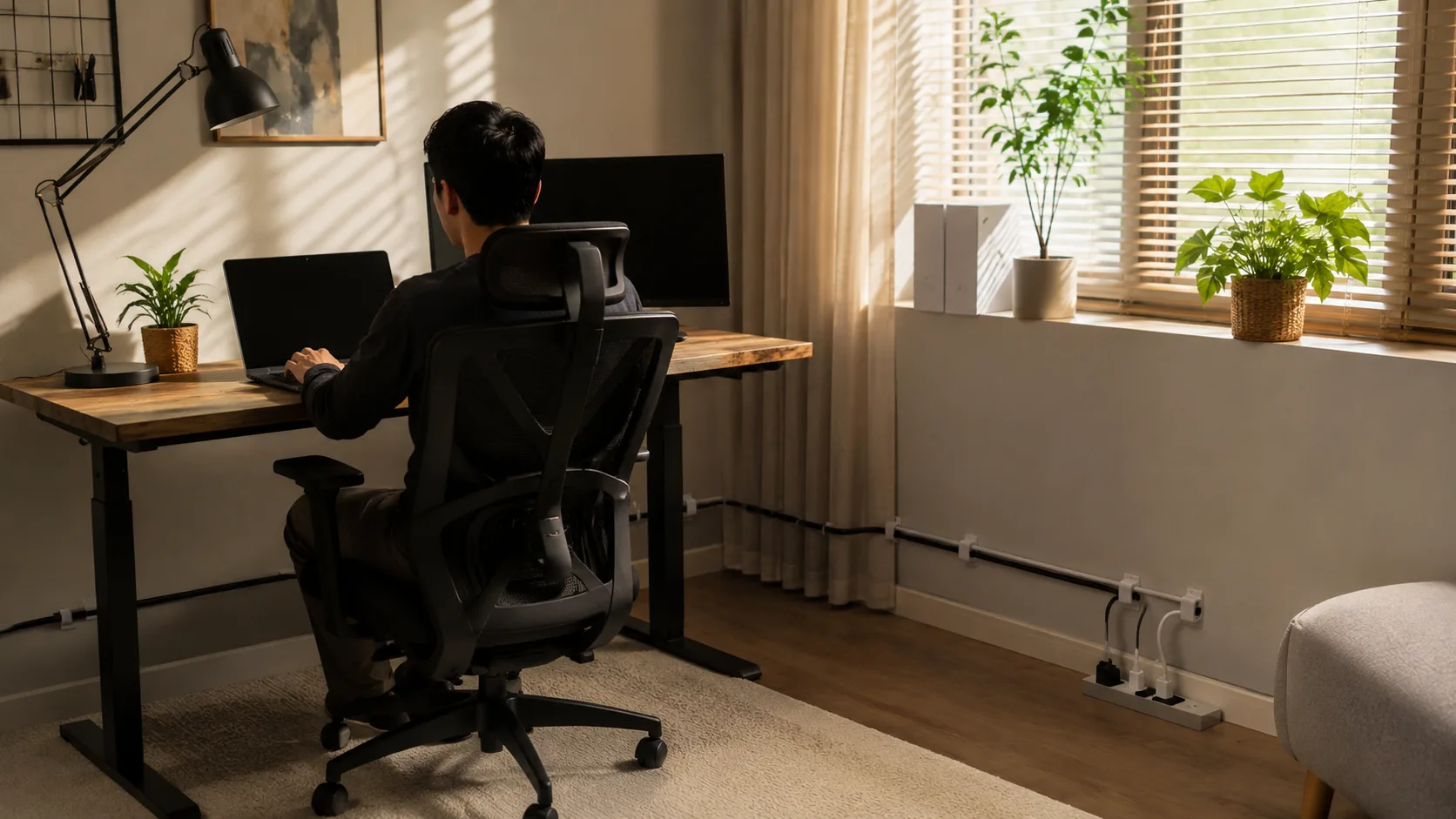
A dock gives the laptop a single-cable desk. Keep the dock where cables reach without strain, and leave room around the laptop for airflow. Our guide to a laptop cooling pad covers when one helps and how to set it up.
Extras share the dock's connection, so you can add a card reader, a drive or a USB-C audio interface. If you plan to record or monitor sound at the same desk, the Type C audio interface guide explains what it is and how to connect it. Unplug extras while you troubleshoot the screens.
For more chargers, docks and storage that fit a desk, browse the Chargers, Docks & Storage collection.