HDMI vs DisplayPort: Which Connection to Use for Each Setup
Use HDMI for TVs, receivers and consoles, and DisplayPort for PC monitors. This guide matches the port and cable version to your TV, gaming monitor, laptop dock or wireless link.
The Folio & Current Team
October 23, 2026 · 7 min read
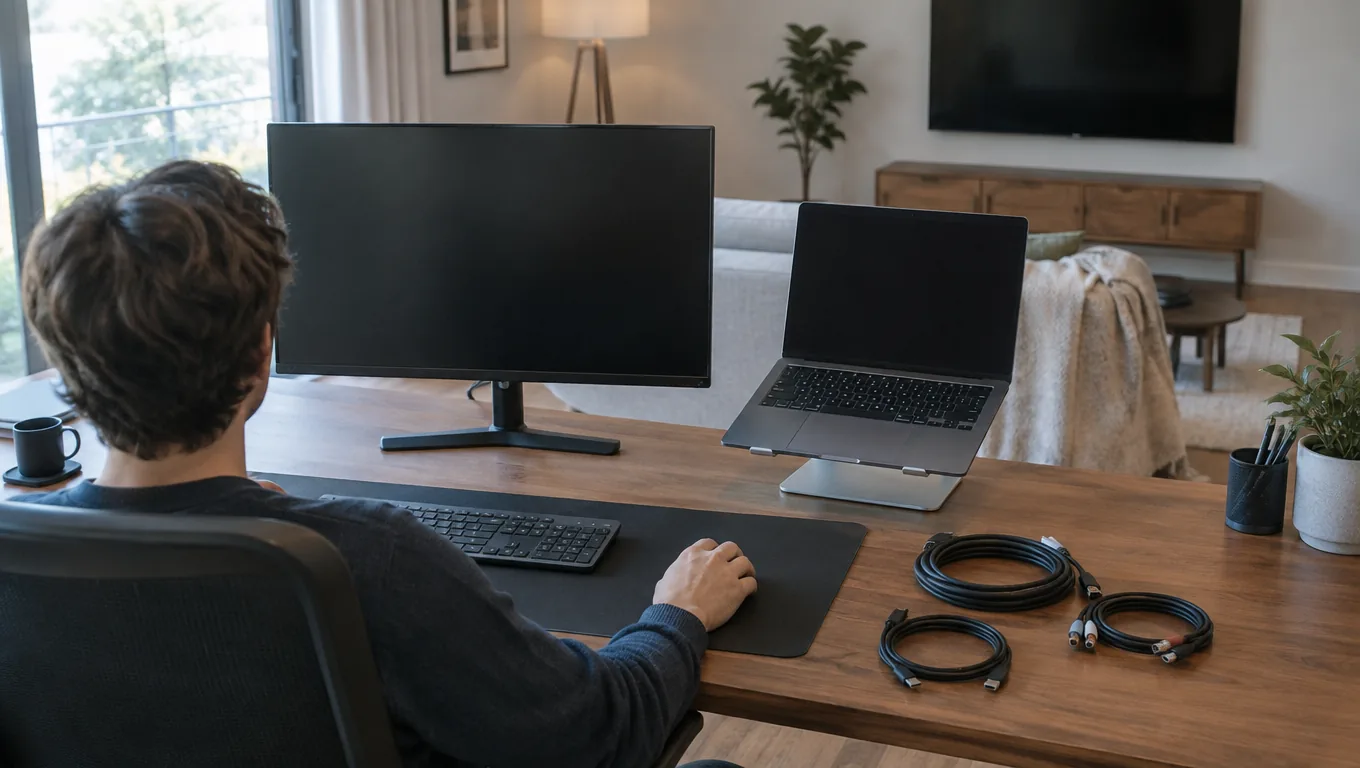
HDMI vs DisplayPort comes down to what sits at each end of the cable: use HDMI for TVs, soundbars, receivers and game consoles, and use DisplayPort for PC monitors, especially high refresh rate and multi-monitor desks. When a device only offers one of the two, use that one and match the cable version to the resolution and refresh rate you want.
Instead of arguing spec by spec, this guide goes setup by setup. Find your situation in the table, then read the matching section for cable versions, adapters and setup steps.
HDMI vs DisplayPort at a glance, by setup
| Setup | Port to use | Cable to look for | Why |
|---|---|---|---|
| TV or home theater with a console or streaming box | HDMI | High-speed cable; ultra high speed for 4K at high refresh rates | TVs and receivers are built around HDMI, including the audio return channel |
| Gaming monitor on a desktop PC | DisplayPort, or HDMI 2.1 if both ends have it | A cable labeled for the DisplayPort version your monitor lists | PC monitors list their highest refresh rates on DisplayPort |
| Console on a monitor | HDMI | Ultra high speed for 4K at high refresh | Consoles output HDMI only |
| Multiple monitors on one PC | DisplayPort per monitor | One cable per screen, matching version | Each monitor takes its own output; check how many outputs the graphics card has |
| Laptop with a dock | USB-C to the dock, then HDMI or DisplayPort to the monitor | The dock's own cable plus a monitor cable | One cable from the laptop serves the whole desk |
| Source across the room from the display | Wireless HDMI link | Short HDMI cables at each end | No cable run through the room |
Pick the connection for your setup
TV and home theater
Use HDMI. Almost every TV, soundbar and receiver has HDMI ports, and the audio return channel sends TV audio back to a soundbar or receiver over the same cable. On many TVs only one HDMI port supports this, so check the port labels and the manual.
For a console or streaming box feeding a 4K TV at high refresh rates, choose an ultra high speed cable and plug it into the TV port that the manual lists for high-bandwidth input.
Gaming monitor on a PC
For PC gaming, start with the monitor's spec sheet. It lists the refresh rate it supports on each input, and that number decides your port. Many gaming monitors list their highest refresh rate on DisplayPort, while a monitor with an HDMI 2.1 input can also carry high refresh rates if your graphics card has an HDMI 2.1 output.
Variable refresh rate, which reduces screen tearing, is a setting in both the monitor menu and the graphics driver. Check which input your monitor supports it on, then enable it on both sides. Input lag is mostly a matter of the display's game mode, so switch that on before you blame the cable.
Multiple monitors
DisplayPort suits desks with several screens because each monitor gets its own cable and its own output. Some monitors also pass the signal along to another monitor, called daisy-chaining; this needs support on both monitors, so check the manual. If your graphics card has fewer outputs than you have screens, a dock is the next option.
Laptop and docking station
Most laptops send video through a USB-C port that carries a DisplayPort signal, or through a built-in HDMI port. A laptop docking station takes that one connection and turns it into video outputs, USB, Ethernet and charging. Check that your laptop's USB-C port supports video output and power delivery before buying.
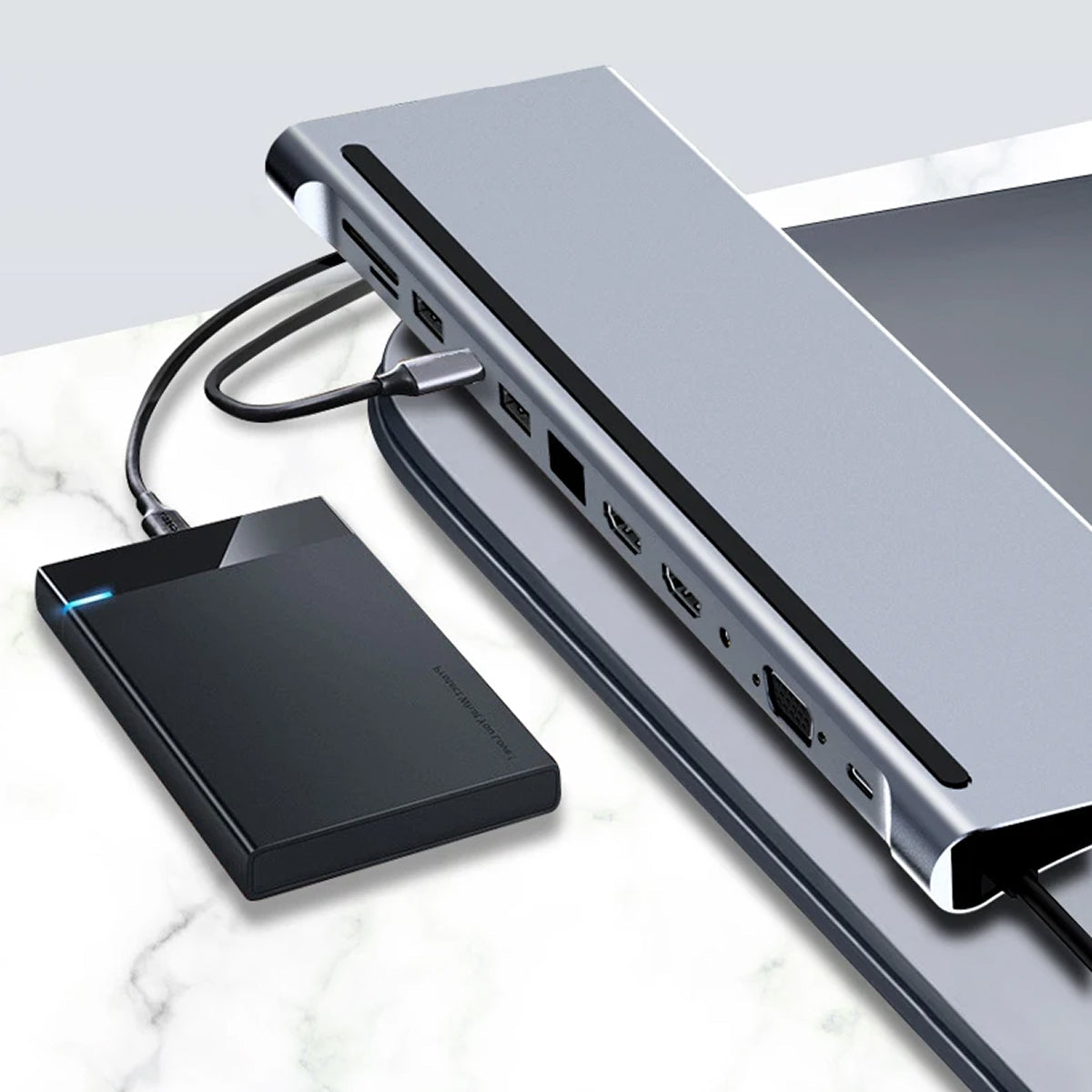
NexaDock is a 12-in-1 dock that connects to the laptop with one cable. Its HDMI and VGA outputs connect two monitors, and the HDMI output supports 4K resolution at 60Hz. A power delivery port charges the laptop while other ports are in use, so check your laptop's power requirement against the dock's specification.
 In this guideNexaDock$99.99View
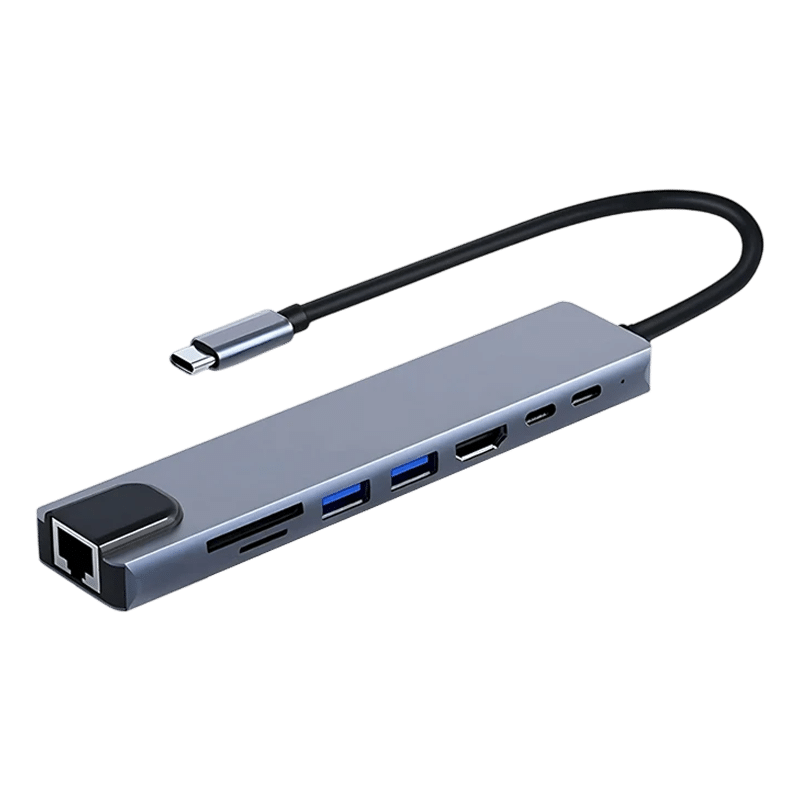
For a single external display on the go, HubVantage is an 8-in-1 USB-C multiport adapter with an aluminum shell that plugs straight into the laptop. It has one HDMI port with 4K output at 30Hz, an 87W Power Delivery charging port and a 100Mbps RJ45 ethernet port. That suits documents, spreadsheets and video calls on a second screen; for high refresh gaming, use a direct output from the graphics card.
 In this guideHubVantage$59.99View
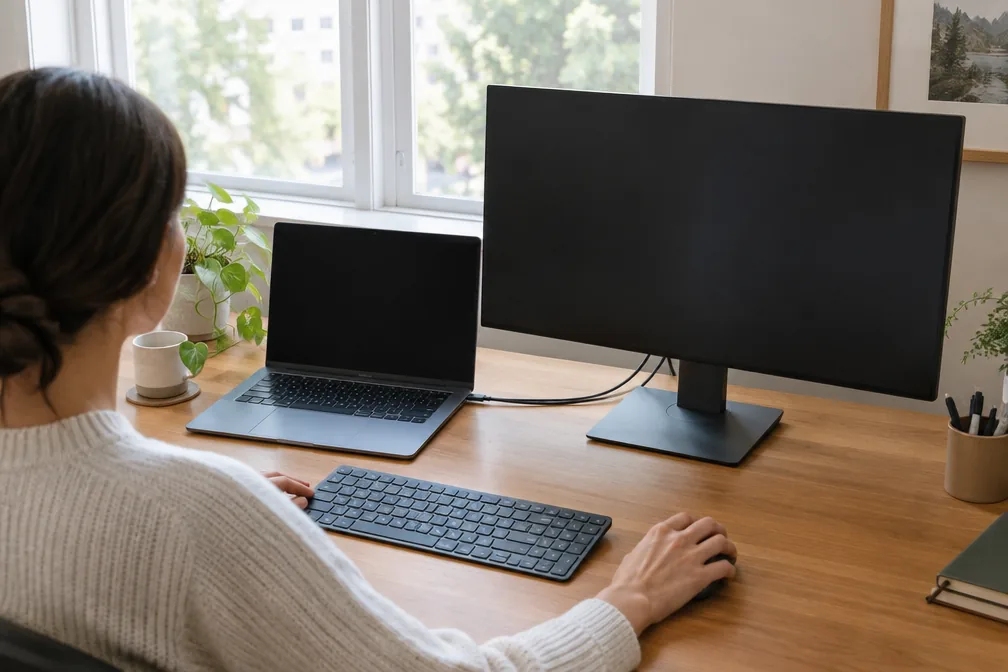
If you plan to run two screens from a laptop, our dual monitor docking station setup guide walks through the connections step by step. Gaming laptops that run warm are covered in when a laptop cooling pad helps. Browse more docks and adapters in Chargers, Docks & Storage.
Wireless link
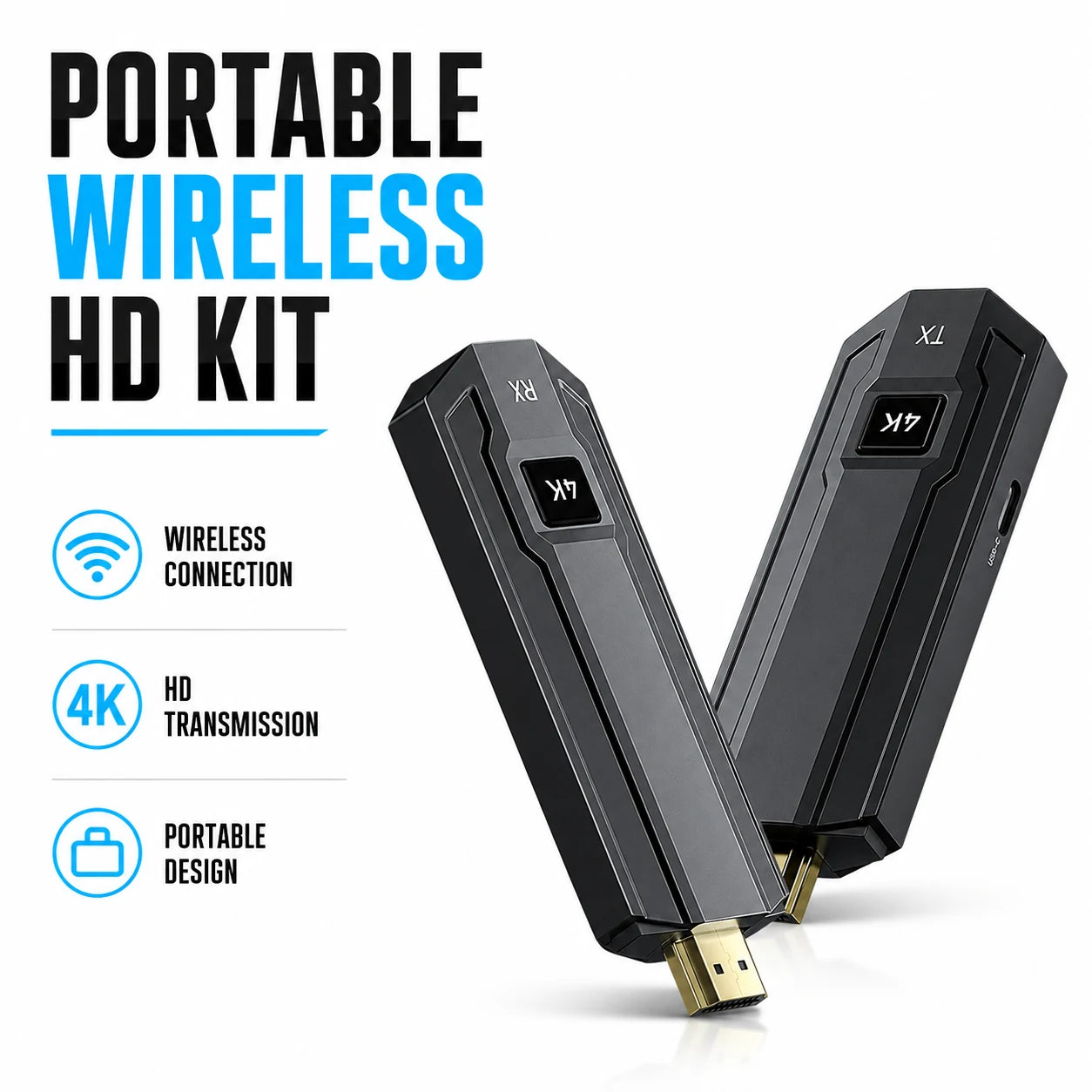
When the source and display sit in different parts of the room, a wireless HDMI kit replaces the long cable. ClearCast Pro is a transmitter and receiver set: the transmitter attaches to the source, the receiver attaches to the display, and the two link over a dedicated 5GHz wireless connection that is separate from your home router.
Both units pair automatically at power-on, with no apps, drivers or configuration menus. An HDMI loop-out on the transmitter lets you view the source locally, and more than one transmitter can share a single receiver, which suits meetings with several presenters. In mirror mode it duplicates the screen; in extend mode it adds workspace.
 In this guideClearCast Pro$199.99View
HDMI versions explained
The version number matters more than the connector shape, because every version uses the same plug. The version decides the maximum data rate, and with it the resolution and refresh rate the port can carry. Both devices and the cable must support the mode you want.
| Version | What it is for |
|---|---|
| HDMI 1.4 | 1080p video and basic 4K at a low refresh rate |
| HDMI 2.0 | 4K at 60Hz, common on TVs and monitors |
| HDMI 2.1 | Higher bandwidth for 4K at high refresh rates, variable refresh rate and eARC on supporting devices |
On the question of HDMI 2.1 at 1440p, the standard has bandwidth for refresh rates well past what most monitors list. Your real limit is the monitor's spec and the output on your graphics card, so check both before assuming a number.
DisplayPort connection types
DisplayPort comes in a few physical forms, and the version again sets the limit.
- Full-size DisplayPort: the standard plug on desktop graphics cards and monitors, with a latch on many cables.
- Mini DisplayPort: a smaller plug found on some older laptops and workstations.
- DisplayPort over USB-C: a USB-C port that carries a DisplayPort signal, used by many laptops and docks.
Versions such as 1.4 and 2.1 raise the bandwidth step by step. Pick a cable labeled for the version your monitor lists, and buy from a seller that states the version on the product page.
Adapters and cables: DP to HDMI and HDMI to DP
Direction matters. A simple DisplayPort to HDMI cable or adapter is built for a DisplayPort source feeding an HDMI display, such as a PC graphics card driving a TV. Going the other way, HDMI source to DisplayPort monitor, usually needs an active converter, so read the product page for the stated direction.
Adapters also carry the limits of both ends and of the adapter itself. If the monitor shows a lower refresh rate than expected, check the adapter's listed maximum before changing anything else. Use the same logic for USB-C to HDMI or USB-C to DisplayPort cables.
USB-C for gaming compared with HDMI
USB-C is a connector, not a video standard. When it carries video, it is usually a DisplayPort signal, so the result depends on the version your laptop port supports. For gaming on a laptop, a USB-C to DisplayPort or USB-C to HDMI cable can work if the port lists video output; a hub that lists only 4K at 30Hz is meant for desk work rather than fast games.
Field note
Put a sticker or tag on each cable with its version once you confirm it works. A drawer of identical black cables is the usual reason a monitor runs below its listed refresh rate.
Setup checklist and common mistakes
- Read the monitor or TV spec for the refresh rate and resolution it lists on each input.
- Check the output on your PC, console or laptop for the same listing.
- Choose the port that appears on both lists at the highest mode you want.
- Buy a cable labeled for that version, and keep it as short as the layout allows.
- Power down, plug in firmly, then open display settings and select the resolution and refresh rate manually.
- Turn on game mode and variable refresh rate in the monitor menu if you play games.
Common mistakes are easy to spot once you know them:
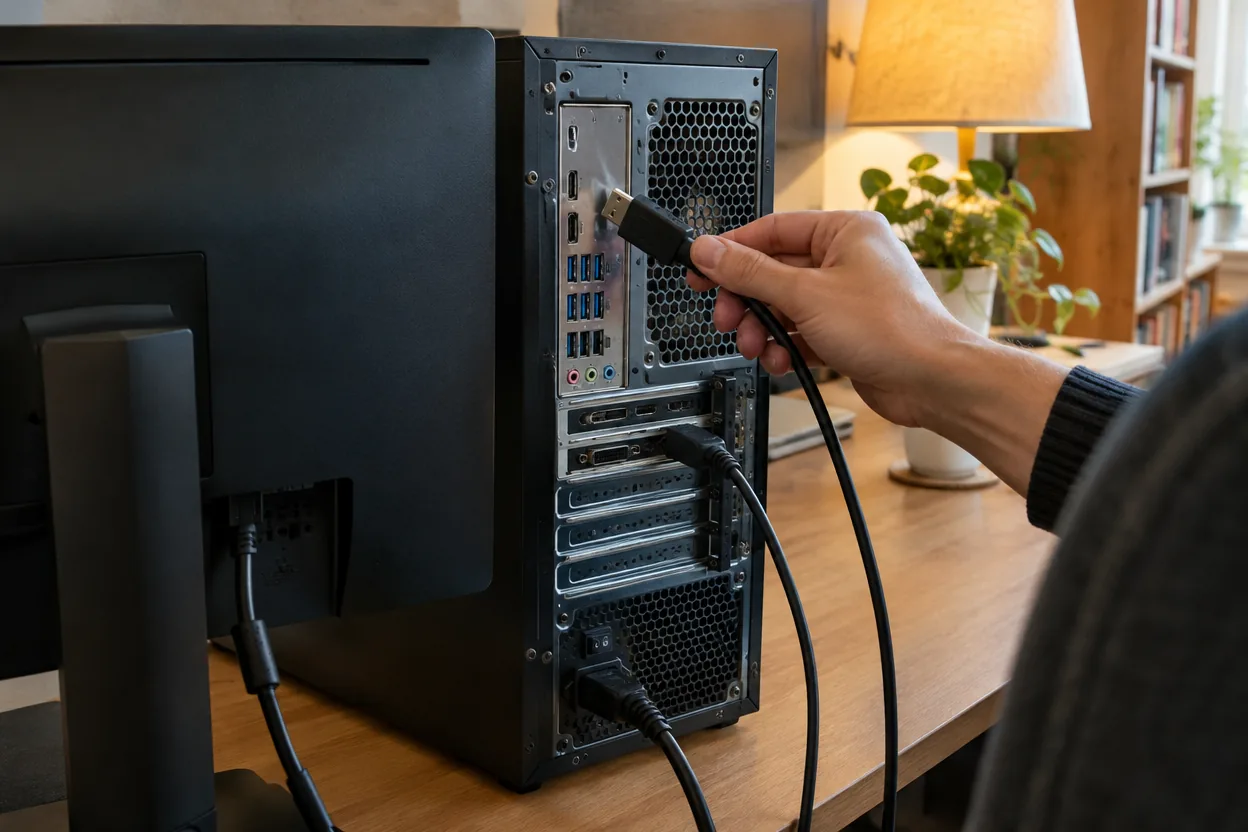
- Plugging the monitor into the motherboard output instead of the graphics card output on a desktop.
- Leaving the refresh rate on the default 60Hz in the operating system after connecting.
- Using an old cable from a previous setup for a new 4K high refresh display.
- Expecting audio over a monitor with no speakers; both ports carry audio, but the display needs speakers or a headphone jack.
Unplug devices before moving a desk setup, and follow each device's manual for power and connection steps.