
Laptop Cooling Pad for Gaming: When It Helps and How to Set It Up
A cooling pad can help when your laptop takes in air through the bottom panel. Check your vents, record temperatures before and after, and decide from your own numbers.
Ryan Kessler
October 16, 2026 · 7 min read
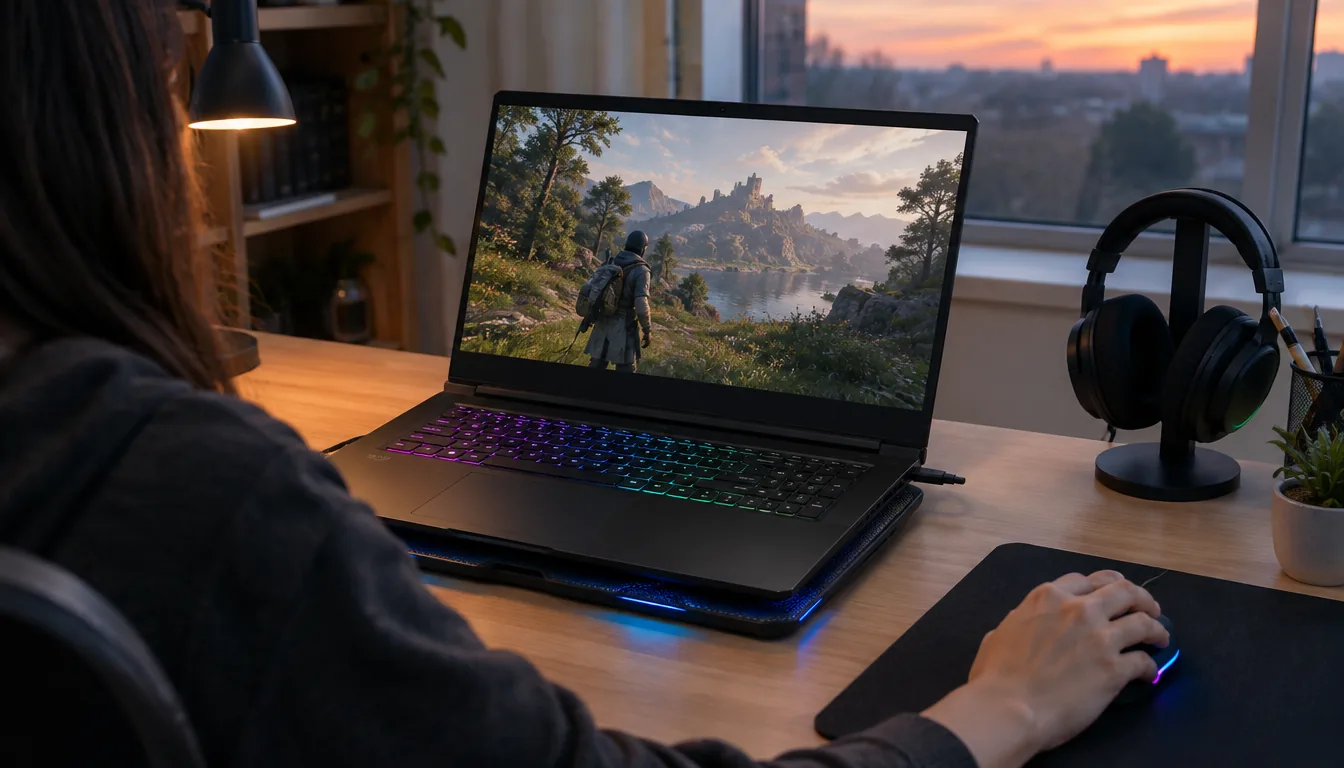
A laptop cooling pad can help during long game sessions if your laptop pulls air in through the bottom panel, because the pad's fans move air across that intake. If your laptop breathes from the sides or back only, a pad mostly works as a stand. This guide shows how to check your vents and how to measure the difference yourself.
Whether a laptop cooling pad game setup is worth it depends on your machine, so the steps below start with inspection and end with a measurement you can repeat.
What a cooling pad does (and what it does not)
A cooling pad is a platform that sits under a laptop and carries one or more fans. The fans push or pull air past the underside of the chassis, where many gaming laptops have intake grilles. It does not change the laptop's internal parts. It only changes the air around the bottom panel.
That means a pad supports your laptop's own fans instead of replacing them. If the internal fans are clogged with dust, or the laptop sits on a soft surface, those problems come first.
Why games make laptops warm
Games keep the processor and graphics hardware busy for long stretches. Unlike a web page or a document, the load does not drop off, so heat builds in the chassis and the internal fans spin up. Sustained heat is what you are trying to manage, not a single spike.
Step 1: Check whether your laptop vents from the bottom
Flip the laptop over with it powered off and unplugged. Look at the bottom panel in good light. You are looking for slotted or perforated areas, usually near the center or toward the back.
- Find grilles or slots on the bottom panel. These are likely intakes.
- Check the sides and the rear edge for exhaust openings.
- Note where the grilles sit: left, right, center, or spread out.
- Check for rubber feet. Taller feet leave a gap for air to enter.
- Consult the manual or the maker's support page if you cannot tell which openings are intakes.
| What you see | What it suggests | Pad approach |
|---|---|---|
| Large grilles on the bottom panel | Air is drawn in from below | Align a fan zone under the grille |
| Few or no bottom openings, vents on sides or rear | Intake is elsewhere | Use a pad mainly for tilt and keep the sides clear |
| Small slots near one corner | Intake is concentrated in one area | Run the nearest fan zone and set others lower |
| Bottom vents blocked by a flat surface | Airflow is restricted | Raise the laptop before anything else |
Step 2: Measure the temperature before you add anything
Without a baseline, you cannot tell whether a pad changed anything. Use a free hardware monitoring utility that shows processor and graphics temperatures and fan speeds. Keep the same settings for both runs.
Keep the test repeatable
- Use the same game, the same scene, and the same graphics settings.
- Play for the same length of session each time, and note the number at the end of the session.
- Use the same room and the same surface, and keep the charger plugged in or unplugged consistently.
- Let the laptop cool fully between runs.
- Close background apps in both runs.
What to write down
| Reading | Run 1: no pad | Run 2: with pad |
|---|---|---|
| Processor temperature at the end of the session | Record it | Record it |
| Graphics temperature at the end of the session | Record it | Record it |
| Internal fan speed | Record it | Record it |
| Frame rate in the same scene | Record it | Record it |
| Keyboard deck feel | Note it | Note it |
If the numbers look about the same, the pad is not doing much for your model and you can skip it. If the temperatures or the internal fan speed read lower, you have your own evidence.
Step 3: Pick a pad and finish the laptop cooling pad game setup
For bottom-vented laptops, the useful features are fan placement, adjustable angle and a surface that does not block air. Size matters too, so check that the platform fits your screen size.
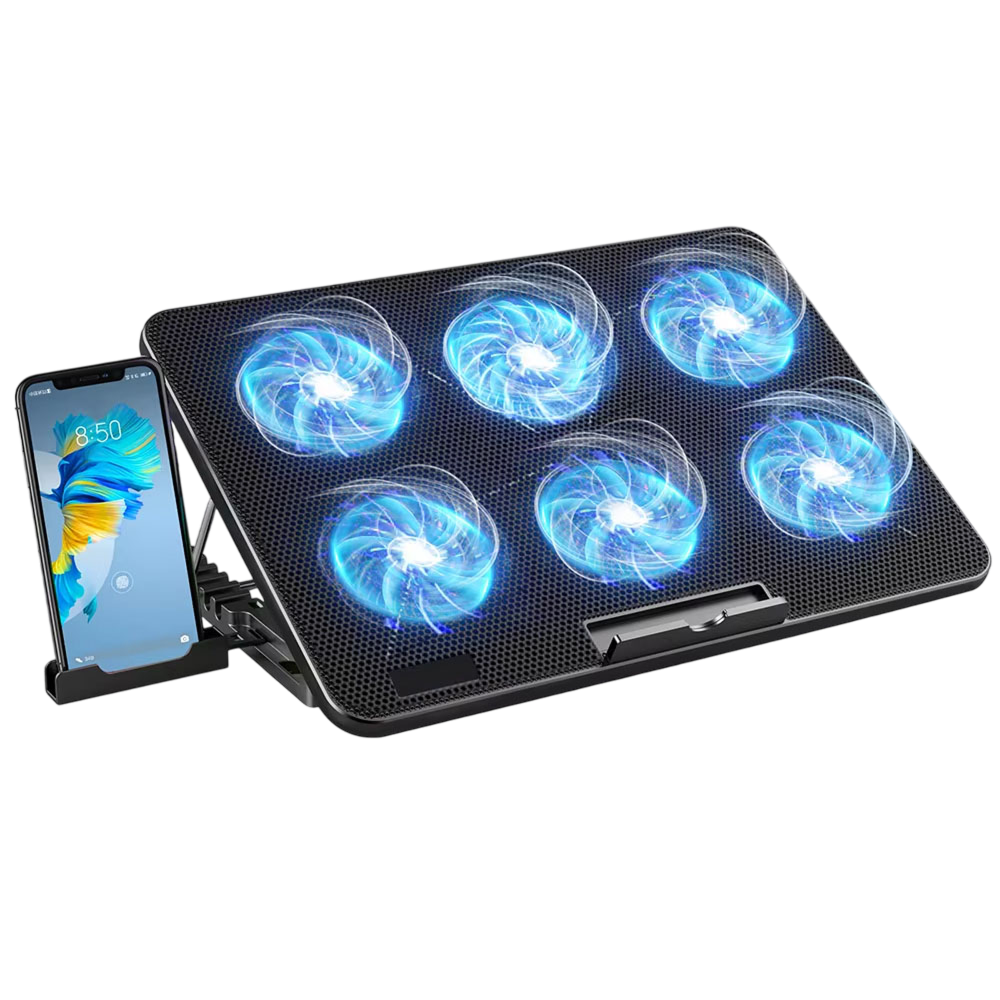
ChillMatrix is a laptop cooling pad built around that idea. It has six fans arranged in independent zones, each with its own speed control, so you can set one side differently from the other depending on where your laptop's processor and graphics hardware sit. The top is a metal mesh with a diamond-groove pattern that leaves the underside of your laptop exposed to the fans.
The adjustable frame holds laptops from 12 inches to 17.3 inches, and seven height settings let you tilt the laptop and line the fan zones up with its vents. It connects by USB, with a pass-through port if you need it. A slide-out phone holder is built into the frame and can be removed.
 In this guideChillMatrix$99.99View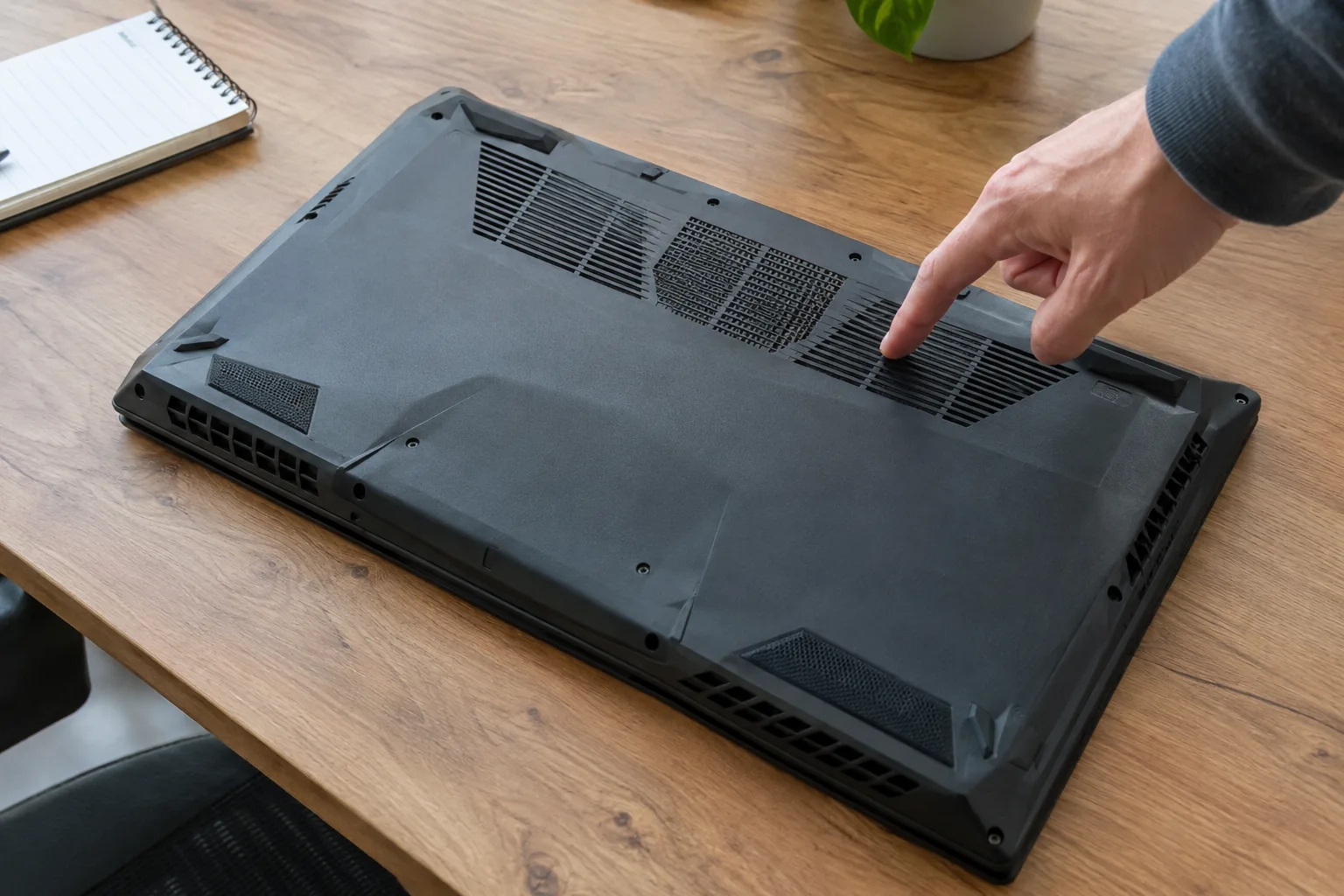
Setup, step by step
- Place the pad on a flat, hard surface. A desk or table keeps the frame steady and leaves its own air path clear.
- Set a height. Choose one of the height settings so the fan zones line up with the grilles you found earlier.
- Seat the laptop. Center it so the intake grilles sit over the fans and the rubber feet rest on the platform.
- Connect the USB cable. Use the pass-through port if you need to keep a port free, then switch the pad on.
- Set each zone. Raise the zones under the grilles and keep the others lower if you want less fan noise.
- Repeat your measurement. Run the same game scene and fill in the second column of your table.
Leave space behind and beside the laptop so its exhaust air can leave. A pad cannot help if hot air has nowhere to go.
Field note
Change one thing at a time. Measure with the pad at one height, then try another height with the same game scene. A laptop's vents decide which angle works, so your numbers beat any general rule.
Can overheating damage a laptop?
Sustained high heat is hard on electronics. Laptops are built to slow themselves down when they get hot, which shows up as stuttering, lower frame rates or a sudden shutdown. Components and batteries generally age more quickly when they run hot for long periods.
If your laptop shuts off on its own, feels very hot to the touch, or the fans stay loud when idle, stop and let it cool. Check the vents for dust and follow the maker's manual. For a persistent problem, ask the manufacturer or a qualified repair technician rather than relying on an accessory.
Common mistakes
- Covering the intake. A flat tray, blanket or cushion can seal the bottom grilles. Always keep the intake open.
- Ignoring dust. A pad cannot fix clogged internal fans. Follow the manual for cleaning, or ask a technician.
- Max speed always. Running every zone high adds noise without telling you whether it helps. Use your measurements to pick settings.
- Expecting a pad to suit every model. Laptops with side or rear intakes get less out of bottom fans.
- Comparing different sessions. A new game scene or room change makes your before-and-after numbers meaningless.
Playing on a bed or sofa
Soft surfaces are a common reason laptops run warm, since bedding can cover bottom vents. If you play away from a desk, put a rigid surface under the laptop first.
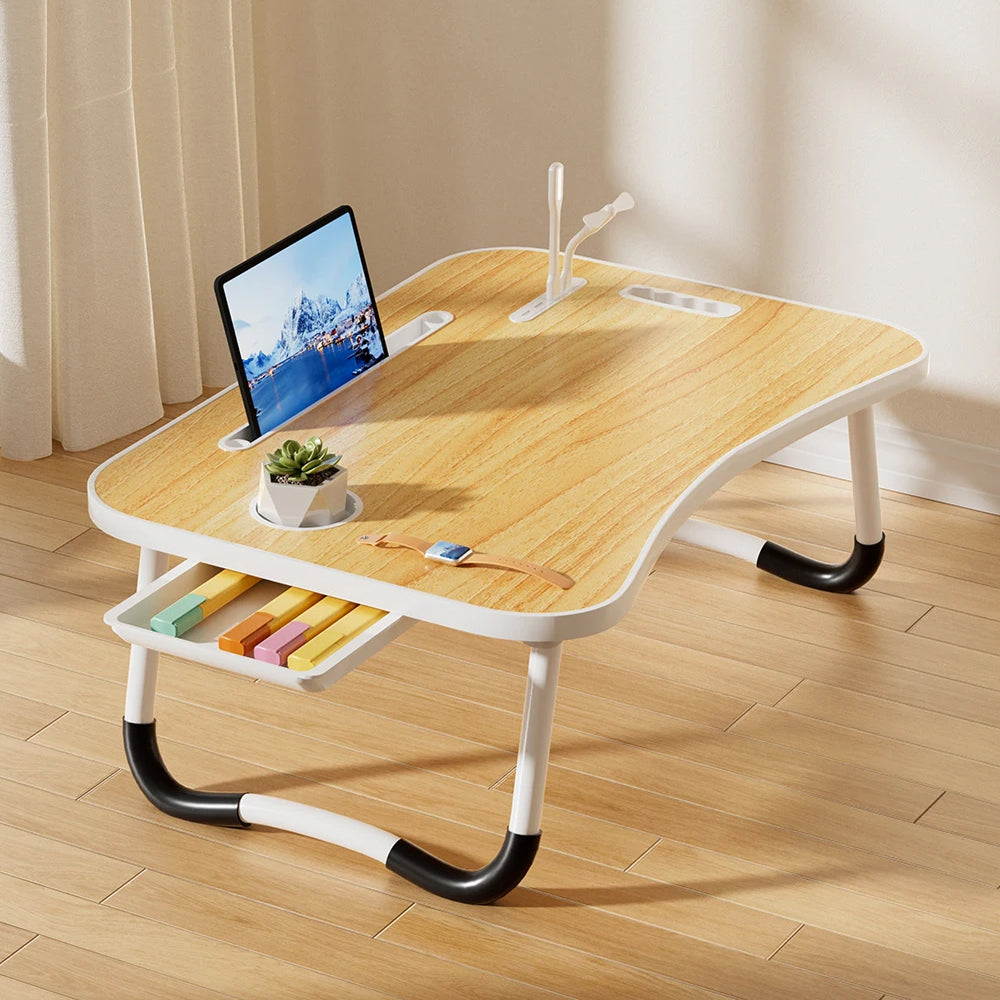
VelaDesk is a foldable laptop table for a bed or sofa. Its raised surface holds the laptop above the bedding, its wide-set legs rest on a mattress or the floor, and it has a weight capacity of 22 lbs. Check that your laptop and any pad together stay within that limit. Side slots hold a phone and a drink, so keep drinks away from the vents and ports.
 In this guideVelaDesk$118.99View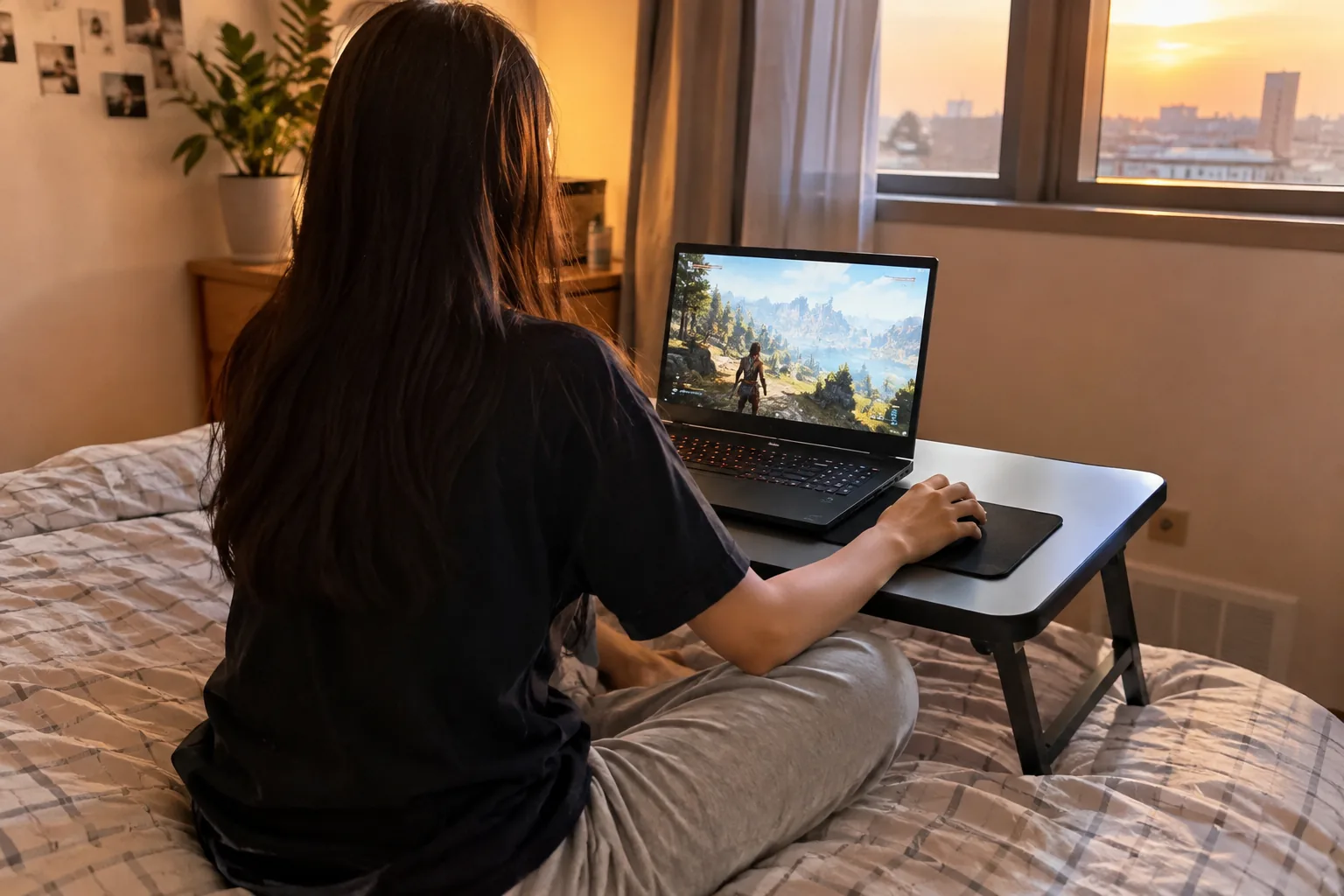
Care checklist and the buying decision
| When | Task |
|---|---|
| Every session | Confirm vents are uncovered and the cable is not pinched |
| Weekly | Wipe the pad's mesh surface with a dry cloth with everything unplugged |
| Monthly | Look at the laptop's grilles for dust and follow the manual for cleaning |
| When settings change | Repeat your before-and-after measurement |
Unplug the pad and the laptop before cleaning. If your desk setup also needs sorting, see our split keyboard layout comparison, and for cables and power, browse Chargers, Docks & Storage.
Deciding whether to buy one
Buy a pad if your laptop has bottom intakes, your measurements show a difference, and you play in long sessions on a desk. Skip it if your intakes are on the sides or rear, or if heat comes from a clogged fan that needs cleaning. The measurement takes one afternoon and answers the question for your specific machine.
Frequently asked questions
Keep reading
 Smart Locks & TrackersSmart Lock for Homes: How It Works and Whether It Fits Your Door8 min read
 Speakers & Sound SystemsRecord Players With Built In Speakers: What to Check Before Buying9 min read
 Digital Photo Frames & DisplaysLarge Picture Frame Digital Guide: Size, Resolution and Placement8 min read