Writing Tablet Guide: E-Ink vs Smart Pens vs LCD Pads
Pick a writing tablet by what happens to your notes: smart pens and e-ink for searchable text, a sensor-surface notebook for audio, an LCD pad for reusable scratch notes.
The Folio & Current Team
October 26, 2026 · 7 min read · Updated October 28, 2026
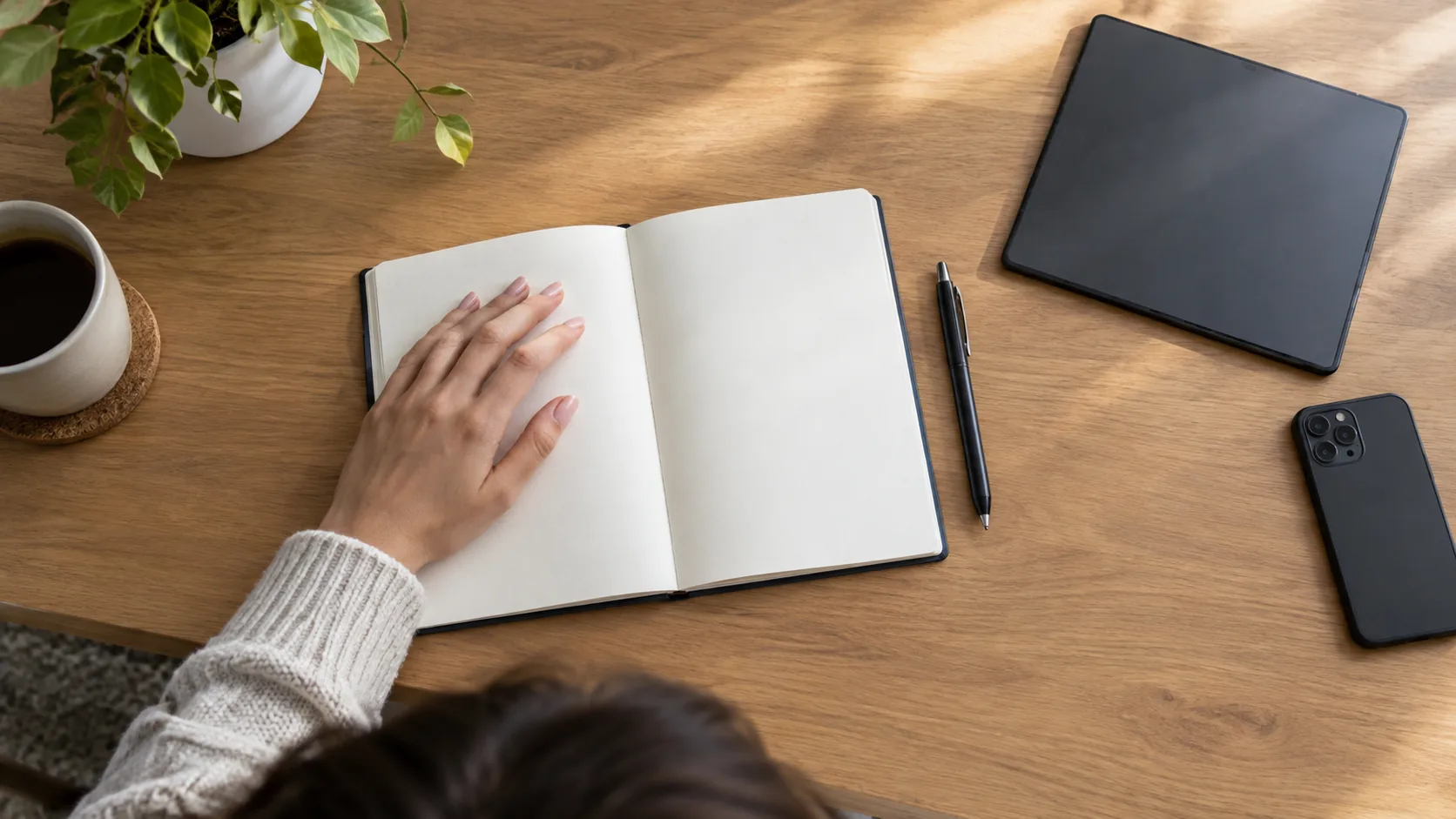
A writing tablet is any device that captures handwriting: an e-ink notebook, a smart pen with paper, a notebook placed on a sensor surface, or an LCD pad. Pick by how you take notes. If you want handwriting converted to text, look at smart pens and e-ink screens; if you want a reusable scratch pad with no account, an LCD pad fits.
This guide compares the four types by feel, power, syncing and handwriting-to-text, then walks through a short decision and setup checklist. Spec sheets differ between models, so use the table as a map and confirm details on each product page.
Writing tablet types compared
The table describes what each type is and how it behaves. Battery details are listed as what to check, because charge time and run time depend on the model and how you use it.
| Type | Feel when writing | Power | Syncing | Handwriting to text |
|---|---|---|---|---|
| E-ink notebook | Stylus on a paper-textured screen | Rechargeable; check the spec sheet | Usually through a companion app or cloud account | Often built in; check the model |
| Smart pen with dot-pattern notebook | Real pen on real paper | Pen charges over USB; see the product page | Bluetooth to an app; stores notes offline | Yes, in the InkVerse app |
| Notebook on a sensor surface | Smart pen on an A5 paper notebook | USB-C charging cable included | Bluetooth 5.0 to an app; 50 pages stored offline | Not listed; search, tags and PDF export |
| LCD pad | Stylus on a pressure-sensitive screen | CR2025 coin cell; no charging cable | None; no app or account needed | No; the note stays on the screen |
Each row suits a different habit, which the next section turns into a decision.
Choose a writing tablet by how you take notes
Start with what happens to your notes after you write them. Answer these in order and the type usually settles itself.
- Do you need notes searchable on a phone or computer? If yes, rule out the LCD pad and look at the other three.
- Do you want to keep writing on paper? A smart pen or a notebook-on-surface system keeps the page in your hand.
- Do you want typed text from your handwriting? Check for built-in handwriting recognition before you buy.
- Is the note disposable? Shopping lists, quick sums and sketches fit a reusable LCD screen.
- Do you record lectures or meetings? Look for audio linked to your writing.
If you switch between uses, the question is which one you do most. A student who records lectures has different needs than someone who jots reminders by a phone.
Writing tablet for students and adults
Students tend to need searchable notes by class and date, plus export to PDF for sharing. Adults taking meeting notes often care about folders and tags, and about getting files out to email or cloud storage. Both groups should check how many pages the device stores offline, since that decides whether you can leave your phone behind.
E-ink notebooks: a screen that mimics paper
An e-ink notebook is a dedicated tablet with a paper-textured display and a stylus. There is no email or social media on it, which is the draw for some writers. Some models include handwriting conversion, templates, and a way to send pages to the cloud.
When you compare models, check four things: whether the stylus is included, whether it needs charging, how the device exports files, and whether handwriting conversion needs a subscription. Those details vary, and they matter more than screen resolution on a spec sheet. We do not list an e-ink model in this guide, so use the same checklist on whichever one you consider.
A general-purpose tablet with a stylus can also work as a writing pad. It runs note apps and handles drawing, but it also runs everything else, so the writing experience depends on the app and the screen protector you choose.

Smart pens: write on paper, get digital notes
A smart pen reads a printed dot pattern on special paper and records each stroke. The page you write on is the one you keep, and the digital copy follows through an app. This suits people who like pen weight and paper grain and want search without retyping.
InkVerse Smart Pen works with the companion notebook that comes in the box. The pen stores notes on itself while offline and transfers them once it reconnects to the app over Bluetooth. In the app, handwriting recognition converts written pages into digital text, and you can search by keyword or date or replay a page stroke by stroke.
Pages export as DOC, PDF or JPG files, which you can open in note-taking and cloud storage apps you already use. The box also includes a USB charging cable and a travel box.
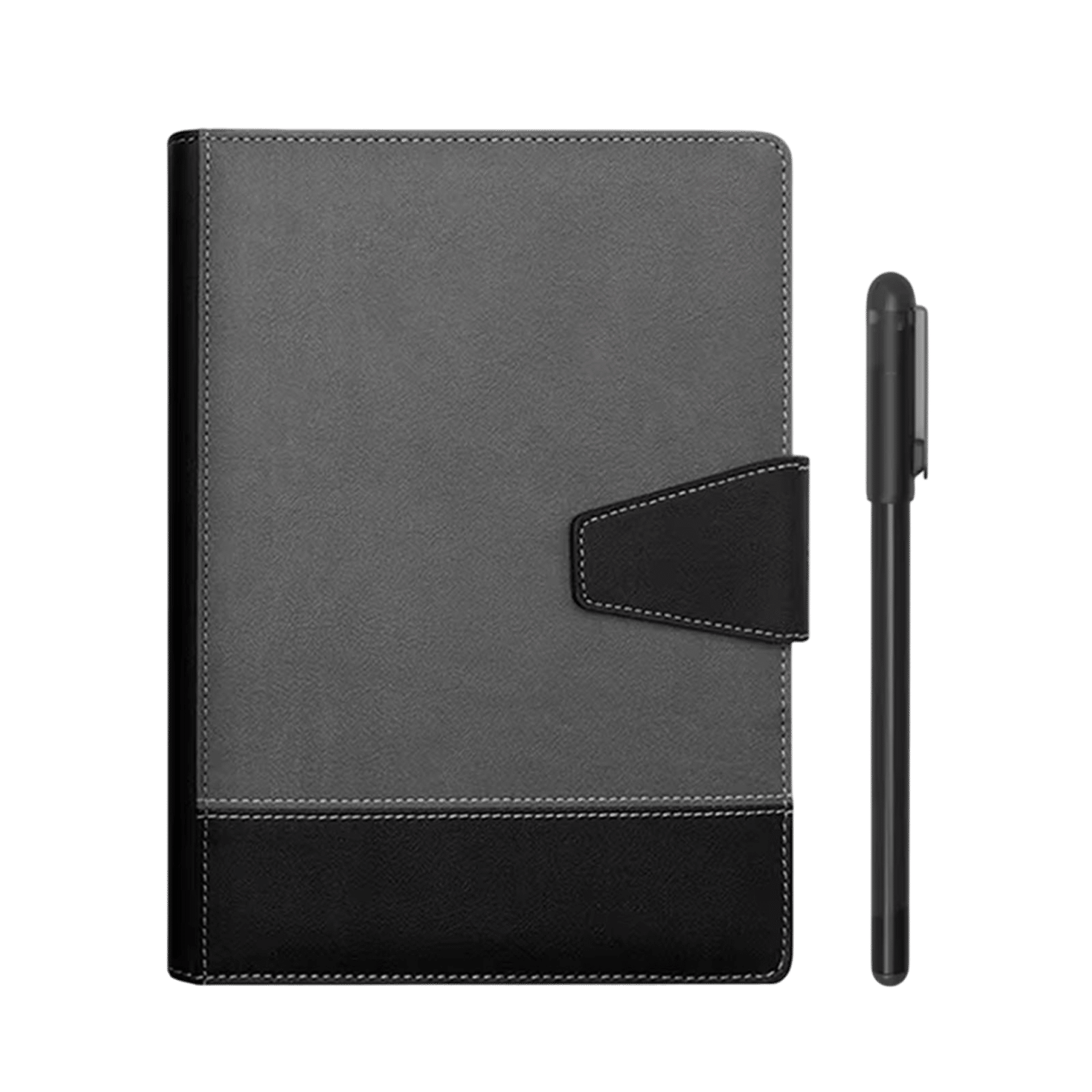 In this guideInkVerse Smart Pen$239.99View
Notebook on a sensor surface: paper plus audio
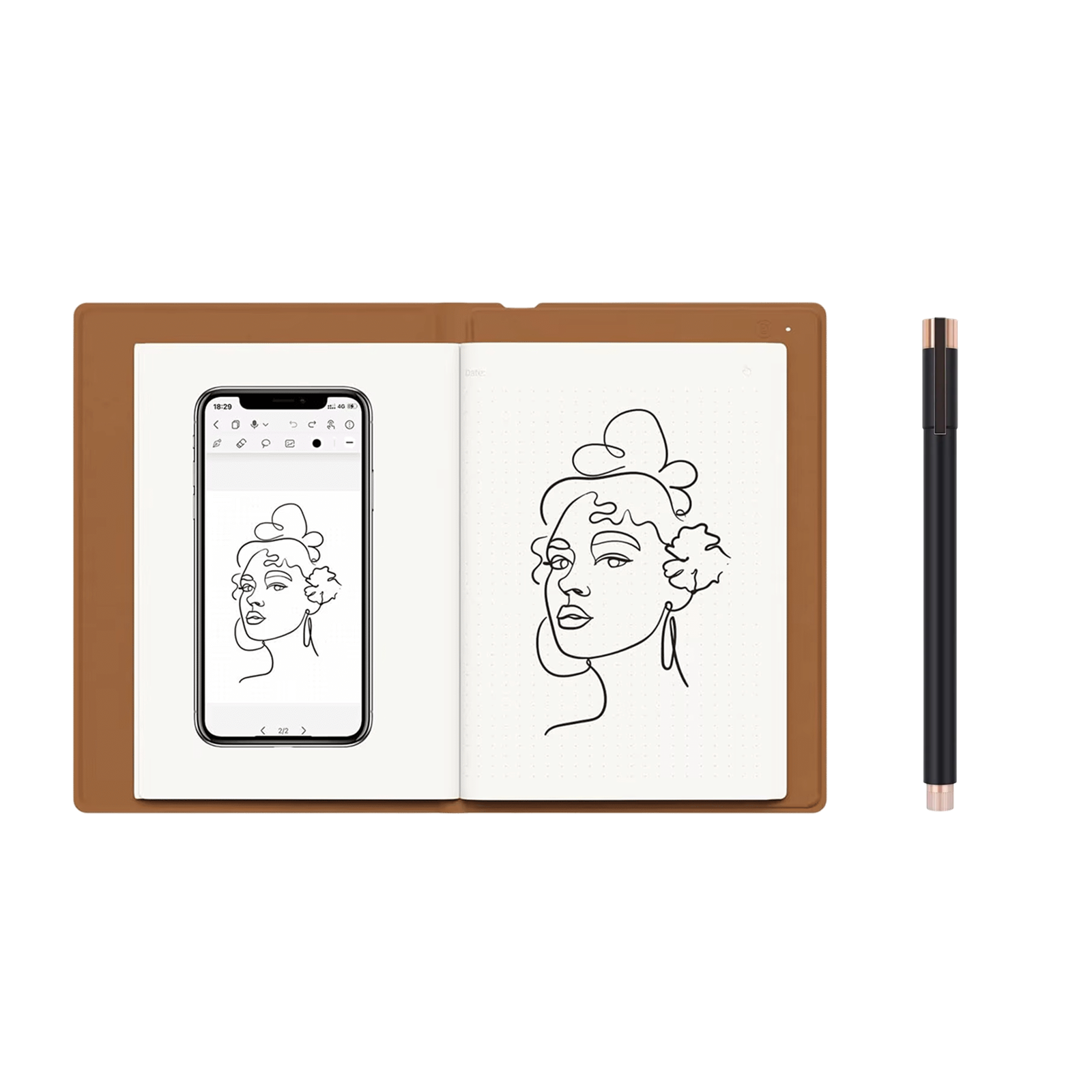
This type puts a standard notebook on a base that senses the pen. InkSync Pro takes an A5 notebook under 10mm thick on its textured surface. You write with the included smart pen, which accepts ballpoint or plastic nibs, and strokes transfer over Bluetooth 5.0 to the companion app.
Two features suit lectures and meetings. The unit stores 50 pages offline and syncs them when a phone or other device is available again. It also records timestamped audio, linked to your handwriting, so tapping a line in the app plays the recording from that point.
The app offers search, folders, tags, highlighters, erasers and selection tools. Notes save as vector files or export as PDFs for email, messaging or cloud upload. The box includes an A5 notepad, a surface cover, spare nibs (three ballpoint, three plastic), a nib replacement clip and a 1m (about 3 ft) USB-C cable.
 In this guideInkSync Pro$239.99View
Field note
Before a lecture or meeting, pair your device, check that the pen has a spare nib in reach, and test one line of writing against the audio so you know the link works.
LCD pads: reusable and app-free
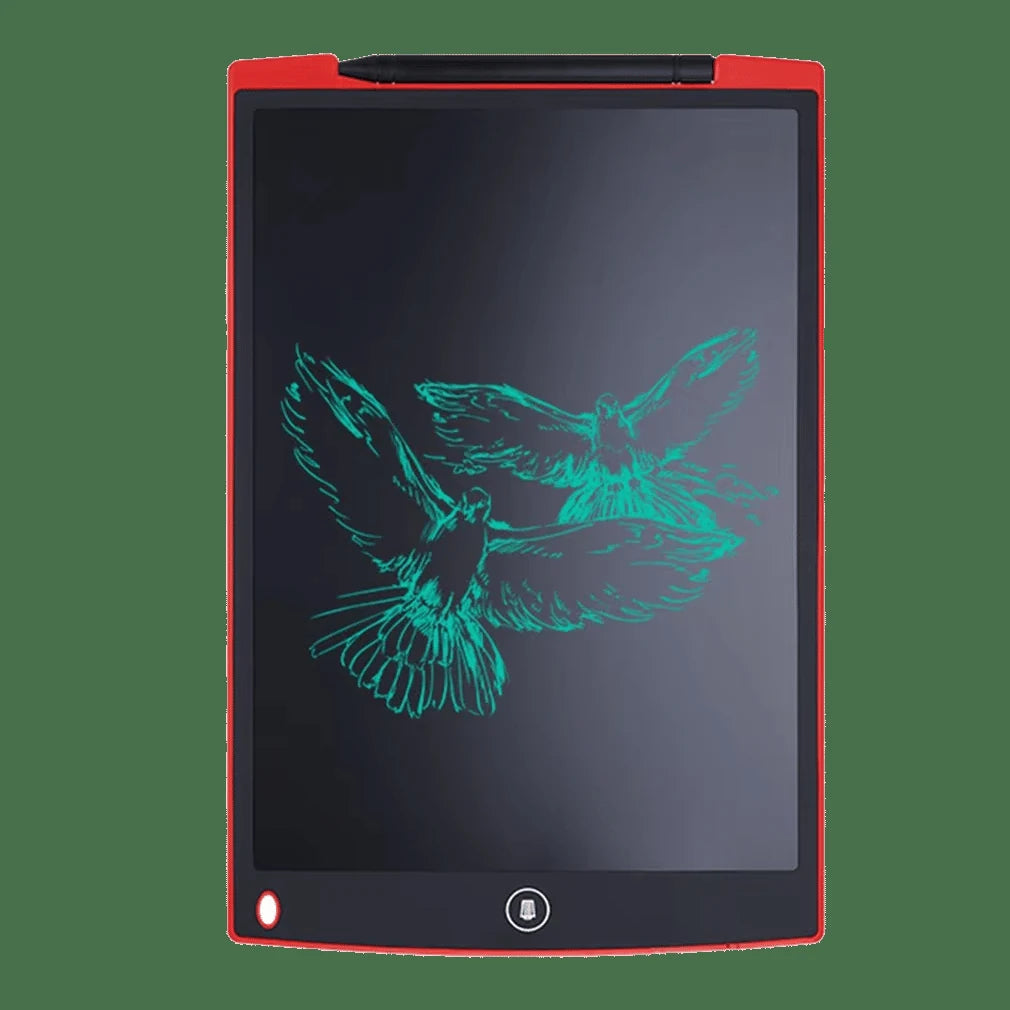
An LCD pad is the plainest option. InkSlate has a pressure-sensitive screen in an ABS shell. You write with the stylus pen, and the pressure-sensitive screen shows strokes as you write. No app or account is needed.
A lock button guards a note from accidental erasing, and one tap clears the screen to a blank page. That makes it a fit for lists, sketches, math scratch work and messages left on a counter. It does not sync, so anything you want to keep needs another route, such as a photo with your phone or copying it onto paper.
The pad is slim enough to fit in a bag next to a laptop. The box holds the stylus pen and a user manual. For more sketching-focused hardware, browse the digital notebooks and drawing tablets collection.
 In this guideInkSlate$119.99View
Screen size, features and a setup checklist
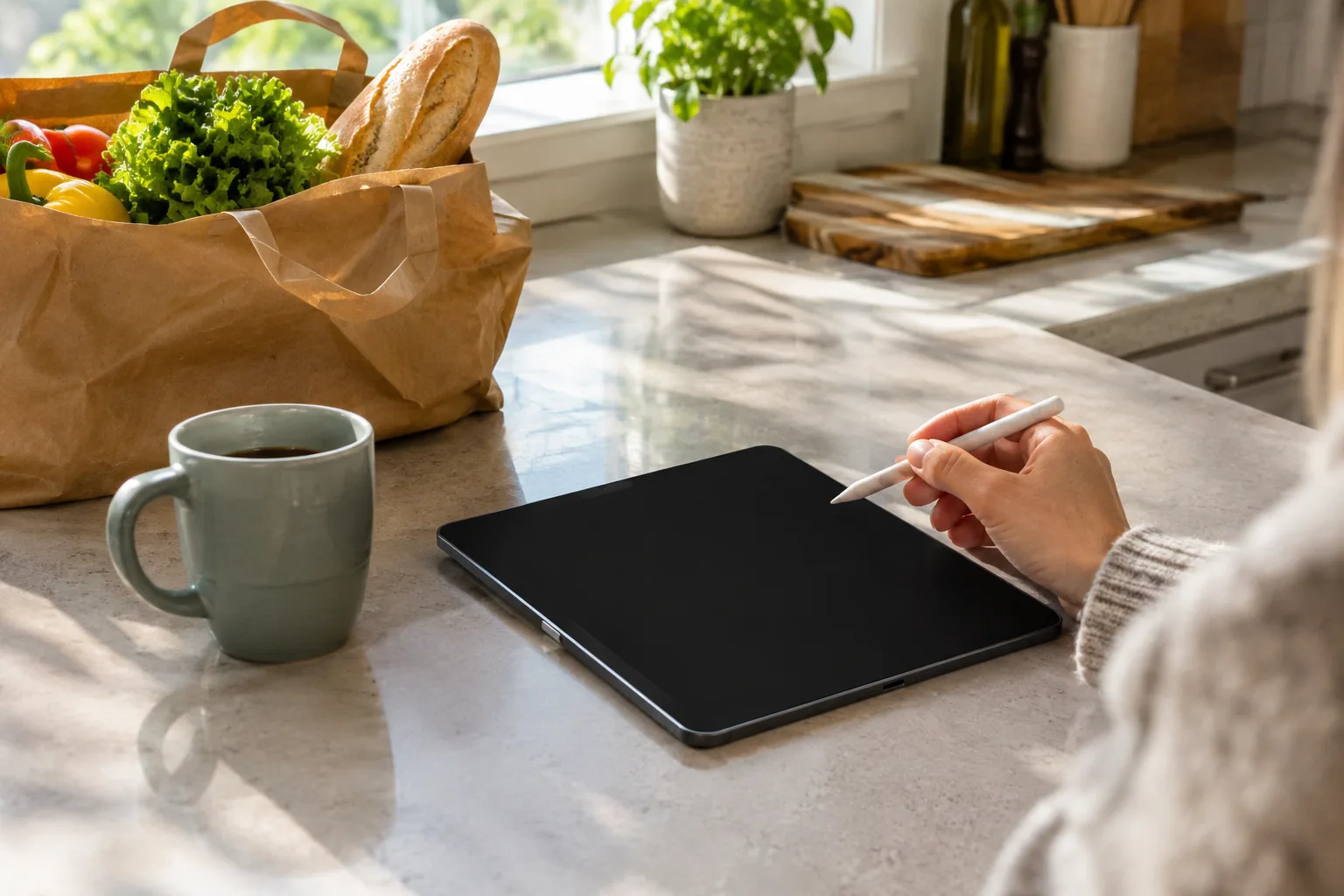
For a pad or tablet, screen size sets how much you can write before you clear or turn the page. A pad-sized screen gives an area for notes, sketches and lists. Larger screens give room for diagrams but are harder to fit in a bag. For paper-based systems, the notebook size sets the area; A5 is common for desk work.
Features worth checking
- Stylus included, and whether it needs charging
- Offline storage and what happens when it fills
- Export formats such as PDF, DOC or JPG
- Search by keyword, date, folder or tag
- Handwriting-to-text built in, or not
- Charging cable type and what is in the box
First-day setup
- Charge the device with the supplied cable, if there is one, and read the manual.
- Install the companion app, if the device uses one, and pair over Bluetooth.
- Write a test page and confirm it appears in the app.
- Create folders or tags before the notes pile up.
- Export one page as a PDF to confirm sharing works.
Follow the manual for charging, and use only the cable that comes with the device.
Common mistakes when choosing a writing tablet
- Buying for features you will not use, such as drawing tools when you only write.
- Skipping the sync question. A pad with no sync is fine for lists but frustrating for coursework.
- Ignoring notebook format. Systems that need a specific notebook or paper depend on it for every page you write.
- Assuming every device converts handwriting. Check the app, not just the pen.
- Forgetting backups. Export important pages to a file and keep a copy in cloud storage or on an external drive; our 1TB external SSD guide covers what to look for in one.
If you also plan to sketch, our drawing tablet beginner's guide covers pen setup and practice habits.
Care routine
Keep spare nibs and replace a worn one when the pen drags. Put the cover on any textured surface when you are not using it. Wipe screens with a dry, soft cloth, and unplug before cleaning.