1TB External SSD Drive: How to Pick the Right One
Choose a 1TB external SSD drive by interface (USB 3.2 Gen2 or higher), matching port and cable, a rigid build, and the right file system. A formatting checklist is included.
The Folio & Current Team
October 22, 2026 · 9 min read · Updated October 28, 2026
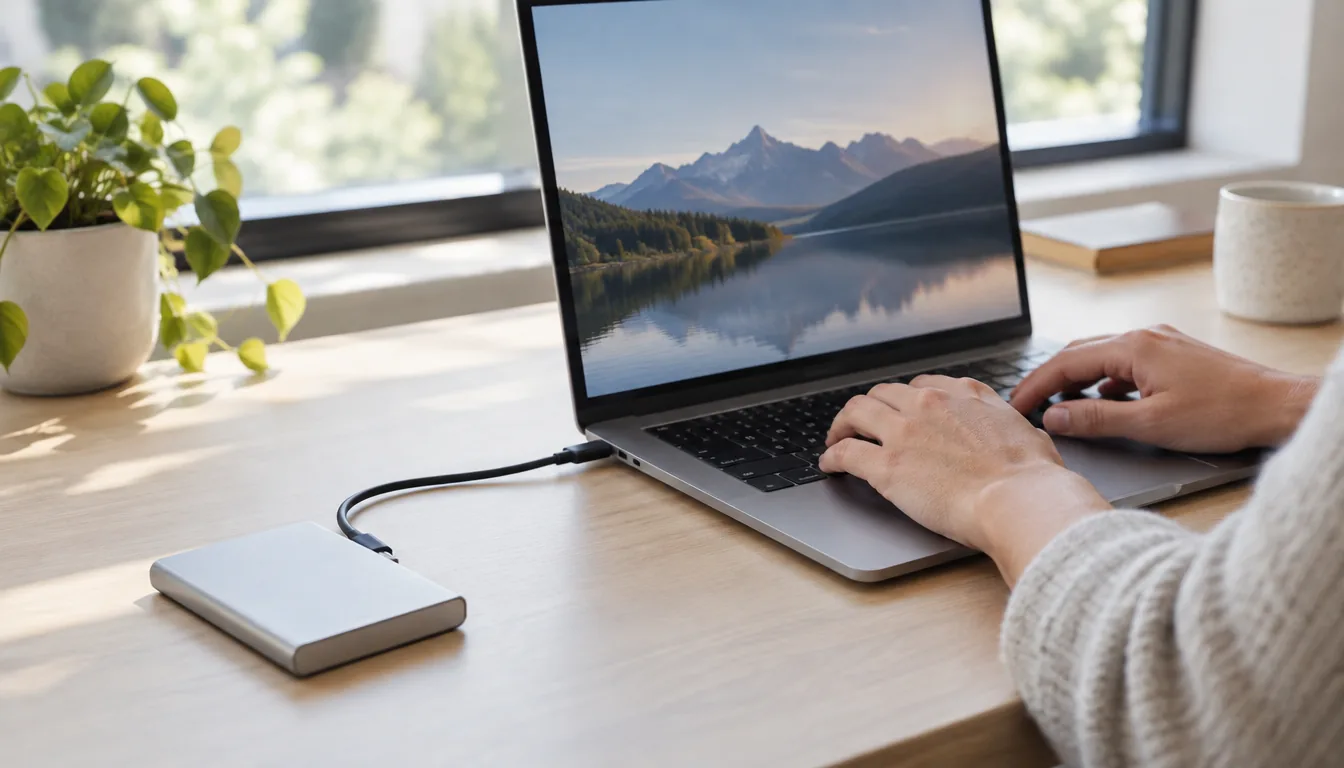
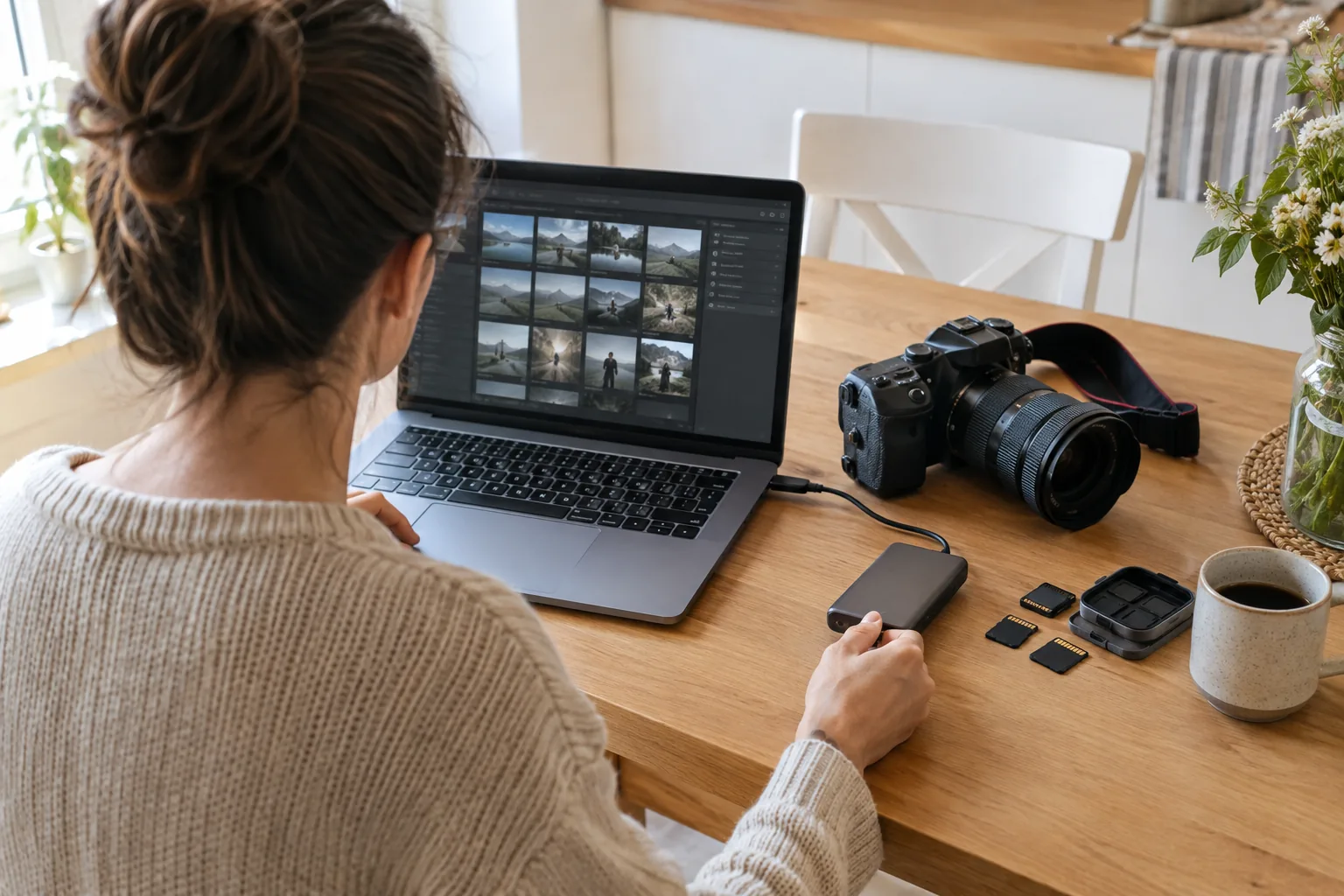
A 1TB external SSD drive suits a working set of files: a photo library, a few video projects, or a laptop backup. Pick it by four things: the interface (USB 3.2 Gen2 or higher), the port and cable on your device, the build, and the file system you format it with. This guide covers each in order, then gives a first-use checklist.
Capacity is the simple part. What decides how the drive behaves day to day is the link between drive and device, and whether the cable and port match.
What a 1TB external SSD drive is good for
One terabyte is a middle point. It holds a large photo catalog, a set of game installs, or several 4K video projects, with room left for a system backup of a small laptop. If you shoot a lot of video or keep full-resolution archives, a 2TB or 4TB drive leaves more room, but the other checks below apply at any size.
An external SSD stores data on flash memory, so there are no spinning platters and no moving parts. That is the main difference from an external hard drive, which uses a motor and disks. Solid-state drives suit bags, desks and travel for that reason.
SSD or hard drive for external storage
- Choose an SSD when the drive travels, when you open large files directly from it, or when you want a small, light case.
- Choose an external hard drive when you want a lot of capacity for archives that stay on a shelf.
- Choose by use: working files and mobile use point to a portable SSD, cold storage points to hard drives.
You may also see an external hard drive with SSD parts listed, which means a mixed design. Read the listing to see what kind of storage does the main work, and check the interface in the same way.
Interface speeds: what the label means
The interface sets the ceiling for transfer speeds. The drive, the cable and the port each need to support it, or the link drops to the lowest of the three. The USB naming is confusing, so match by the Gbps figure rather than the marketing name.
| Interface | Link rate | Connector | What to know |
|---|---|---|---|
| USB 3.2 Gen1 (older name USB 3.0) | 5 Gbps | USB-A or USB-C | Suits documents and light backups. |
| USB 3.2 Gen2 | 10 Gbps | USB-A or USB-C | A sensible floor for a portable SSD that holds large files. |
| USB 3.2 Gen2x2 | 20 Gbps | USB-C only | Needs a port that supports Gen2x2. |
| USB4 and similar 40 Gbps USB-C standards | 40 Gbps | USB-C only | Needs a matching port and cable, and the drive must support it too. |
These are link rates, not what you see while copying. Real read and write speeds depend on the drive's controller and memory, the file type and the device. A folder of thousands of small files behaves differently from a single large video file.
Read speeds versus write speeds
Sequential read matters when you open or play back large files from the drive. Sequential write matters when you offload camera cards or save a backup. When a spec sheet lists both, compare like with like, and remember that sustained writes can differ from short bursts.
Listings sometimes quote the highest figure the drive reaches in ideal conditions. Read it as a ceiling set by the interface, and check the interface level first.
Match the cable and port before you buy
This step is where mismatches happen. A drive with a USB-C connector reaches a USB-A port only through an adapter or a cable with a USB-A end, and a cable built only for charging may not carry data at the rate the drive supports.
| Your device | Port to look for | Check |
|---|---|---|
| Recent laptop | USB-C, sometimes marked with a data symbol | Confirm in the specs that it supports USB 3.2 Gen2 or higher. |
| Older laptop or desktop | USB-A | Use a cable with a USB-A end; the link follows the port's rating. |
| Phone or tablet | USB-C | Check that the device supports USB-C external storage. |
| Game console | USB-A or USB-C, depending on model | Read the console's manual for supported storage. |
Cable habits that matter
Use the cable that comes with the drive when you can. A longer or unknown cable is one reason a drive connects but runs at a lower link rate. Plug the drive straight into the device before you try a hub or dock.
If you also plug in USB-C audio gear, our guide to the Type C audio interface shows how USB-C ports are shared and connected.
Using the drive with a laptop
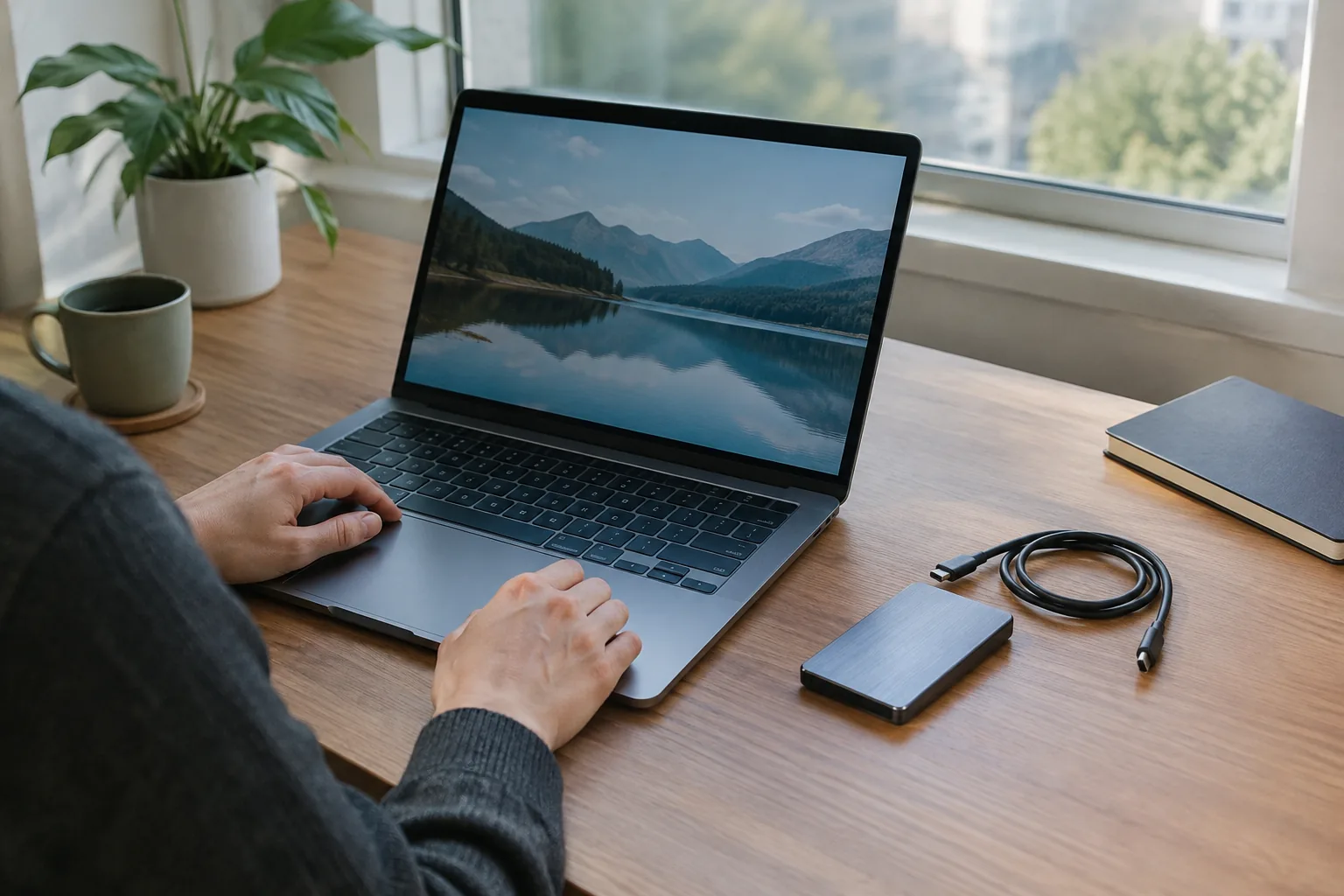
A laptop is where most external drives end up, so check its ports first. Some laptops have several USB-C ports that do not all carry data at the same rate, and one may be meant for charging only. The laptop's specs or manual say which port supports which standard.
- Plug the drive into the port that lists the highest data rate you have.
- Leave the drive attached while a long copy runs, and keep the laptop awake so the transfer is not interrupted by sleep settings.
- Use your system's built-in backup tool to point at the drive, then check that a first backup completes.
- Carry the drive in a sleeve pocket with the cable, away from loose keys and coins.
Build and durability: what to check
Durability starts with the case. A metal housing gives the drive a rigid shell. Plastic cases exist too, so read how the drive is built, not just how it looks.
- Look for solid-state storage with no moving parts, so a knock in a bag does not involve a spinning disk.
- Check the connector type and the cable length that comes with the drive.
- Check the weight and size if the drive lives in a laptop sleeve or pocket.
- Look at rugged descriptions only if you work outdoors, and read exactly what they cover before you rely on them.
No external drive replaces a backup. Keep a second copy of anything you cannot replace, on another drive or in cloud storage.
Heat during long transfers
Flash drives warm up when you copy big batches. Give the drive airflow, keep it out of direct sun, and do not stack it under a hot laptop. If your laptop runs warm during heavy work, our laptop cooling pad guide explains setup.
How long a drive lasts
No fixed lifespan applies to every drive. Flash memory wears with the amount of data written, and handling, heat and the cable all play a part. Eject before unplugging, avoid heat and keep a second copy, since any drive can fail.
Two external SSDs from our shelf
If you are choosing an SSD for external drive use with a laptop, phone or tablet, two options in our range differ mainly in cable and shell. Check each listing for capacity options before ordering, and match the cable to your port using the table above.
VeloxDrive for mixed devices
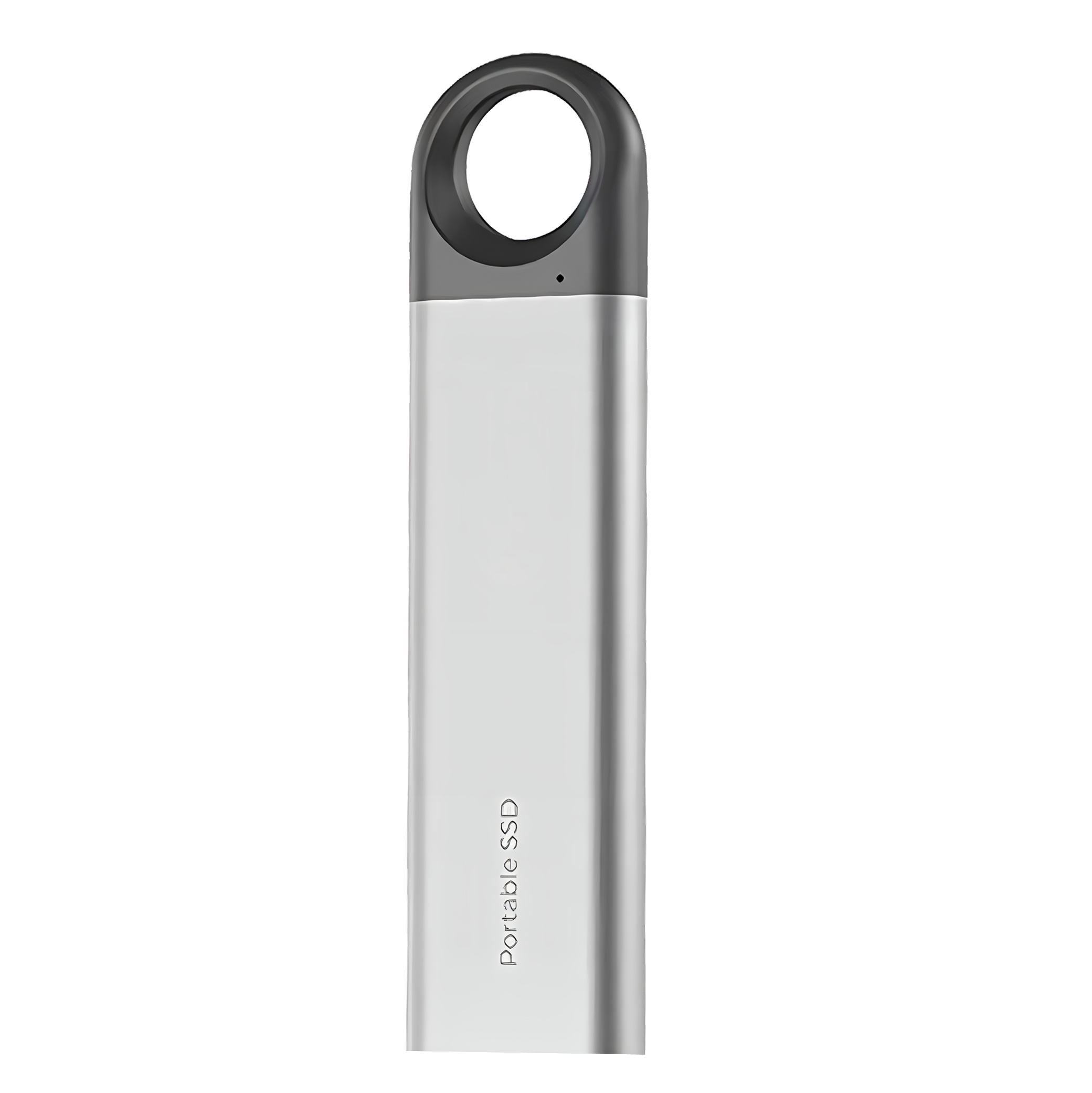
VeloxDrive is an external SSD with a USB 3.2 Gen2 interface and a shell machined from aluminum alloy rather than molded plastic. It includes a 2-in-1 USB cable, which lets you reach different kinds of ports depending on the device. It connects to laptops, desktop computers, phones and tablets, and you move files by drag and drop.
 In this guideVeloxDrive$119.99View
ZenithDrive for pocket carry
ZenithDrive is a portable solid-state drive in a precision-milled aluminum shell with a honeycomb pattern. It weighs 38g, has no moving parts, and connects with the included USB-C cable. It needs no drivers, so you connect it and start copying files from computers and phones that support USB-C external storage.
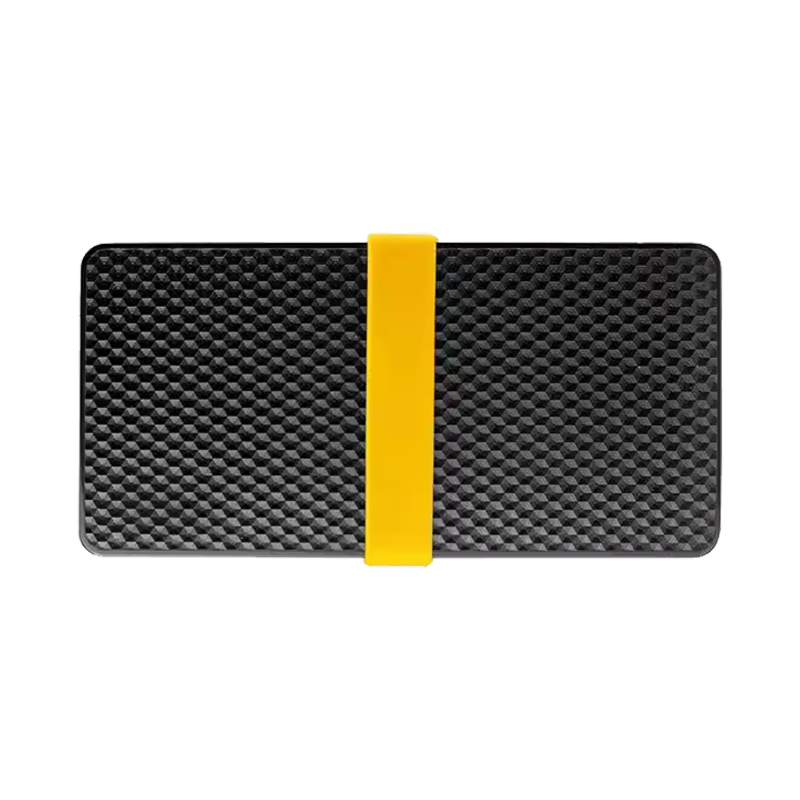 In this guideZenithDrive$99.99View
More drives, docks and cables are in the Chargers, Docks & Storage collection.
Choosing a size: 1TB, 2TB or 4TB
Count what you carry now, then add room for growth. A drive filled to the edge leaves no space for backups or temporary files, and a 1TB external SSD drive is a good fit when the total stays comfortably under that line.
- Add up the folders you want on the drive today.
- Add the size of one full backup of your laptop, if the drive will hold it.
- Leave free space for new projects.
- If the total is close to 1TB, move to 2TB; if it is well below, 1TB is enough.
| Capacity | Suits |
|---|---|
| 1TB | A photo library, a few video projects, a laptop backup |
| 2TB | Larger video archives, or a backup plus working files |
| 4TB | Long-term archives and several projects on one drive |
Why price differs between drives
Listings for the same capacity can sit at different price points, and the reasons are mostly visible in the specs. Check these before you compare.
- Capacity: a larger drive carries more flash memory, so 2TB and 4TB listings sit apart from 1TB.
- Interface level: a drive built for a higher link rate needs a controller and design to match.
- Case material: a milled metal shell is made differently from a molded plastic one.
- What is in the box: an included cable, or a cable with two connector types, is part of the package.
- Timing: flash memory supply shifts over time, so the same drive can be listed differently from one month to the next.
Compare listings at the same capacity and interface level, and check the current price on each product page.
First-use formatting checklist
Some drives arrive ready to use, but check the file system before you copy anything. The right choice depends on which computers will read the drive.
| File system | Works with | Use it when |
|---|---|---|
| exFAT | Most modern computers, and many consoles, cameras and TVs | You move the drive between different systems. |
| NTFS | PC operating systems; other systems may read it only with extra software | You use the drive on one PC only. |
| The file system native to your computer | That computer's own operating system | You use the drive on one computer only. |
Steps
- Connect the drive with the cable from the box, directly to the port and not through a hub.
- Confirm your system lists the drive and shows the expected capacity. Formatted capacity reads a bit lower than the label.
- Copy off anything already on the drive that you want to keep. Formatting erases it.
- Open your system's disk utility and format the drive with the file system from the table. Give it a clear name.
- Copy a sample folder, open a few files from the drive, and check that they work.
- Eject through your device's menu before unplugging.
- Keep the quick start guide, and follow the manual for your device.
For a phone or tablet, check what file systems the device reads before you format, since exFAT is the usual meeting point between systems.
Field note
Label the drive and the cable together. A cable that matches the drive's interface is the one to keep with it, so a charge-only cable does not get swapped in by mistake.
Common mistakes and a care routine
- Pulling the cable without ejecting, which can corrupt files that were still being written.
- Using a charge-only or unknown cable and wondering why the link rate is low.
- Choosing a single-system file system, then trying to read the drive on a different system.
- Keeping the drive as the only copy of important files.
- Filling the drive completely, which leaves no space for the system to work.
A simple care schedule
- After each session: eject through the menu, then unplug and coil the cable loosely.
- Each month: open a few files from the drive and check that the drive still shows its full capacity.
- Each time you add important work: update your second copy.
- When the drive is full: move finished projects to archive storage, such as an external hard drive, and keep the SSD for current work.
Pick the interface, match the port and cable, choose a rigid build, format for the systems you use, and keep a second copy. That covers what matters for a 1TB external SSD drive used for backup and everyday transfers.