What Is Cloud Gaming and Is Your Connection Ready for It?
Cloud gaming runs the game on a remote server and streams video to your screen while your inputs travel back. Here is how it works, what it uses in data, and how to check your setup.
The Folio & Current Team
November 9, 2026 · 7 min read
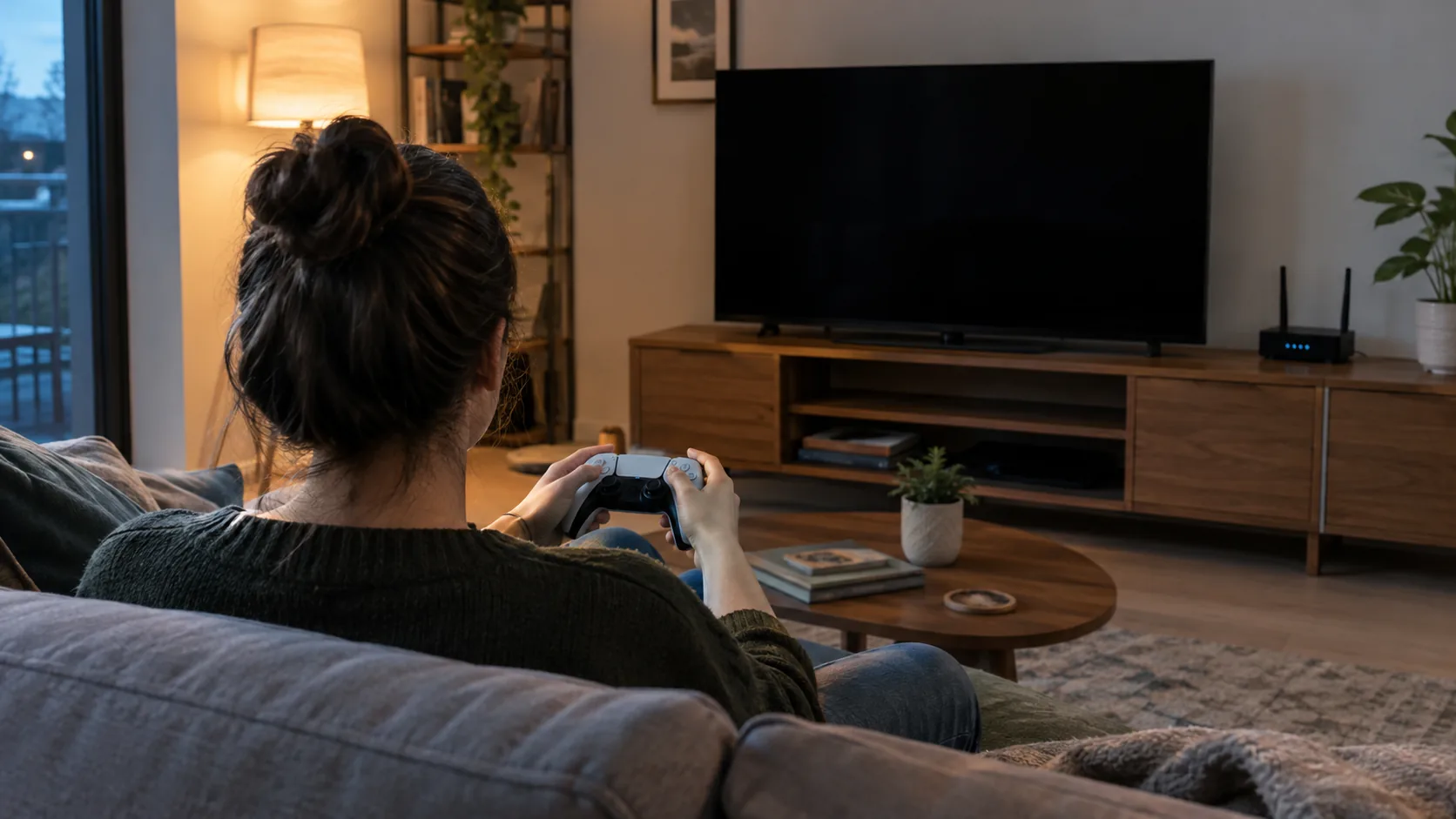
What is cloud gaming? It is a way to play video games that run on a remote server instead of on your device: the server draws the game, sends it to you as a video stream, and your button presses travel back over the internet. Because your screen only plays the video, a phone, tablet, laptop or smart TV with a controller can be enough hardware, as long as your connection is steady.
This guide explains how the system works, how much data per hour a stream can use, how to check your connection, and when a handheld or controller is all you need to buy.
What is cloud gaming and how does it work?
Think of it as a video call where you control the other side. A powerful computer in a data center runs the game. It captures each frame, compresses it into video and sends it to your device. Your device decodes the video, shows it, and sends back every stick movement and button press.
That round trip repeats many times every second. Two things decide how a session plays: bandwidth, which is how much video your connection can carry, and latency, which is how long a signal takes to reach the server and return.
Cloud gaming vs. a game subscription
The two are often bundled, but they are different things. A game subscription gives you access to a catalog of titles. Streaming is the delivery method. Some services offer both: you can download a title to a console or PC, or stream the same title to a device that cannot run it. Check what your plan includes before you sign up.
What you need to start
- An account with a cloud gaming platform or streaming service (some tiers are paid, see below).
- A screen: smartphone, tablet, laptop, PC, or a TV with an app or a connected streaming device.
- A controller. Some games offer on-screen touch controls on mobile devices, while a physical controller gives you sticks and triggers under your fingers.
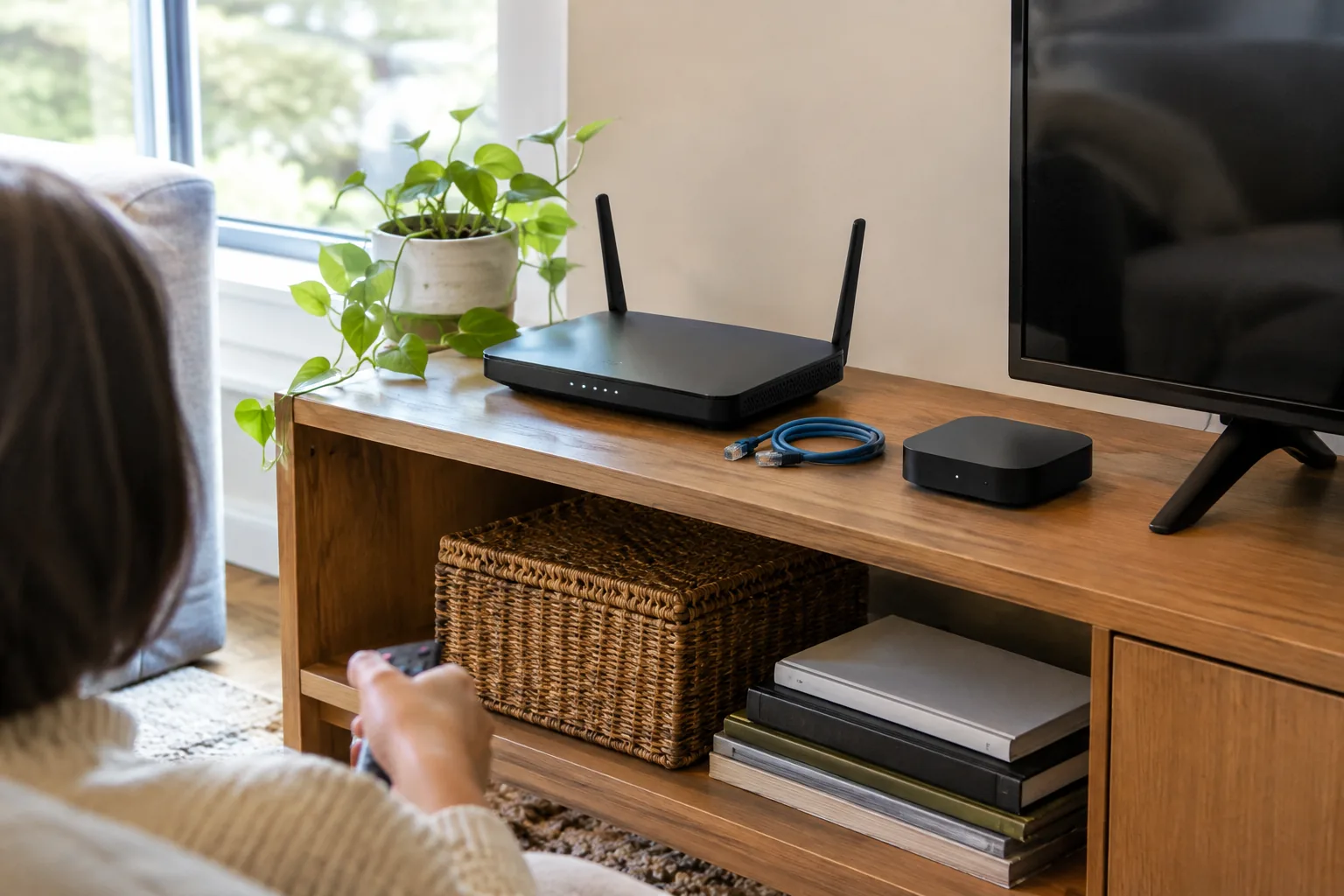
- A stable home network, with the device on a cable or close to the router. If the cable has to reach a TV, how to hide TV wires covers wall, stand and wireless routing options.
You do not need a graphics card or a large game download, since the server handles the heavy work.
Bandwidth and data use: the numbers
Each service lists its own minimum speed and its own video settings, so read the figures below as planning math, not a promise. The conversion is simple: a stream running at 1 Mbps moves about 0.45 GB per hour. Multiply that by the bitrate your service uses.
| Stream bitrate | Typical use | Data per hour |
|---|---|---|
| 5 Mbps | Small phone screen, reduced quality | About 2.25 GB |
| 10 Mbps | Lower-resolution video on a phone or tablet | About 4.5 GB |
| 15 Mbps | Mid-range video | About 6.75 GB |
| 20 Mbps | Full HD video on a TV or monitor | About 9 GB |
| 30 Mbps | Higher-quality video settings | About 13.5 GB |
So when you wonder how many GB an hour of gaming takes, the answer depends on the stream quality: the table gives the math for common bitrates. Playing a downloaded game on a console or handheld uses no stream data while you play, though updates still download.
Watch your data cap
If your internet plan has a monthly data cap, multiply the hourly figure by your weekly hours, then by four. At 9 GB per hour, ten hours of play is about 90 GB. Some services let you lower the video quality in settings, which lowers the bitrate and the data used.
Download speed is not the only number
A plan sold at a high download speed still has to deliver it steadily. Your stream shares the connection with every phone, laptop and TV in the home. Upload speed matters less, because only small control signals go back to the server, but a stable upload path still counts. Consistency across a whole evening matters more than a single peak reading.
Check your connection before you commit
Run through these steps on the device you will actually play on.
- Find the minimum speed the service lists on its support page and note it.
- Run an internet speed test at the time of day you usually play, not only at noon.
- Compare your download speed with the table above. Leave room for other people streaming at home.
- Look at the ping or latency number in the test. A low number suits reaction-heavy games. Test on a cable connection and on wifi if you can, and compare the two readings.
- If you use wifi, test in the room where you will play. If your router offers a 5 GHz band, try that one.
- Pause large downloads and cloud backups on other devices while you play.
Some services also run a built-in network check when you start a stream, so use it as a second opinion.
Field note
Try a free trial or a free tier first, if the service offers one. A stream that stutters on your wifi in the living room tells you more than any spec number.
The cons of cloud gaming
Before you decide whether cloud gaming suits you, weigh these limits.
- Latency: the signal travels to a server and back, so shooters and fighting games can feel less direct than local play.
- Connection dependence: a dropped signal pauses or ends the session, and you cannot play offline.
- Video compression: the picture is compressed video, so fine detail can look softer in busy scenes.
- Data use: as the table shows, streaming for hours adds up on capped plans.
- Catalog: you play what the service offers, and titles can leave the library. You may not own the game files.
- Subscription cost: access is generally tied to an ongoing plan.
None of these rule streaming out. They are the points to weigh against the hardware you would otherwise buy.
Is it free or paid, and which games can you play?
Both exist. Some services offer a free tier with session or queue restrictions, and others sit inside a paid streaming service subscription. Some let you stream games you already own from a store library. Read the plan page for what is included.
As for a specific big open-world title: whether you can stream it depends on each service's current catalog and your account. Search the service's game list before you pay, because catalogs change.
When a handheld or controller is all the hardware you need
If you already own a phone, tablet or laptop, the missing piece is input. A controller can be the only purchase. The IonGrip is a wireless controller with Hall effect magnetic joysticks. It connects over Bluetooth to hybrid handheld consoles, PCs and phones, and it offers analog triggers, button remapping and a 600mAh battery with USB-C charging. If pairing gives you trouble, how to connect Bluetooth devices walks through the steps.
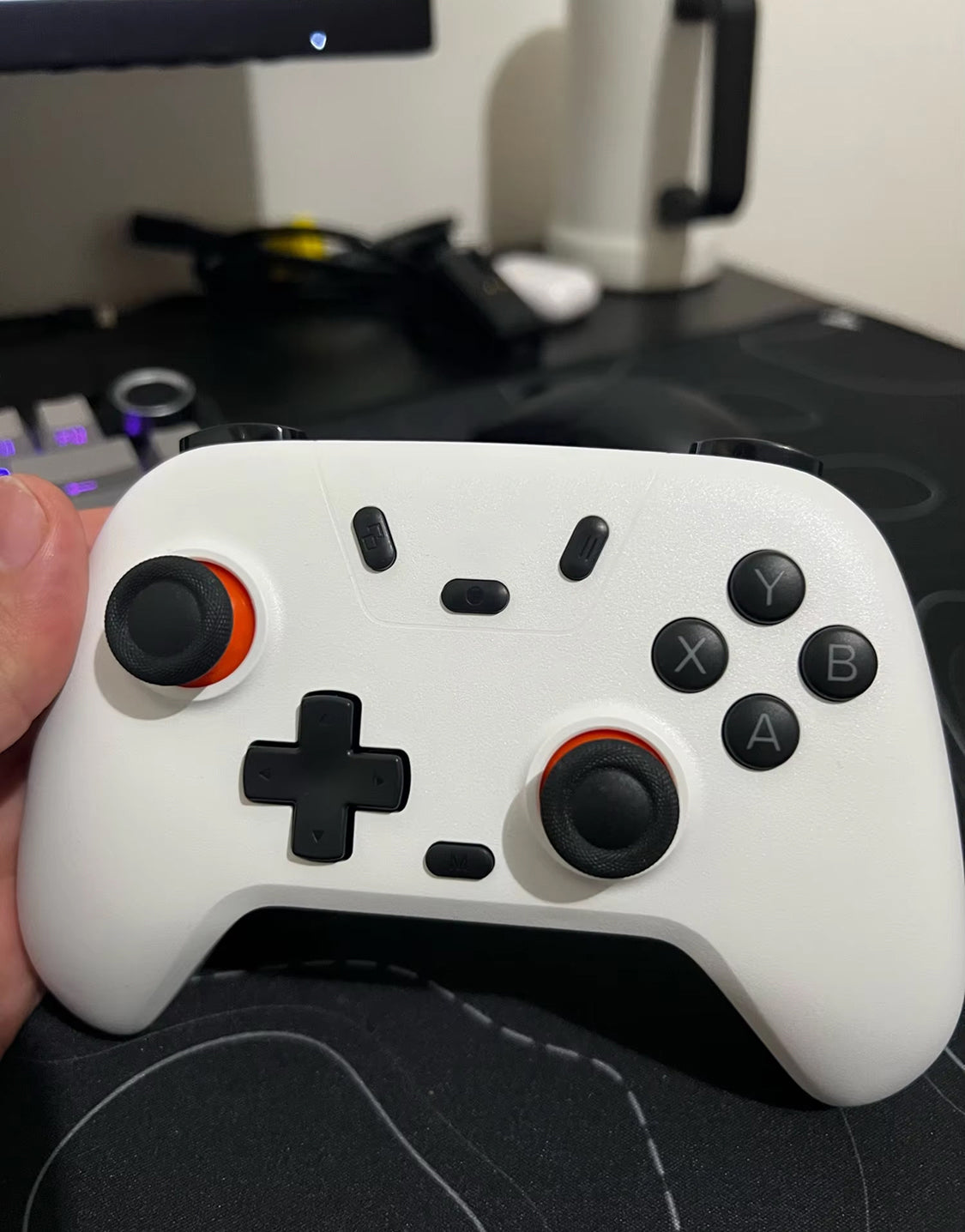 In this guideIonGrip$99.99View
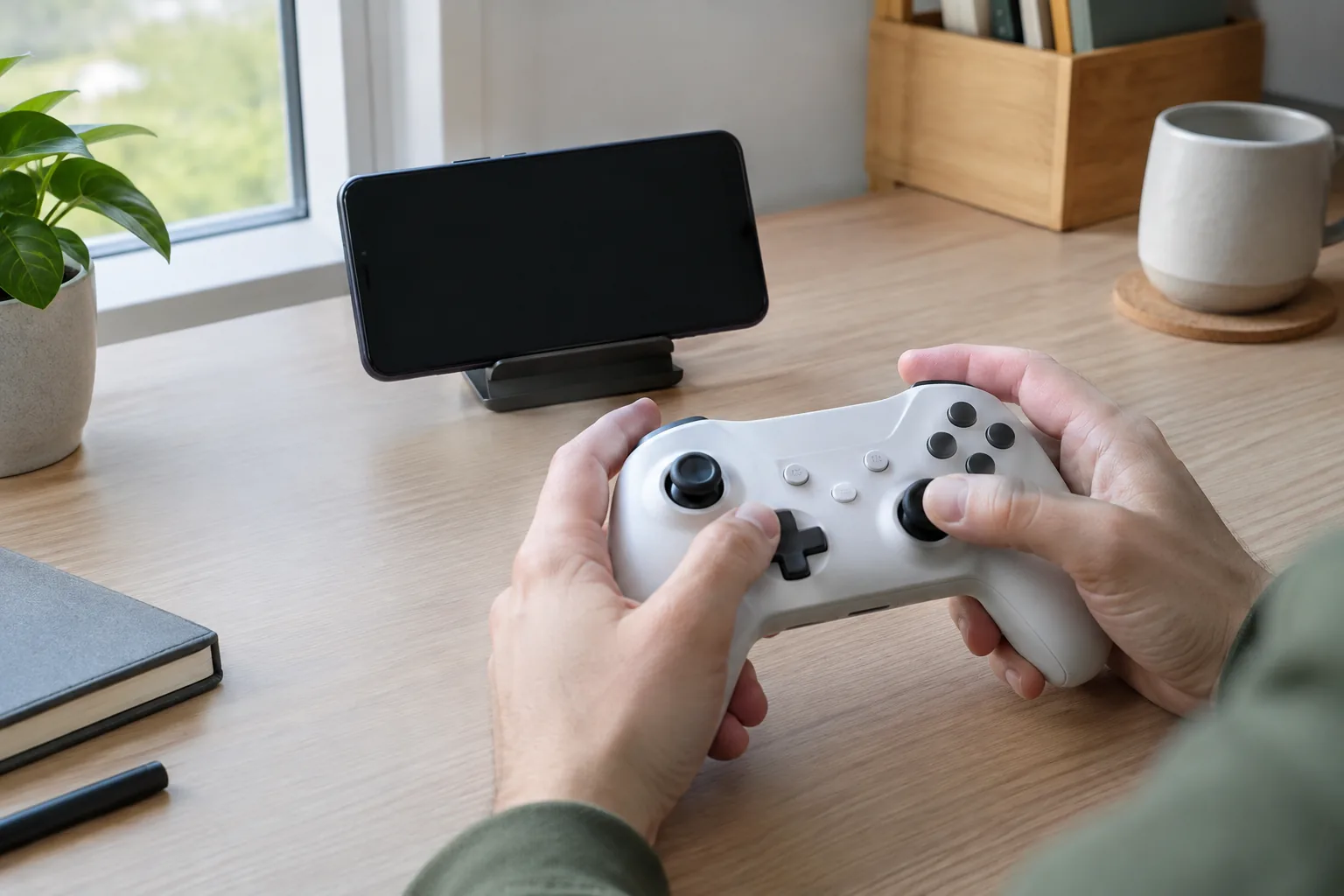
Setting up a controller for streamed play
- Charge the controller over its USB-C cable.
- Put it in pairing mode as the manual describes and pair it with your phone, PC or console over Bluetooth.
- Open the remapping options and set the button layout and triggers for the game.
- Launch the streaming app and confirm the controller works in the service menu.
When streaming is the wrong tool
If your internet is unreliable, you travel where there is no signal, or you want a device that needs no network, local play fits. The PixelDash is a handheld with a 4.5-inch IPS screen (854×480) and a preloaded library of 20000 games. The games are stored on the device, and no wifi connection is needed. It has a 3000mAh built-in rechargeable battery and charges over USB. It is a different approach from streaming, not a cloud gaming device.
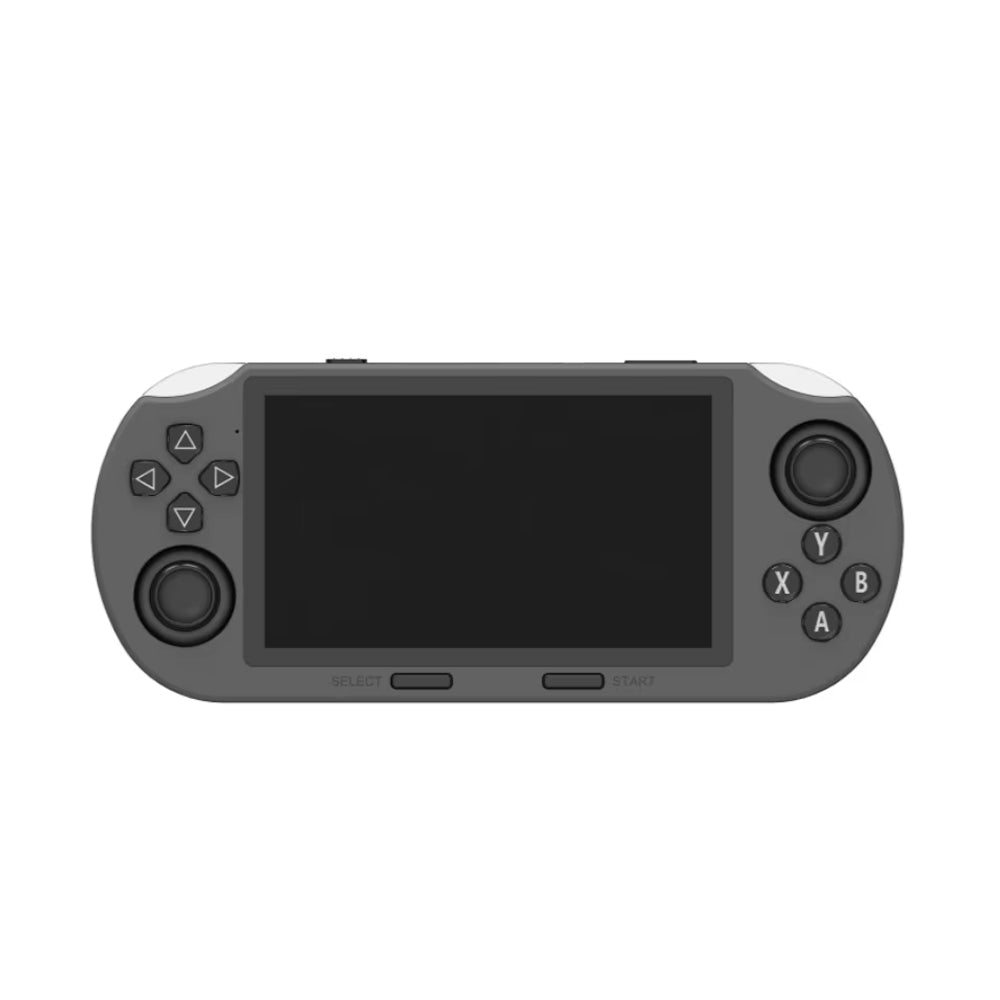 In this guidePixelDash$119.99View
Decision guide and setup checklist
Once you know what cloud gaming is and what it asks of your network, match your situation to the right setup.
| Your situation | What fits |
|---|---|
| Steady home internet, phone or laptop already owned | Streaming service plus a Bluetooth controller |
| Capped data plan | Lower the stream quality, or play downloaded games |
| Weak wifi, travel, no signal | Games stored on the device |
| Reaction-heavy games | Cable connection and a nearby server region if the service offers one |
Checklist and common mistakes
- Update the service app before the first session, and check the controller's quick start guide for any setup steps.
- Pair the controller to the device you will stream on, then confirm it works in the service menu.
- Charge the controller before a long session, or keep its USB cable nearby.
- Do not run your speed check while others stream video, or the numbers will mislead you.
- Do not buy a long plan before you try a short one.
For other controller add-ons, browse the Gaming Accessories collection.