How to Connect Bluetooth Devices: Pairing Steps and Fixes
Put the accessory in pairing mode, turn Bluetooth on, pick the device name from the list, and confirm. This guide covers phone, PC and TV, plus fixes for devices that won't connect.
The Folio & Current Team
November 4, 2026 · 6 min read
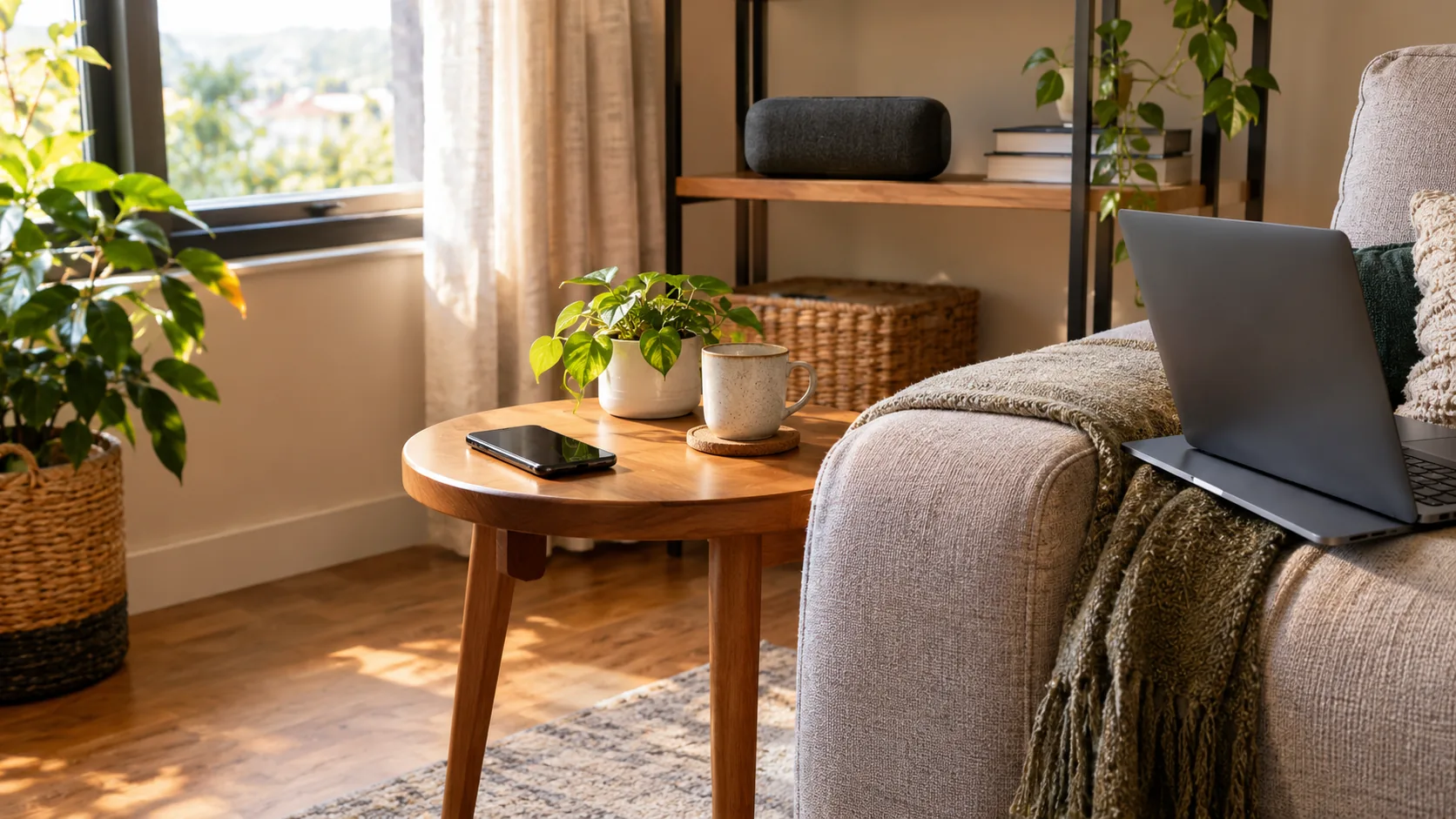
To learn how to connect Bluetooth, put the accessory in pairing mode, turn Bluetooth on at your phone, PC or TV, then pick the accessory's name from the list of nearby devices. Confirm any prompt, and the two devices store the link for next time. The steps follow the same pattern on every device; only the menu names change.
This guide gives one pairing routine, a table of where Bluetooth lives in each device's settings, a troubleshooting table, and a fix for gear with no Bluetooth at all.
What Is Bluetooth, and What Does Pairing Do?
Bluetooth is a short-range wireless link between two devices, such as a phone and a speaker. Pairing is the first handshake: one device announces itself as discoverable, the other finds it, and both save the connection.
After that, they can reconnect on their own whenever both are on and in range. Knowing this helps when something fails, because problems often come from a device that is not discoverable or a saved link that has gone stale.
How to Connect Bluetooth in Five Steps
Use this routine for headphones, speakers, keyboards, earpieces and many other accessories.
- Charge or power on the accessory, and keep it within arm's reach of the device you are pairing.
- Put the accessory in pairing mode. This is often a button you hold until a light blinks; the manual lists the exact press.
- On your phone, PC or TV, turn Bluetooth on and open the Bluetooth settings.
- Wait for the list of nearby devices to fill, then tap or select the accessory's name.
- Accept the pairing prompt or code if one appears. The name then moves to the paired devices list.
Give the scan a moment to finish. If the name is missing, jump to the troubleshooting table below.
How to Turn On Bluetooth and Find It in Settings
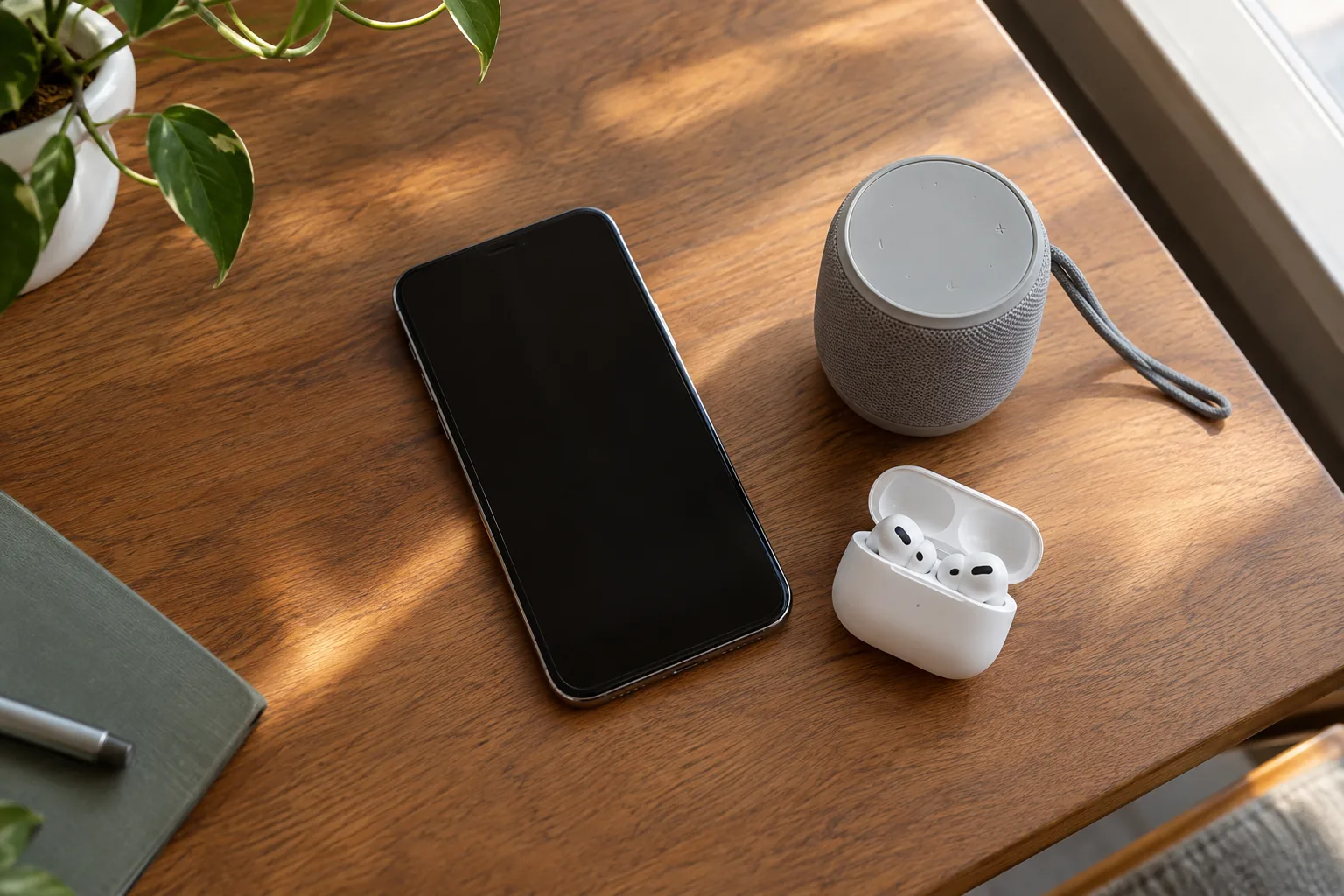
Menu names differ by maker and software version, so use this table as a map rather than an exact path.
| Device | Where to look | What to select |
|---|---|---|
| Phone or tablet | Settings, under Bluetooth or Connected devices | Switch Bluetooth on, then choose the option to pair a new device |
| Phone quick settings | Swipe down from the top of the screen | Tap the Bluetooth tile; press and hold it to open the full menu |
| PC or laptop | Settings, under Bluetooth & devices | Switch Bluetooth on, then choose Add device and pick Bluetooth |
| PC quick settings | Taskbar icons near the clock | Click the Bluetooth tile to toggle it |
| TV | Settings, under Sound, Connection or Remotes & accessories | Choose the option for a Bluetooth speaker or headphones, then select the device |
If you cannot find a Bluetooth toggle on a desktop PC, it may lack a built-in radio. A small USB Bluetooth adapter adds one.
How to Use Bluetooth on Phone, PC and TV
Phone
Open the Bluetooth menu, keep that screen open, and put the accessory in pairing mode. Tap the name when it appears. Some accessories show a code to confirm on screen.
PC or laptop
Choose Add device, then Bluetooth, and select the accessory from the list. Printers and scanners follow the same path; after pairing, they show up in the printers and devices list.
TV
On many TVs, the Bluetooth menu is mainly for audio gear such as headphones or a speaker; other accessories may use a separate menu. Open the sound or connection menu, start a scan, and pick the accessory. For sound problems after pairing, see our TV sound settings guide.
Speakers and headphones
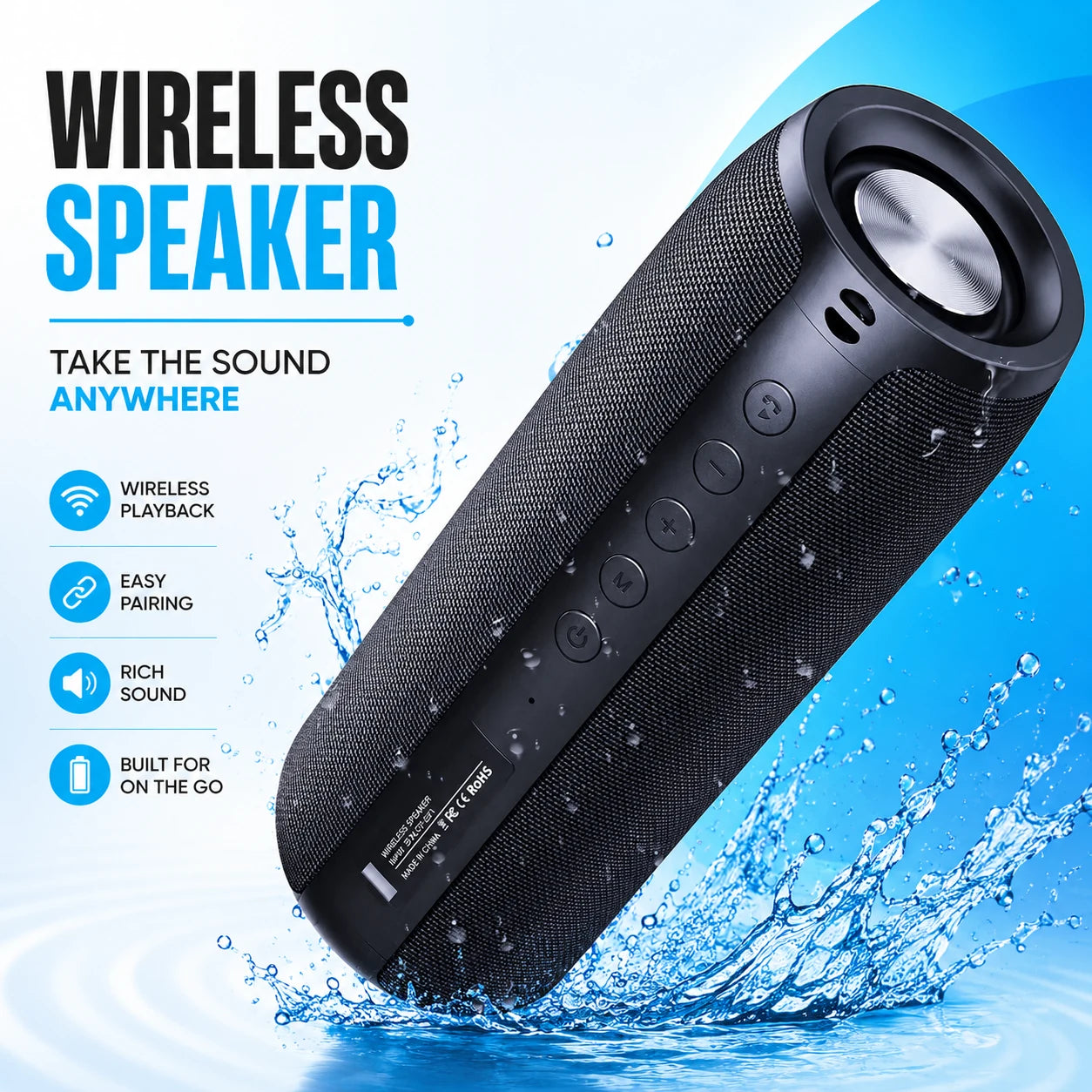
Hold the power or pairing button until the indicator signals pairing mode, then connect from the source device. A portable speaker is a good accessory to practice with. SoundHaven connects over Bluetooth 5.2 with no app: turn it on, open Bluetooth settings on your device, and select the speaker from the list.
 In this guideSoundHaven$119.99View
You can also hold its pairing control to link two SoundHaven units wirelessly as a stereo setup. For help choosing among speakers, read our portable Bluetooth speaker guide, or browse Speakers & Sound Systems.
Why Is My Bluetooth Not Pairing? Troubleshooting Table
Work down the list from the top. Each fix is a single change, so you can see which one clears the problem.
| Problem | Likely cause | Fix |
|---|---|---|
| Device does not show up | Accessory is not in pairing mode | Hold the pairing button again until the light blinks, then rescan |
| Device does not show up | It is still linked to another device | Turn off Bluetooth on the other phone or PC, then rescan |
| List stays empty | Bluetooth is off or the device is out of range | Toggle Bluetooth off and on, and move closer |
| Pairing fails with an error | Stale saved link | Remove the device from both sides, then pair from scratch |
| Connects but no sound | Audio output set to another device | Choose the accessory as the sound output in settings |
| Drops or stutters | Distance, obstacles or a low battery | Move closer, clear the path and recharge the accessory |
| Does not reconnect on its own | Accessory is connected elsewhere or switched off | Power it on, then select it in the paired devices list |
If none of these work, restart both devices and check the accessory's manual for a reset sequence. Reset steps differ by model.
How to Pair a Bluetooth Device Again
To re-pair, first remove the old link. Open the Bluetooth menu, tap the accessory's name or its settings icon, and choose Forget or Remove device. On a PC, pick the accessory in the list and choose Remove device.
Do the same on the accessory if it keeps a list of paired devices; the manual explains how to clear it. Then put it in pairing mode and repeat the five steps above. A fresh pairing replaces a link that has gone out of sync.
Pairing one accessory with two devices
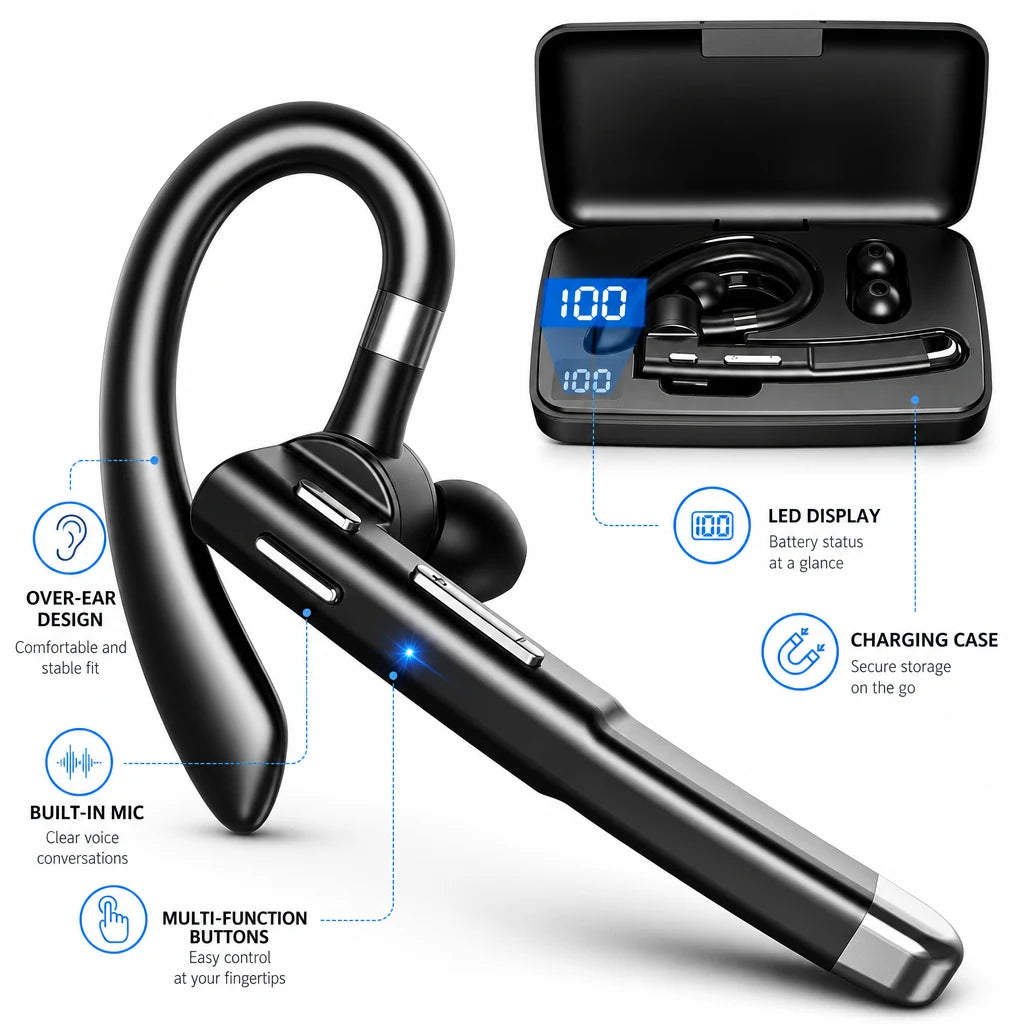
Some accessories hold two connections at once. TalkForge is a single-ear Bluetooth 5.2 headset that can stay connected to a phone and a laptop at the same time. Per its listed use, it pairs to the last device it was connected to when removed from the charging case, and holding the multifunction button for two seconds enters pairing mode for a second device. To compare other headsets, browse Headphones & Earbuds.
 In this guideTalkForge$99.99View
Field note
Rename your accessories in the Bluetooth menu if the list shows several similar names. A clear label such as Kitchen speaker makes the right device easy to pick.
Add Bluetooth to Gear That Does Not Have It
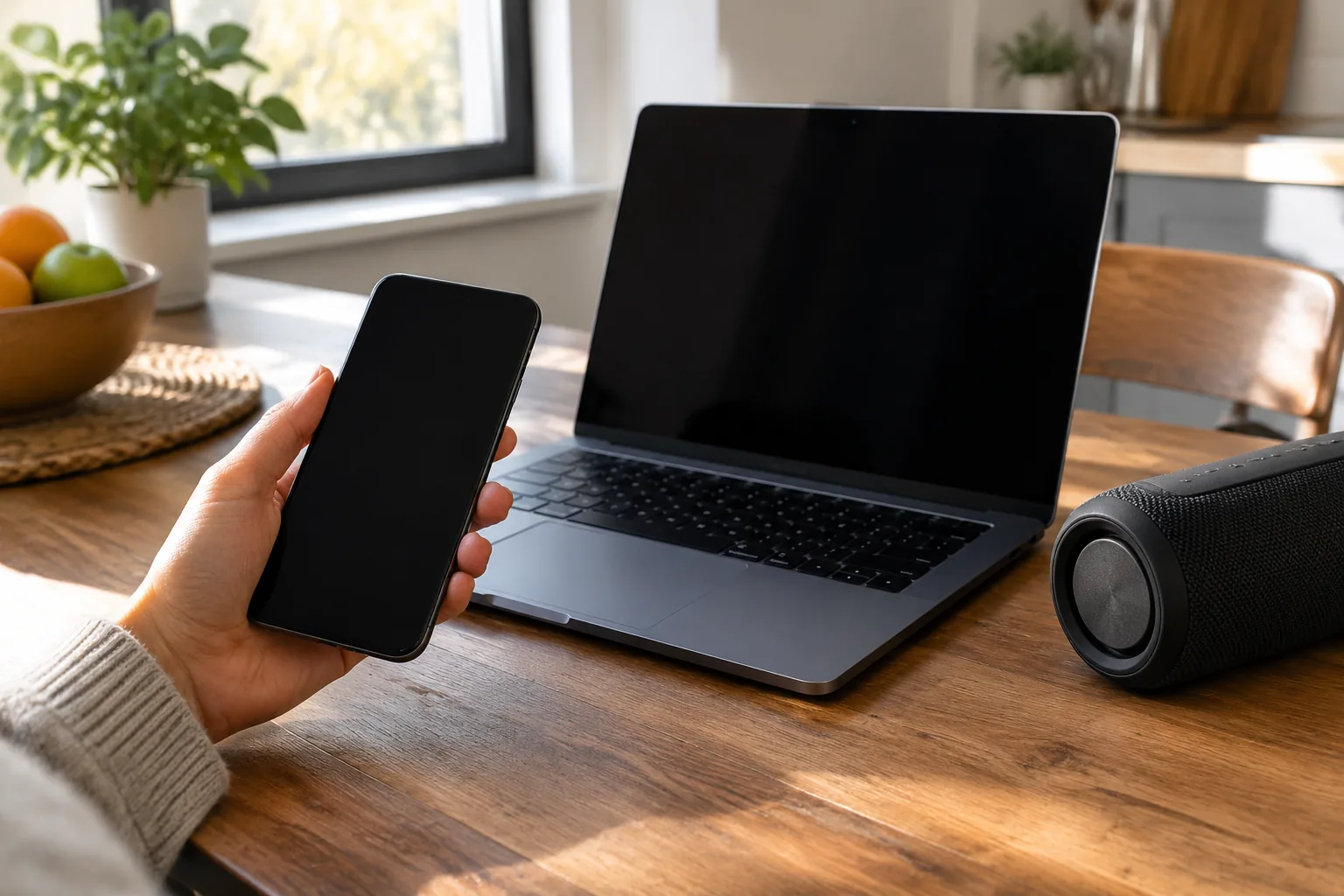
Older stereos, TVs and desktop PCs may lack Bluetooth. A small Bluetooth transmitter or receiver adapter adds it. A transmitter plugs into the audio output and sends sound to wireless headphones; a receiver plugs into an AUX input and lets a phone play through the old equipment.
Check which ports your gear has first, such as 3.5 mm AUX, optical or USB. If your goal is a PC feeding a soundbar, our PC to soundbar guide covers wired options that need no pairing.
Cars with a wired phone connection
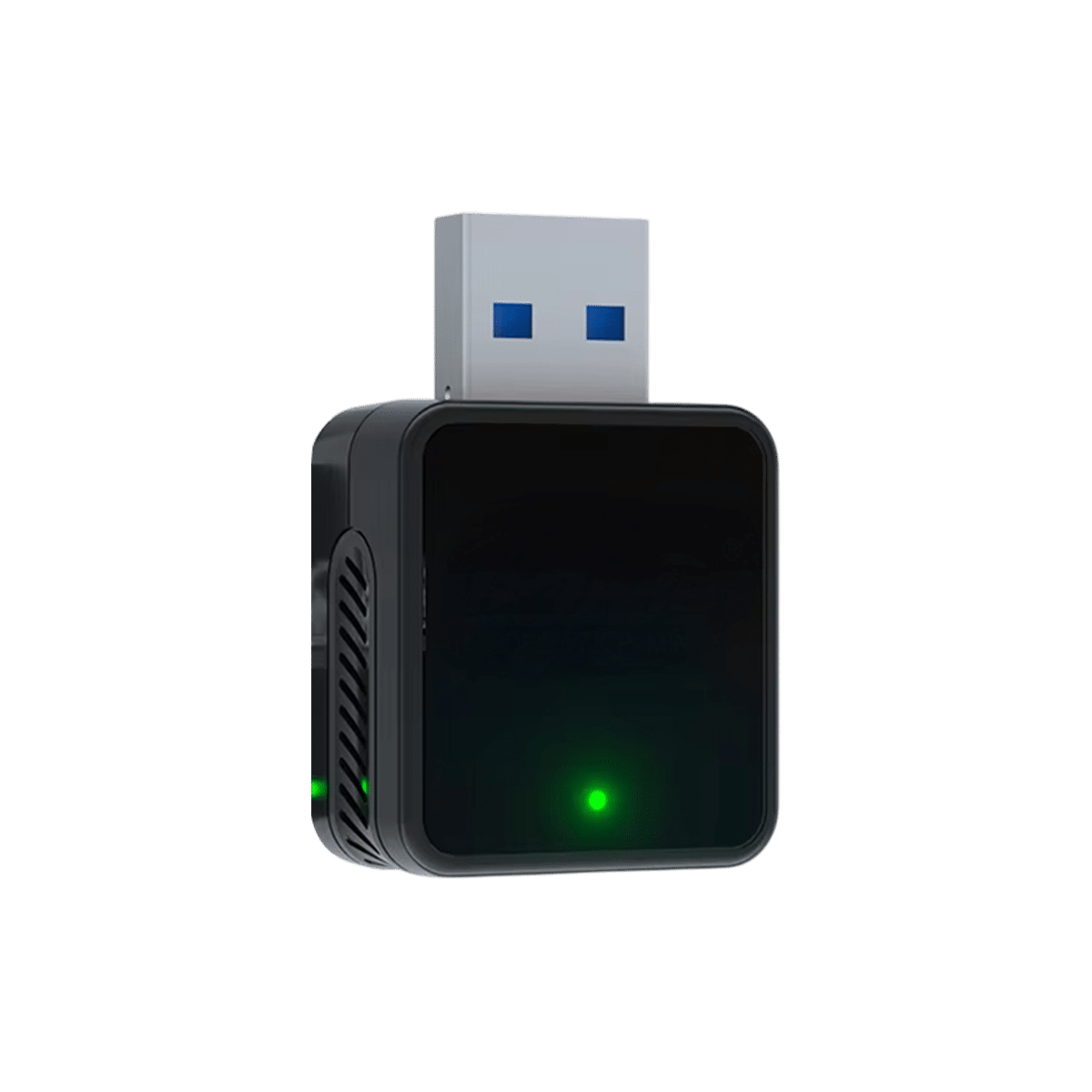
If your car supports phone projection only by cable, AutoBridge plugs into the factory wired phone-projection port. You pair your phone with it over Bluetooth one time, and it stores the connection. When the car starts, the adapter looks for the paired phone and shows the interface wirelessly, using the car's touchscreen, wheel buttons and mic.
 In this guideAutoBridge$119.99View
Common Pairing Mistakes
- Starting the scan before the accessory is in pairing mode, so the name does not appear in the list.
- Leaving the accessory connected to a second device nearby.
- Skipping the forget step before re-pairing.
- Pairing from across a room instead of within arm's reach.
- Choosing the wrong audio output after connecting.
Check these five habits before you try other fixes. Follow each accessory's manual for charging and reset steps.