PC to Soundbar: How to Connect via USB, HDMI, Optical or AUX
Match the cable to a port both devices share (HDMI, optical, USB, AUX or Bluetooth), then pick the soundbar as the PC's output. Includes a port table and fixes.
The Folio & Current Team
November 1, 2026 · 7 min read
A PC to soundbar connection starts with a port both devices share: HDMI if the PC and soundbar both have it, optical if the PC has an optical audio output, USB or a 3.5mm AUX cable for desk soundbars, and Bluetooth when you want no cable. Then pick the soundbar as the output device in the PC's sound settings. This guide gives a decision table by port, step-by-step setup for each cable, and fixes for when there is no sound.
If you are going from soundbar to PC the other way around, meaning you want to use the soundbar as the PC's speakers, the steps are the same. The PC is the source and the soundbar is the output.
Choose the connection by the ports you have
Look at the back and sides of your PC, laptop or monitor first, then at the inputs on the soundbar. Use the first row in the table that both devices support.
| Port you have | Cable or link | Typical setup | What to know |
|---|---|---|---|
| HDMI on PC and soundbar | HDMI cable | Living room soundbar shared with a TV | Some soundbars use HDMI only for a TV connection, so check the input list on the soundbar. |
| Optical on both | Optical audio cable | Desktop tower or soundbar with an optical input | Carries digital audio only. Volume is set on the soundbar. |
| USB-A on PC | USB cable | Desk soundbars with a USB input | Some bars take power and audio over the same cable. Check the manual. |
| Headphone jack | 3.5mm AUX cable | Laptops and older PCs | Works with a soundbar that has an AUX input. |
| Bluetooth on both | Wireless pairing | Laptops, no cable run | Pair once, then select the soundbar as output each session if needed. |
The soundbar's input list decides everything. A bar with no HDMI input cannot be wired by HDMI, which is why the optical, USB and AUX routes below matter.
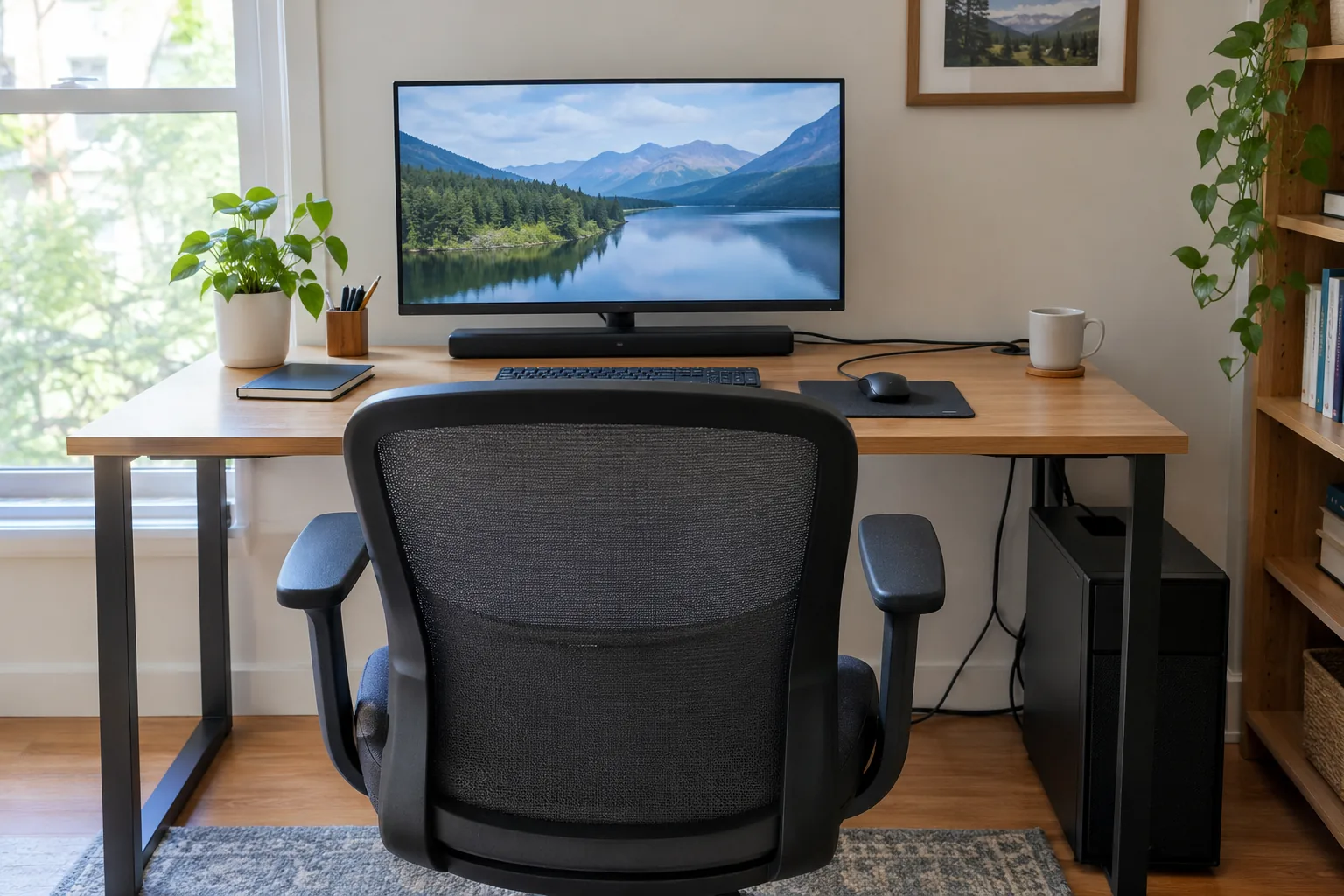
Connect a PC to a soundbar with HDMI
- Turn off the soundbar and PC, or at least lower the volume.
- Plug one end of an HDMI cable into the PC's HDMI output and the other into an HDMI input on the soundbar.
- If the soundbar sits between the PC and a monitor or TV, run a second HDMI cable from the soundbar's output to the display.
- Switch the soundbar to its HDMI input.
- Open the PC's sound settings and choose the HDMI output as the playback device.
If the soundbar has only one HDMI port, it is usually meant for the TV's audio return (ARC), not for a PC. Check the manual. If that is the case, use optical, USB or AUX from the PC instead, or connect the PC to the TV and let the TV pass audio to the bar.
Making a soundbar and TV work together
Connect the TV to the soundbar with HDMI or an optical cable, then set the TV's audio output to external speakers or the matching digital output. Switch the soundbar to that input. If you also use a PC, plug it into the TV or into a second input on the soundbar, and change inputs when you switch sources.
Use optical audio on a PC
Optical audio sends digital audio through a light-based cable. Some desktop motherboards have a square optical output on the back panel, and some soundbars have a matching input.
- Remove the small plastic caps from both ends of the cable and from the ports.
- Push the cable straight into the PC's optical output until it seats, then into the soundbar's optical input.
- Select the optical input on the soundbar.
- In the PC's sound settings, choose the digital or optical output as the default device.
The cable fits one way, so do not force it. Because the signal is digital, the PC's own volume slider may not change loudness. Use the soundbar's remote or buttons instead.
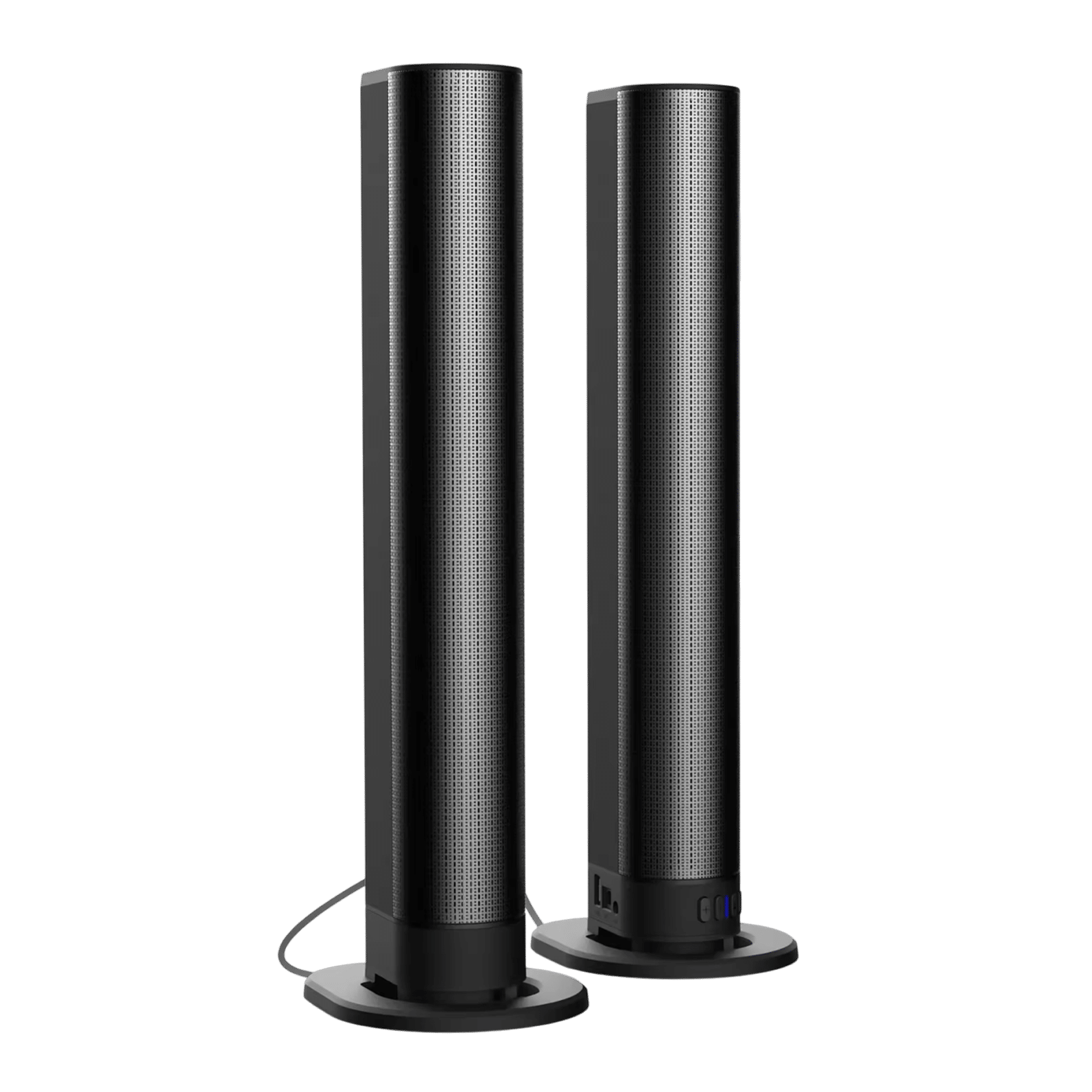 In this guideSonicForge$239.99View
If you are choosing a TV-side bar that connects without HDMI, the SonicForge is a 2.1 system with Bluetooth 5.3, USB, optical, FM and aux inputs, and HDMI is not required. Its two speakers detach, so you can place them apart or keep them joined as one bar.
Connect a PC to a soundbar without HDMI
Three routes need no HDMI at all: USB, a 3.5mm AUX cable and Bluetooth. They suit a desk where the bar sits close to your seat, and each gives a working pc to soundbar link on a laptop or older PC.
USB
Plug the USB cable into a USB-A port on the PC and the other end into the soundbar. Some desk bars use USB for power and audio together, while others use it for power only, so read the manual. Then select the soundbar in sound settings.
3.5mm AUX
Plug the cable into the PC's headphone or line-out jack, which is often green, and the other end into the soundbar's AUX input. Set the PC volume to a middle level and adjust on the soundbar. If you hear a hum, try a different audio jack, and keep the audio cable away from power cables.
Bluetooth
- Put the soundbar in pairing mode.
- Open the PC's Bluetooth settings and add a device.
- Choose the soundbar from the list and wait for it to show as connected.
- Select it as the output device.
Bluetooth sends audio without a cable, but a video or game can show a slight lag between picture and sound. If that bothers you, switch to a wired link.
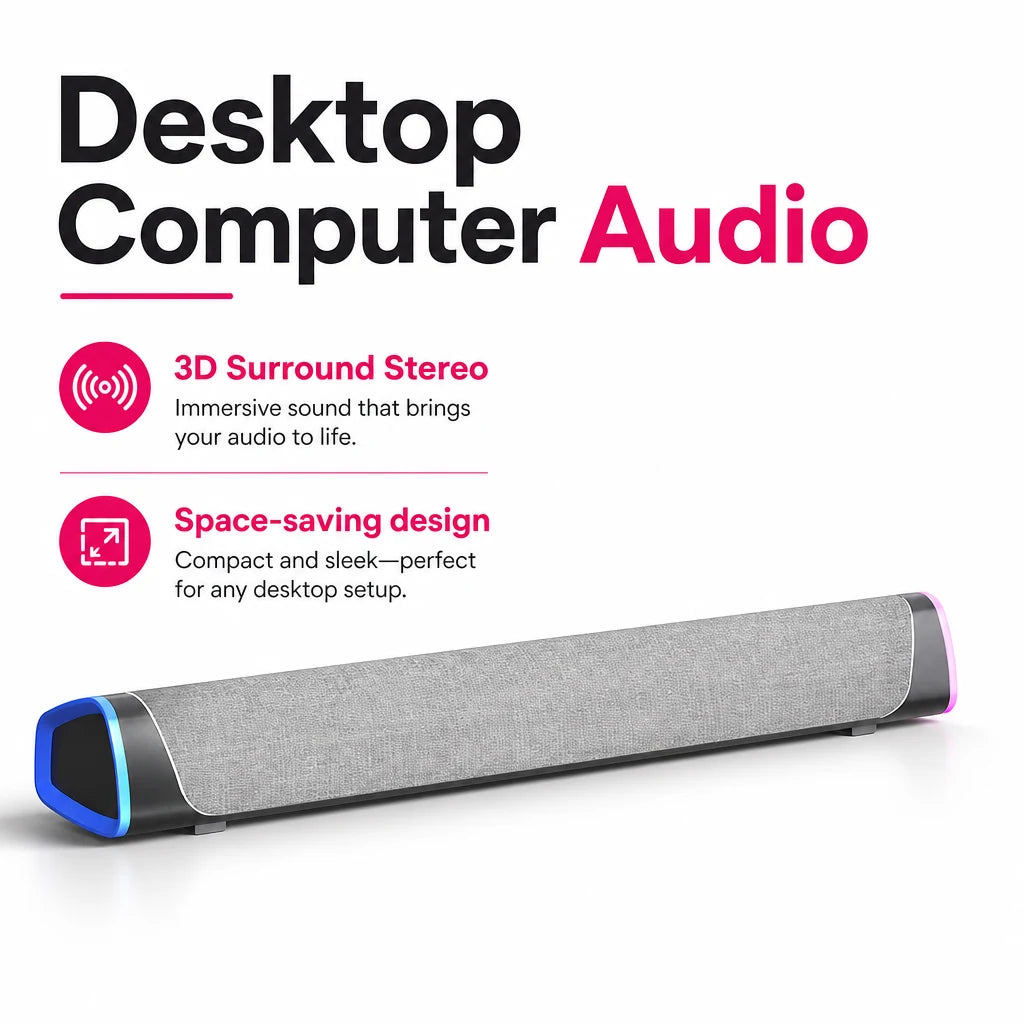 In this guideDeskPulse$99.99View
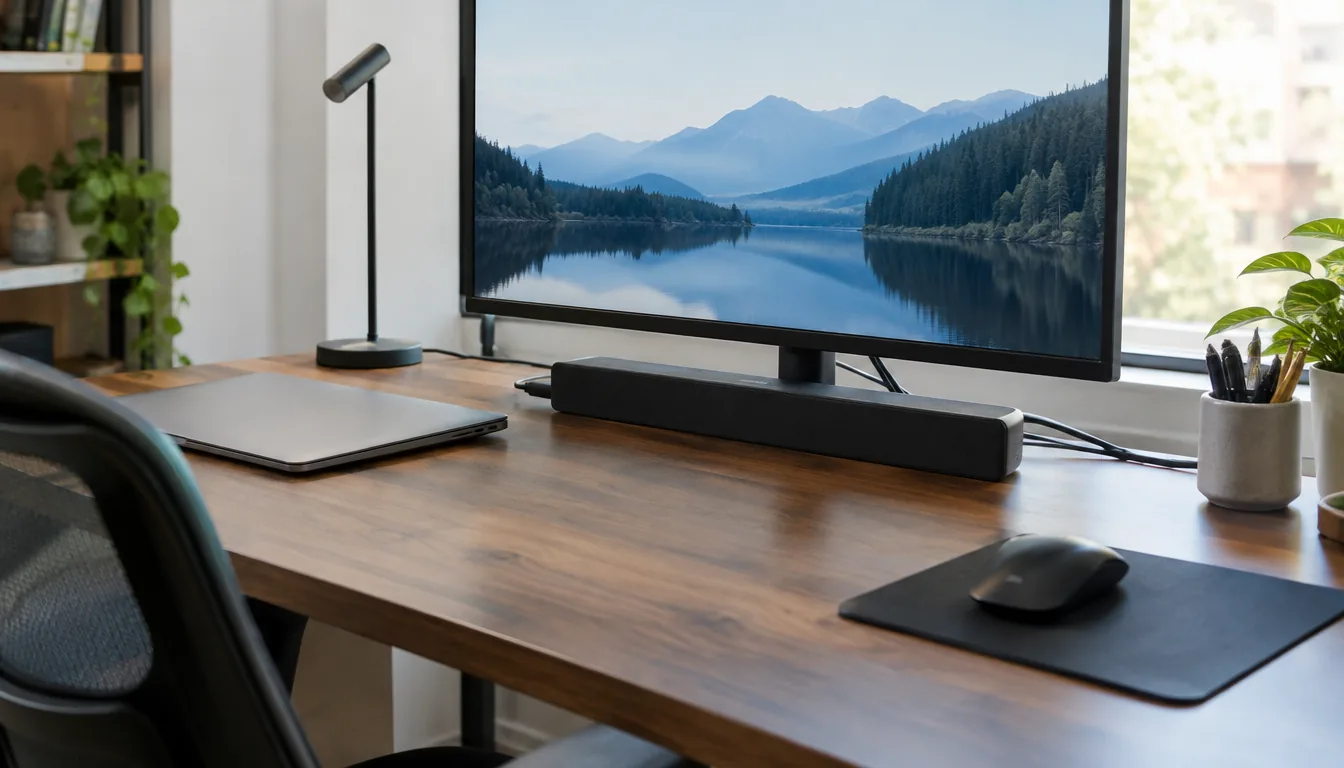
For a desk, the DeskPulse is an under-monitor PC soundbar that connects over Bluetooth, USB-A or a 3.5mm aux cable. It has dual drivers plus passive radiators in one bar, so no separate subwoofer sits on the desk. The box includes a USB-A cable, an aux cable and a wall power adapter, and a top button switches inputs.
Field note
Connect the cable first, power on the soundbar, and only then open the PC's sound settings. Some PCs list a device only when it is on and detected.
Set the soundbar as the default output
A cable alone does not move the sound. The PC needs a default output device to send it to.
- Right-click the speaker icon in the taskbar and open the sound settings.
- Under output, choose the soundbar. It may appear as the HDMI device, a digital output, USB audio or the Bluetooth name.
- Open the device properties and set it as the default device.
- Play a sound to confirm, and raise the soundbar volume if you hear nothing.
For apps that still play through the old speakers, open the app's own audio setting or the app volume mixer and change its output device.
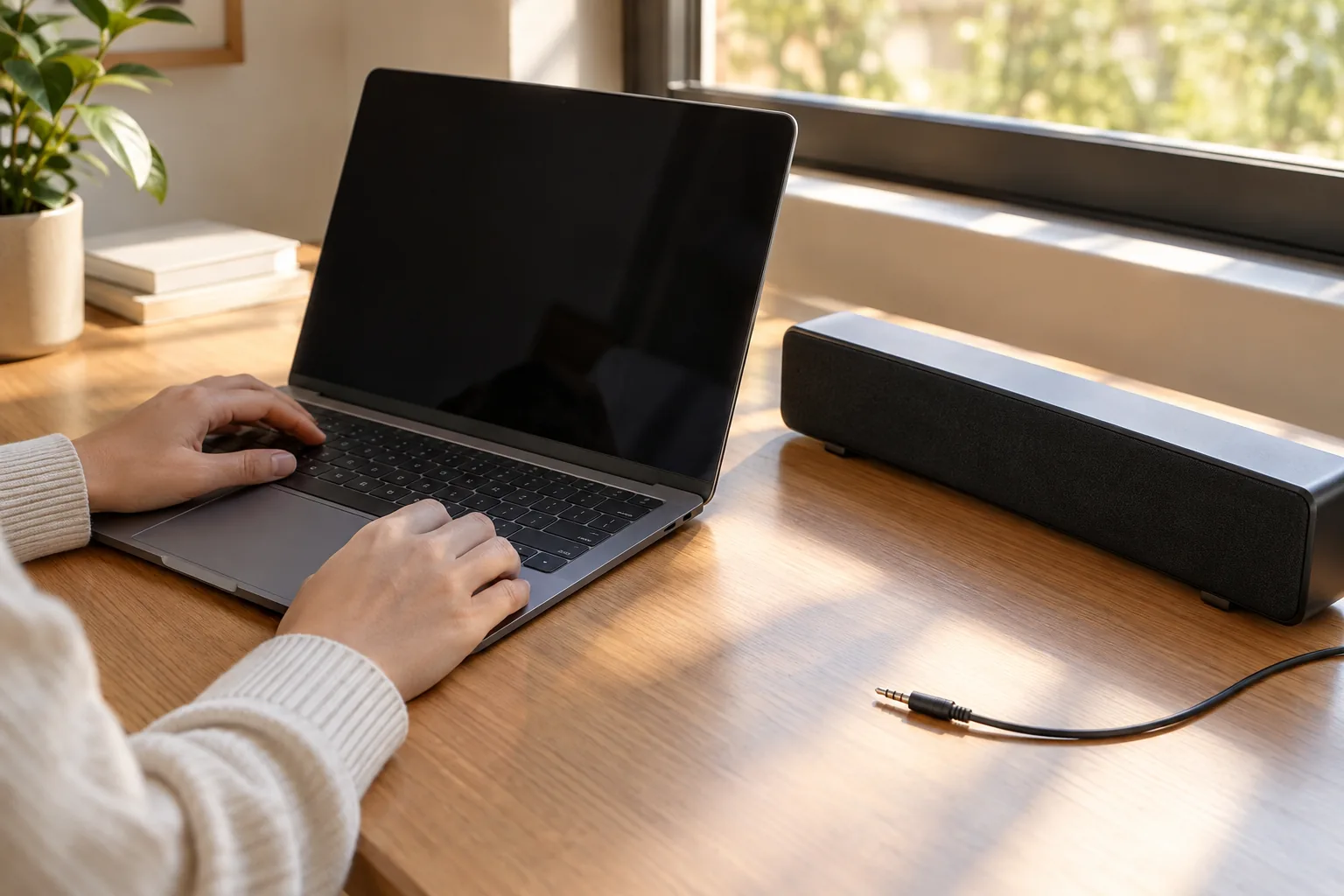
Fix a PC to soundbar connection that is not working
| Problem | Check |
|---|---|
| No sound at all | Soundbar input matches the cable, volume is up and not muted, cable is fully seated. |
| Soundbar missing from the list | Reconnect the cable, turn the soundbar on first, then reopen sound settings. In the playback list, show disabled and disconnected devices and enable the bar. |
| Sound still plays from monitor or laptop | Set the soundbar as default device and check each app's output setting. |
| HDMI gives no audio | Confirm the HDMI port on the soundbar accepts a source, and pick the HDMI device as output. |
| Optical gives no sound | Remove the port caps, reseat the cable, and choose the digital output in sound settings. |
| Bluetooth drops or stutters | Move the PC closer, remove the old pairing, and pair again. |
| Crackle or hum on AUX | Try another jack and keep the audio cable away from power cables. |
If the steps do not help, update the PC's audio driver from the manufacturer's support page and restart the computer. Unplug power cables before reaching behind a desktop.
Soundbar for a PC monitor or a subwoofer setup
A soundbar for a PC monitor should fit the space under the screen and sit near ear height. Measure the gap between your desk and the monitor's lower edge, and check that the bar does not block the screen or a stand.
For a soundbar with a subwoofer, plan floor space and a power outlet for a separate unit. A bar with passive radiators, like the DeskPulse, adds low-frequency output without one. For a larger room with surround layouts, read Surround Sound Explained, which covers 5.1, 7.1 and soundbar options. Browse more models in our Speakers & Sound Systems collection.
Setup checklist
- List the free ports on the PC and the inputs on the soundbar.
- Pick the row in the table that both support.
- Buy or find the matching cable, and check its length.
- Connect it, power on the soundbar, and select the right input.
- Set the default output in sound settings and play a test sound.
- Adjust volume on the soundbar, then on the PC.
If your soundbar will also serve a TV, TV Sizes Explained covers viewing distance and soundbar fit.