What Does USB Stand For? USB-A, USB-C and What Each Port Does
USB stands for Universal Serial Bus. This guide explains the name, compares USB-A, USB-B and USB-C, and shows how to match cables, hubs and chargers.
The Folio & Current Team
November 26, 2026 · 7 min read
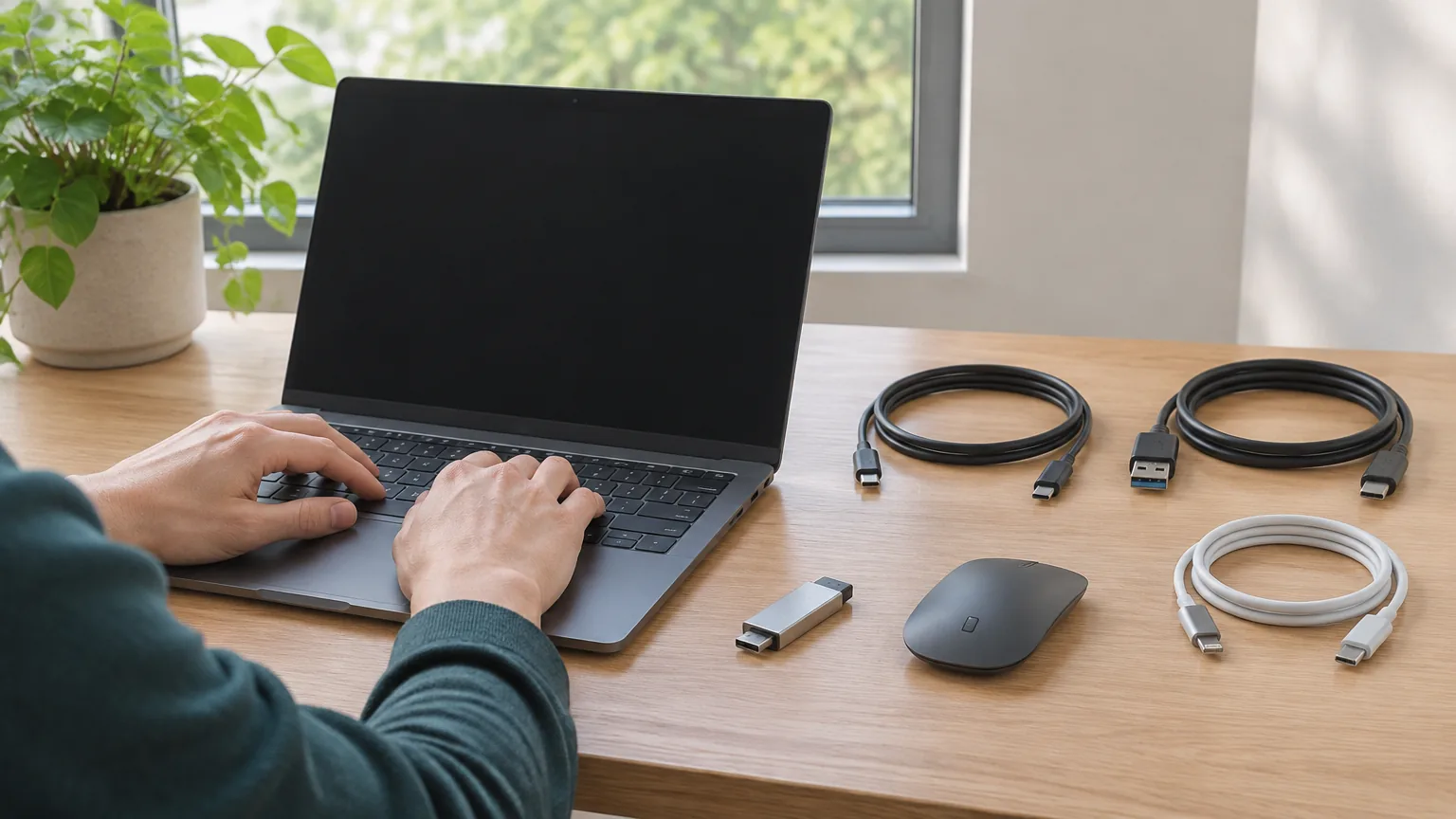
What does USB stand for? USB stands for Universal Serial Bus, an industry standard that lets computers, phones, chargers and accessories connect through a shared type of port and cable. The letters that follow, as in USB-A or USB-C, name the shape of the connector, not a different meaning of the acronym.
The sections below explain each word in the name, show how the connectors differ, and finish with a checklist for choosing a cable, hub or charger.
What does USB stand for?
Each word in the name describes a goal of the original design. Together they explain why one port now appears on so many devices.
Universal
The idea was one standard connection for many kinds of gear: keyboards, mice, printers, drives, webcams and more. Before USB, each device type tended to need its own port and its own cable.
Serial
Serial means data travels one bit after another along a wire path, instead of many bits side by side as in older parallel ports. This lets a cable stay thin while still moving data between devices.
Bus
A bus is a system that moves data and power between a host, such as a computer, and the devices attached to it. A USB hub extends that system so one host port can serve several devices.
Why is there a USB port?
USB exists to replace the mix of serial, parallel and keyboard ports that older computers needed. One port type means fewer cables to match and fewer ports to build into a laptop.
The standard also carries data and power together. That is why a single cable can charge a phone while it syncs photos, and why a flash drive needs no separate power plug.
Another feature is hot swapping: you can plug in or remove USB devices while the computer is on. For storage drives, eject the drive in your operating system first, then unplug it.
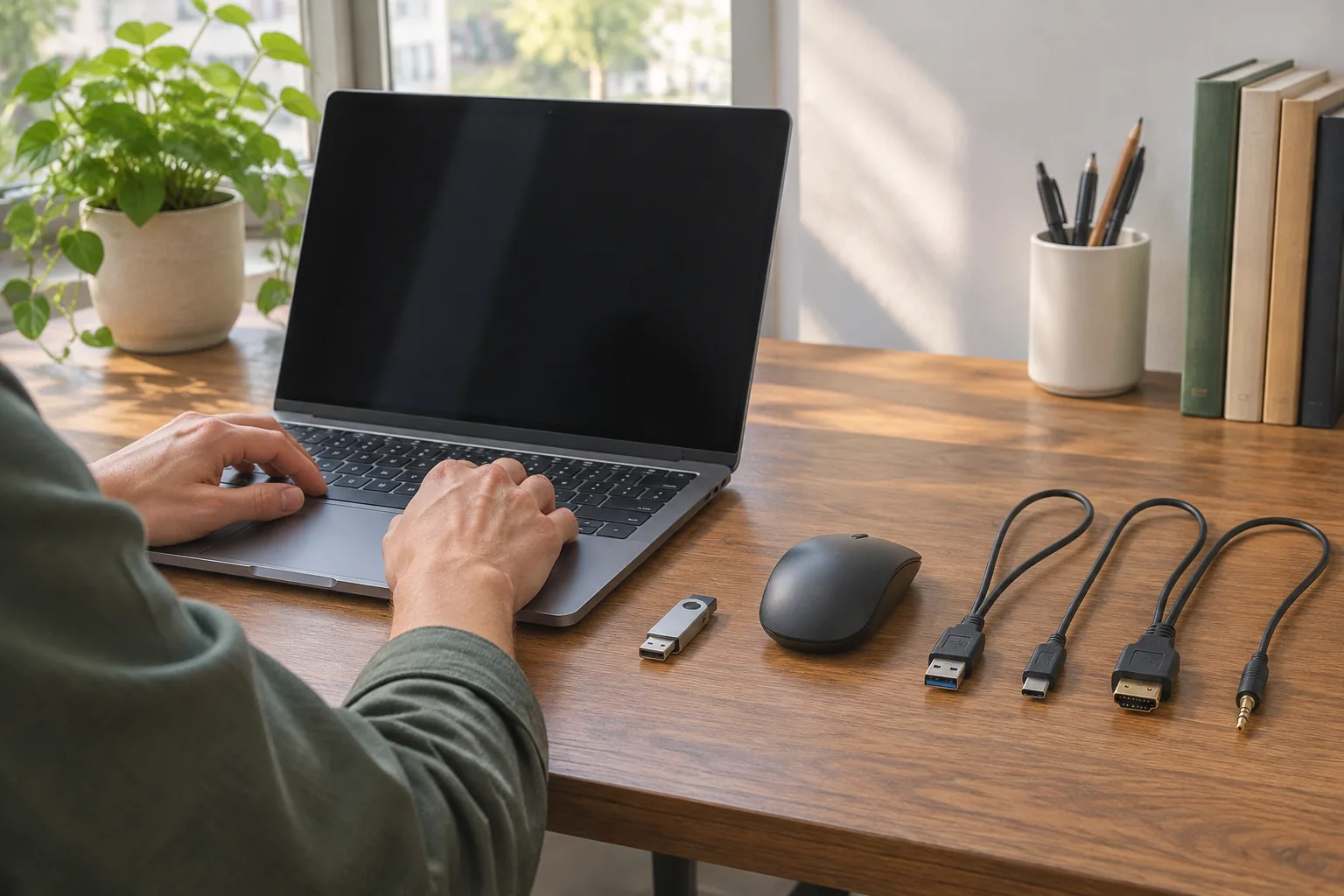
USB-A, USB-B and USB-C: what each connector looks like
The connector letter tells you the shape and where you usually find it. Matching shapes is the first step in choosing a cable.
| Connector | Shape | Where you see it | Good to know |
|---|---|---|---|
| USB-A | Flat, classic rectangular | Computers, wall chargers, TVs, game consoles, hubs | Fits one way only; usually the host end of a cable |
| USB-B | Squarish with beveled corners | Printers, scanners, some audio gear | Sits on the device end of a cable |
| Micro-USB | Small, flat trapezoid | Older phones, small devices, some accessories | Fits one way only |
| USB-C | Small oval, reversible | Laptops, tablets, phones, newer chargers and hubs | Can carry data, power and video, depending on the device |
What common things use USB-A?
USB-A is the classic rectangular port. You find it on keyboards, mice, flash drives, external hard drives, webcams, wireless receivers, wall chargers and the ports of many TVs and car dashboards. These connect through a cable or plug with the flat USB-A end.
What are some examples of USB devices?
Beyond the list above, USB devices include printers, scanners, microphones, audio interfaces, card readers, game controllers, e-readers, drones, phones and earbud charging cases. If a device has a cable or a port with one of the shapes in the table, it is a USB device.
What does USB-C stand for?
USB-C does not stand for a new set of words. The USB part still means Universal Serial Bus, and the C names the connector type in the lettered series that began with A and B.
What sets USB-C apart is the design: a small oval plug with no top or bottom, so it goes in either way. It is the connector used for data, charging and video on current laptops, tablets and phones.
Why did they change from USB to USB-C?
USB-C is not a replacement for USB. It is a newer connector for the same standard, and it solves several limits of the older shapes.
- It is reversible, so there is no wrong way to plug it in.
- It is small enough for thin phones, tablets and laptops.
- It supports Power Delivery, which lets one cable charge devices as large as laptops.
- It can carry video, so a single port can drive a monitor.
- The same plug sits on both ends of many cables, so host and device ends are not fixed.
The trade-off is that USB-C cables and ports look alike but do not all do the same job. One port may support video and fast charging while the next supports only data, so check the symbols near each port and the cable packaging.
USB speeds and what they mean for your cable
The connector shape and the speed are separate things. A USB-C plug can carry a slow or a fast standard, and the same applies to USB-A. Speeds are listed in megabits per second (Mbps) or gigabits per second (Gbps).
| Standard | Listed maximum | Connectors it appears on |
|---|---|---|
| USB 2.0 | 480 Mbps | A, B, micro, C |
| USB 3.2 Gen 1 | 5 Gbps | A, B, micro, C |
| USB 3.2 Gen 2 | 10 Gbps | A, C |
| USB 3.2 Gen 2x2 | 20 Gbps | C |
| USB4 | 40 Gbps (80 Gbps for USB4 Version 2.0) | C |
These are the maximums defined by each standard. Real transfer rates depend on the drive, the device and the cable, and the slowest part in the chain sets the limit. If you move large files to an external drive, see how to pick the right 1TB external SSD drive for what to check on the storage side.
How to pick a cable, hub or charger
Work through these steps in order. Each one narrows the choice before you buy.
- Look at the port on each device and note its shape: A, B, micro or C.
- Look for symbols beside the port. A lightning-bolt or battery symbol often marks charging, and a small display symbol marks video output. The manual lists exactly what each port supports.
- Choose a cable with the matching shape on each end. For data, check the listed speed on the packaging.
- For charging, match the charger and cable to the wattage your device lists in its manual.
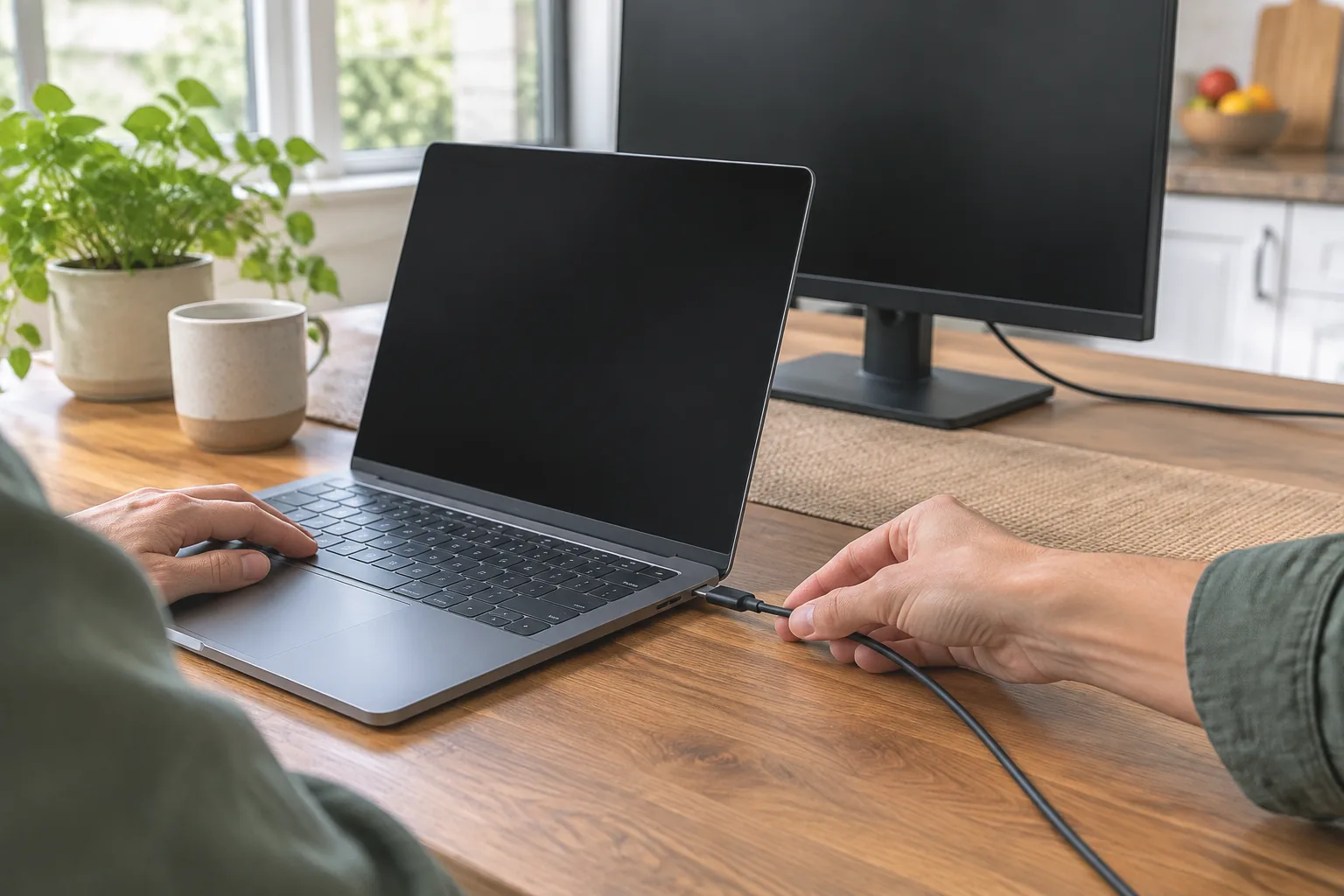
- For a hub, confirm the laptop port supports video output and power delivery if you plan to use those functions.
If you are connecting monitors, the guide to HDMI vs DisplayPort explains which display connection suits each setup.
A hub for a laptop with one USB-C port
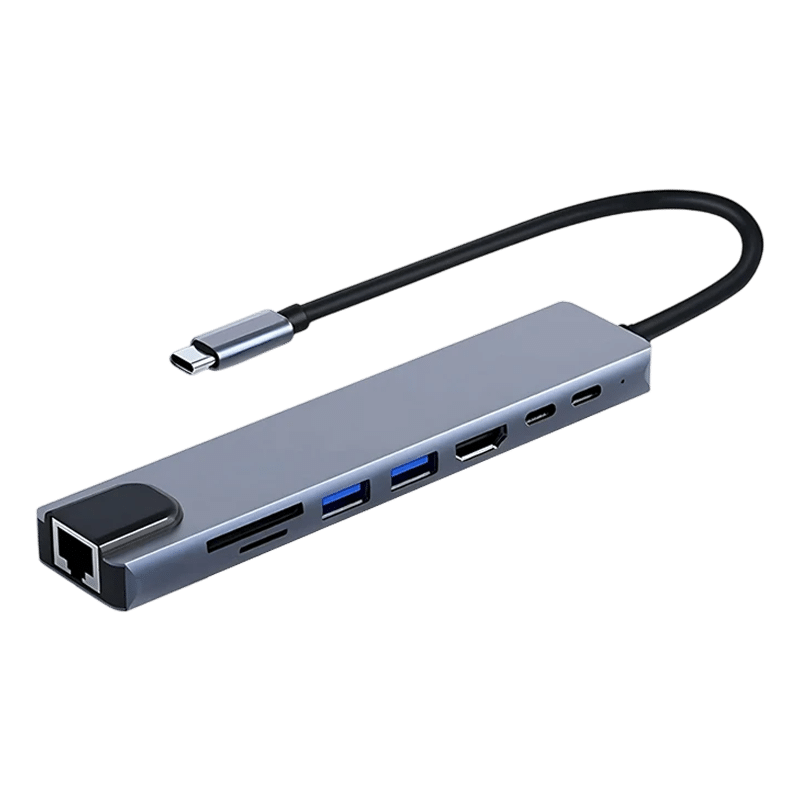
When a laptop has only a few USB-C ports, a multiport adapter turns one port into several. HubVantage is an 8-in-1 USB-C multiport adapter with an aluminum shell. It plugs directly into the laptop's USB-C port, so there is no separate cable between the hub and the computer.
It adds an 87W Power Delivery charging port, an HDMI output at 4K 30Hz and a 100Mbps RJ45 port for wired ethernet, plus connections for drives. The product page lists no driver or software download: you insert it, then connect your peripherals.
 In this guideHubVantage$59.99View
A charging stand for phone, watch and earbuds
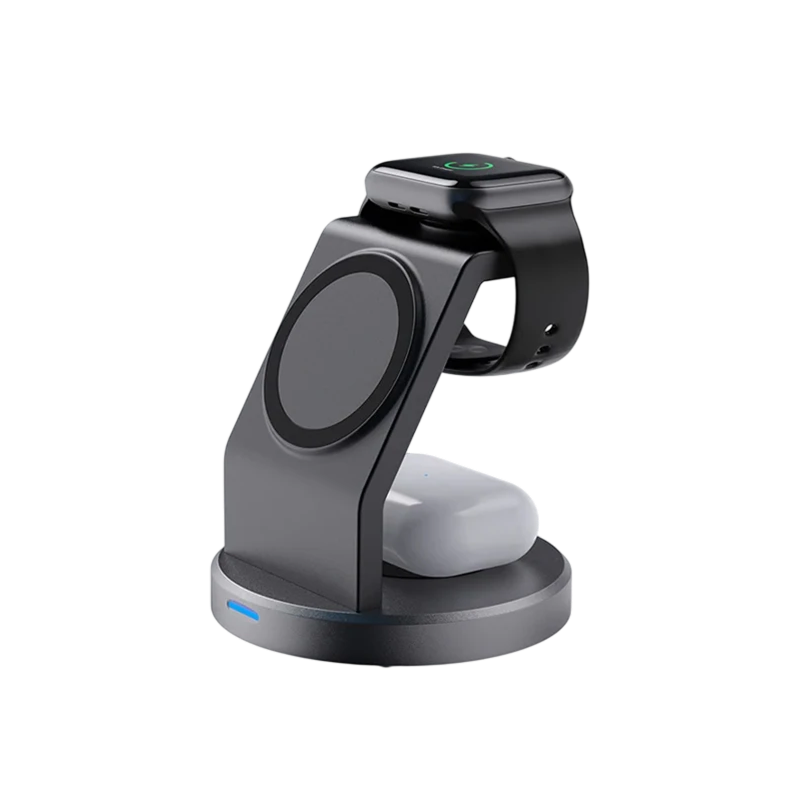
If your goal is charging rather than data, one USB-C power source can serve several devices. TrioSnap is a 3-in-1 magnetic wireless charging stand with a magnetic pad for a phone, a puck at the top for a watch and a pad on the base for an earbuds case. It is powered through its USB-C port, and the phone rotates between portrait and landscape.
For more power adapters and docks, browse the Chargers, Docks & Storage collection.
 In this guideTrioSnap$79.99View
Field note
Put a small strip of tape on each cable and write what it is for: charge only, data, or video. USB-C cables look identical, so a label tells you which one to grab.
Common mistakes when matching USB gear
- Assuming every USB-C port supports video. Check the symbol or the manual.
- Using a cable made only for charging when you need to move files.
- Plugging a fast drive into a USB 2.0 port or cable and expecting full speed.
- Buying a hub without checking that the laptop port supports the functions you want, such as display output or power delivery.
- Unplugging a storage drive without ejecting it first.
Now that you know what USB stands for and how the connectors differ, the rest comes down to reading the port, the cable and the manual. Match those three and the setup follows.