How to Back Up External Hard Drives Step by Step
A step-by-step routine to back up external hard drives and your computer: choose a drive, use the built-in tool, add a second copy, set a schedule and check a restore.
The Folio & Current Team
November 29, 2026 · 7 min read

To back up external hard drives, copy their files to a second location, such as another drive or a cloud folder, because a file that lives on one drive has no backup yet. For your computer, use the built-in backup tool to write to the external drive on a schedule, then keep a second copy elsewhere. This guide gives the full routine: pick the drive, run the built-in tool, add a second copy, set a schedule and check that a restore works.
The routine works on a PC and on a laptop or desktop that uses the other major system. Only the names of the built-in tools differ, so each step below covers both.
Why one copy on an external drive is not a backup
An external drive is a handy place to keep files, but it can be dropped, unplugged during a write, or lost. If the drive holds the only copy of your photos or documents, one failure removes them. A backup is a second copy of files that already exist somewhere else.
Two jobs are easy to mix up. One is backing up your computer onto an external drive. The other is backing up the external drive itself, when it holds files that exist nowhere else. The routine below handles both.
How to back up external hard drives: the step-by-step routine
- List what you need to protect: documents, photos, music, project folders, and any files that live only on an external drive.
- Add up the size of those files and compare it to the capacity of the drive you plan to use.
- Connect the backup drive and format it if the manual or your operating system asks you to.
- Turn on the built-in backup tool and point it at that drive.
- Copy the contents of any single-copy external drive to a second drive or to cloud storage.
- Set a schedule, then run a restore check on a few files.
Each step has its own section below, in the same order.
Choose the drive and check its capacity
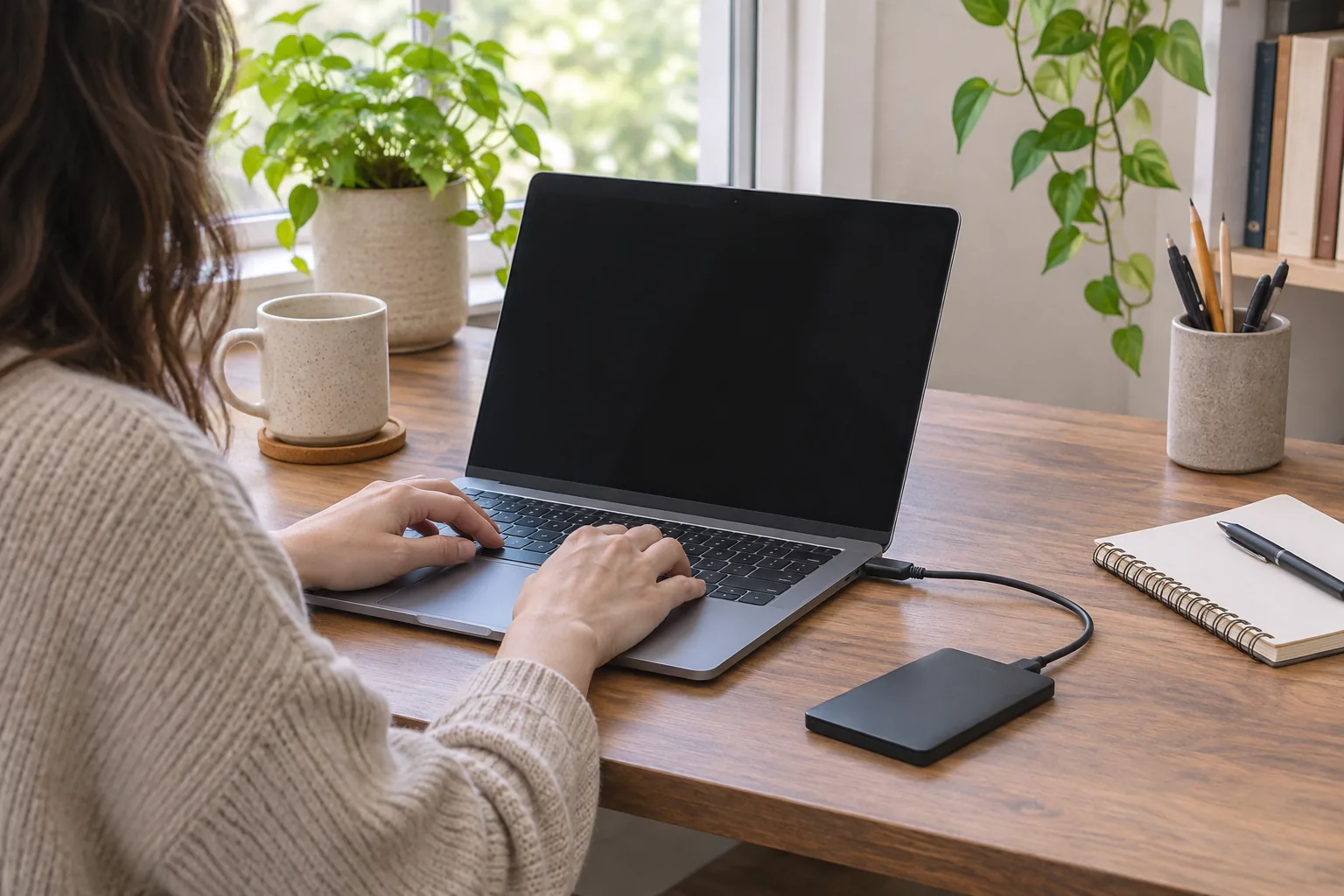
Start with the size of your files, not the size of the drive. Open the folder properties on a PC or the info panel on the other system, add up what you need to protect, and choose a drive with room to spare. For example, 500 GB is a fair amount for documents and photos, but video libraries and game installs can fill it. Check your own total instead of guessing.
Types of external drives
| Type | What it is | Where it fits |
|---|---|---|
| Portable hard disk drive | Spinning platters in a small case, powered over USB | Large archives and scheduled backups |
| Portable solid state drive | Flash storage with no moving parts | Carrying files between machines, working files |
| Desktop hard drive | Larger case, often with its own power adapter | A permanent spot on a desk |
| USB flash drive | Small stick with a USB plug | Moving a few files, not a full backup |
A flash drive and an external drive both store files, but a flash drive is built for carrying a few files. For a full computer backup, use an external hard drive or solid state drive. Our guide to a 1TB external SSD drive explains how to size one.
Also check the port. A drive that plugs into USB-C or USB-A needs a matching port or the right cable; what each USB port does covers the difference.
 In this guideDataGranary$79.99View
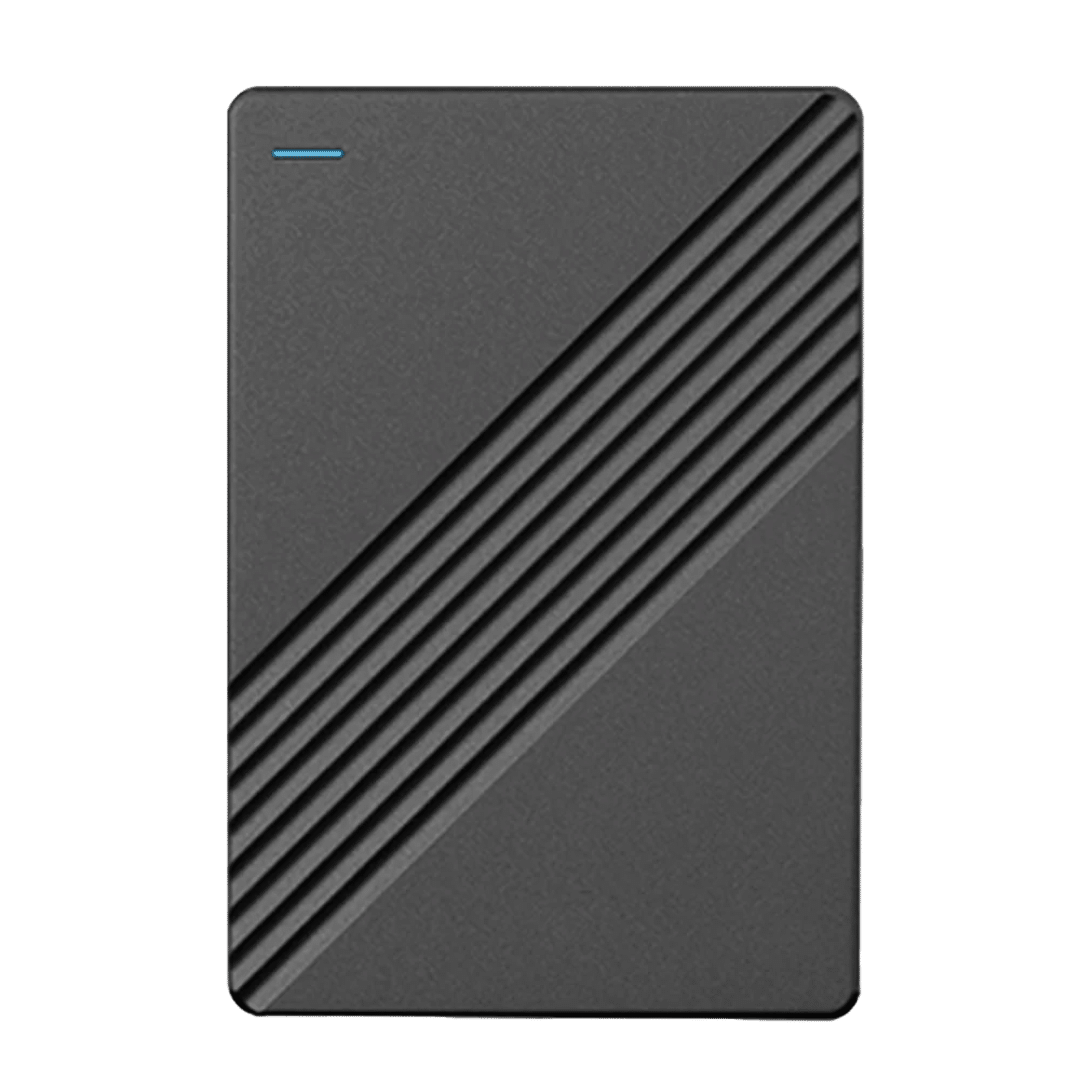
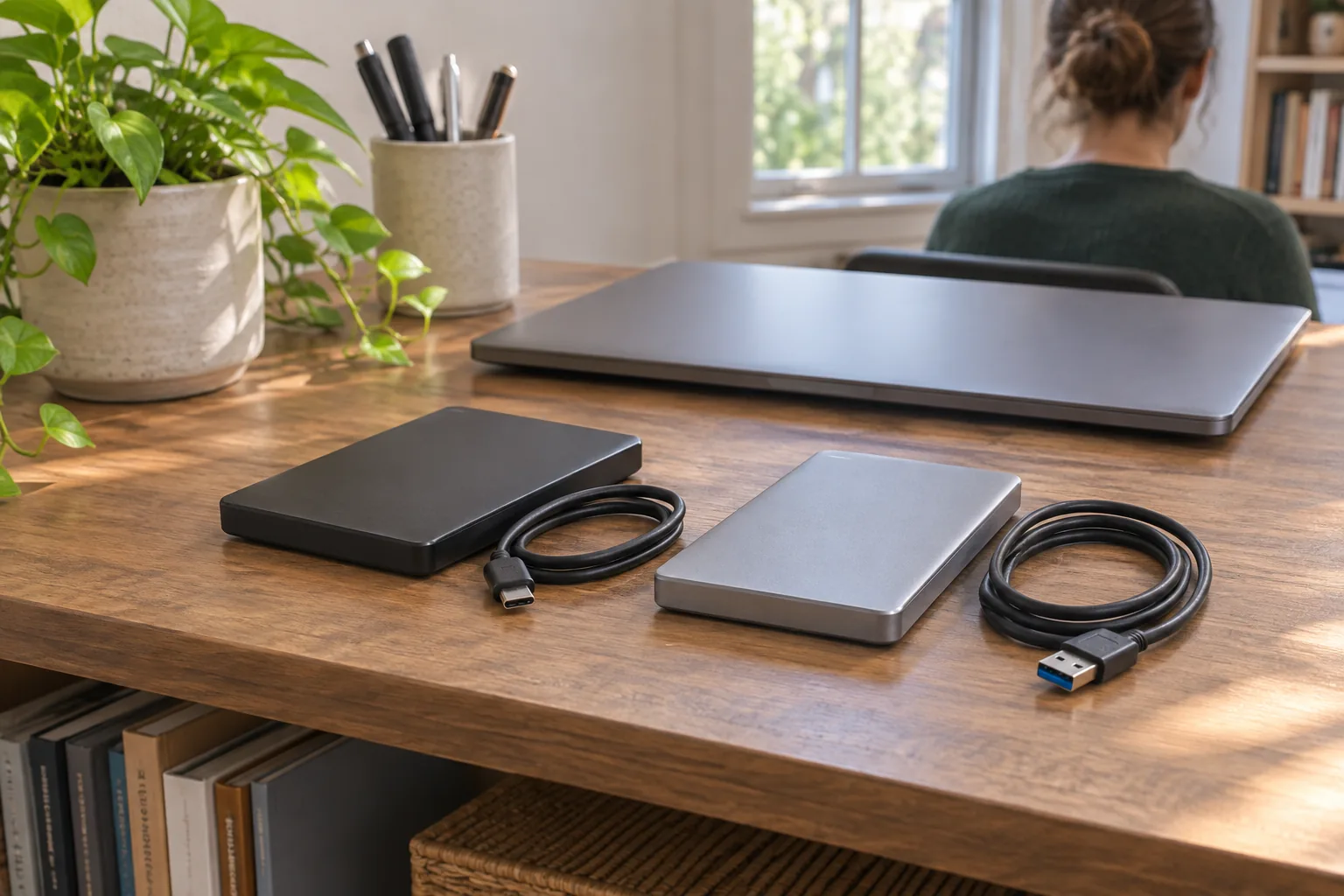
If you want a drive for this routine, DataGranary is an external drive that plugs into a USB-C or USB-A port and takes power from that connection, so no wall outlet is needed. You can drag and drop files onto it or set up scheduled automatic backups, and it offers an optional password lock with AES 256-bit encryption. It comes with a protective carrying case and a USB-A to USB-C cable. Browse more in Chargers, Docks & Storage.
Run the built-in backup tool on your computer
Both kinds of system include a backup feature, so extra software is optional. Follow the manual for your version, since menu names change between releases.
On a PC
- Connect the drive and wait for it to appear in the file manager.
- Open the settings app and go to the backup section.
- Choose the external drive as the destination for the backup feature your version offers.
- Select the folders to include, then start the first backup.
On a laptop or desktop with the other system
- Connect the drive. If a prompt asks whether to use it for backups, read it before you accept.
- Open the system settings and find the backup option.
- Add the drive as the backup disk and choose any folders to exclude.
- Start the first backup and leave the drive connected until it finishes.
If the drive is formatted for another system, the tool may ask to erase it first. Copy off anything you want to keep before you agree.
The first run copies everything. Later runs add only changed files. Eject the drive from the system before unplugging it.
Add a second copy of files that live on an external drive
The widely used 3-2-1 idea is three copies of your data, on two kinds of storage, with one copy kept away from home. At home, that can mean your computer, a backup drive, and a cloud folder.
For an external drive that holds the only copy of something, connect a second drive and copy the folders across with drag and drop. Check that the file count and folder sizes match afterward. A cloud folder covers the off-site copy, and a drive stored in another room or building does the same job.
Set a backup schedule
A backup you have to remember tends to be skipped. Use the tool's automatic schedule where it has one, and keep the drive connected during those windows. A laptop that travels needs a routine for plugging in.
| Task | How often | Notes |
|---|---|---|
| Automatic computer backup | Daily or hourly, per the tool's settings | The drive must be connected |
| Copy of single-copy external drives | Weekly | Use drag and drop or the drive's own scheduled backup |
| Off-site or cloud copy | Monthly, or after big projects | Store it away from the main drive |
| Restore check | Quarterly | Open a few restored files |
Label each drive with its job and the date you last copied to it. Replace a drive that shows errors, makes odd noises, or drops its connection.
Field note
Keep the backup drive unplugged when you are not running a backup, and store the second copy in a different room or building.
Check that you can restore your files
A backup counts once you have opened files from it. Pick a few files, such as a document, a photo and a folder, and restore them to a new location. Open each one and confirm it matches the original.
On a PC, browse the backup in the backup history window. On the other system, use the backup browser or open the drive in the file manager. Do this after the first backup and again on the schedule above.
Common mistakes and what to do when a drive misbehaves
- Using one external drive as the only home for files.
- Pulling the cable without ejecting the drive first.
- Leaving the backup drive connected to a computer you plan to move around.
- Skipping the restore check.
- Using a flash drive as the full backup.
If a drive will not show up
Before any attempt at repairing external hard drives, stop writing to the drive. Try another cable, another port and another computer. Then check whether the disk appears in the disk management tool on a PC or the disk utility on the other system.
If it appears but will not open, copy what you can to another drive before you run a repair or format. To fix external hard drives with clicking sounds or no detection, follow the manual and contact a data specialist rather than opening the case yourself.
Once the routine is running, back up external hard drives on the weekly schedule above and keep the restore check on your calendar. For a drive with a password lock, store the password somewhere separate from the drive.