WiFi 6 vs WiFi 7: Real Differences and When to Upgrade
WiFi 7 adds 320 MHz channels and multi-link operation to WiFi 6E, but it only applies with a WiFi 7 router and WiFi 7 devices. Compare all four standards and decide.
The Folio & Current Team
November 22, 2026 · 10 min read
In a wifi 6 vs wifi 7 comparison, WiFi 7 (802.11be) adds wider 320 MHz channels, multi-link operation (MLO) and 4096-QAM modulation to the bands WiFi 6E already uses. WiFi 6 (802.11ax) still handles a typical home with many phones, TVs and laptops. An upgrade makes sense when your router, your devices and your internet plan all support the newer standard; if one room has a weak signal, that is a coverage problem, not a standard problem.
This guide compares WiFi 5, 6, 6E and 7 side by side, explains what each change means in a house, and ends with a checklist so you can decide before you spend anything.
WiFi 6 vs WiFi 7: what actually changes
The jump from WiFi 6 to WiFi 7 is less about a new idea and more about using the radio spectrum differently. Four changes matter at home.
Wider channels
A channel is the slice of a band your devices use to move data. WiFi 6 tops out at 160 MHz channels, while WiFi 7 allows 320 MHz channels on the 6 GHz band. Wider channels carry more data at once, but they also need clear spectrum, and in a crowded apartment building neighbors' networks can restrict how wide a channel you can use.
Multi-link operation
With multi-link operation, a WiFi 7 device can keep connections open on more than one band at the same time, for example 5 GHz and 6 GHz. The router and the device can then spread traffic across links or switch between them. WiFi 6 devices connect to one band at a time.
Denser modulation
WiFi 6 uses 1024-QAM. WiFi 7 uses 4096-QAM, which packs more bits into each transmission. This only applies when the signal is strong and clean, so it shows up close to the router, not at the far end of the house.
Multi-RU scheduling
WiFi 6 introduced OFDMA, which splits a channel so several devices can share it in the same transmission. WiFi 7 refines this so one device can be assigned several pieces of a channel. You will not see this as a setting; it runs inside a WiFi 7 router.
Every one of these features needs a WiFi 7 router and a WiFi 7 client device. A phone or laptop that speaks only WiFi 6 connects to a WiFi 7 router using WiFi 6 rules.
WiFi 5, 6, 6E and 7 compared side by side
Use this table to place your router and devices. The names in the first column are what you see on boxes and spec sheets; the second column is the technical name that appears in network settings.
| Name | Technical name | Bands | Widest channel | Notable features |
|---|---|---|---|---|
| WiFi 5 | 802.11ac | 5 GHz | 160 MHz (optional) | 256-QAM, beamforming, downlink MU-MIMO |
| WiFi 6 | 802.11ax | 2.4 GHz and 5 GHz | 160 MHz | OFDMA, 1024-QAM, target wake time, uplink and downlink MU-MIMO |
| WiFi 6E | 802.11ax | 2.4, 5 and 6 GHz | 160 MHz | Same features as WiFi 6, plus the 6 GHz band |
| WiFi 7 | 802.11be | 2.4, 5 and 6 GHz | 320 MHz (6 GHz) | Multi-link operation, 4096-QAM, multi-RU, wider channels |
WiFi 5 vs WiFi 6
WiFi 6 added OFDMA and target wake time, and it brought the newer features to the 2.4 GHz band as well. If your router is still WiFi 5 and you have many connected devices, this step changes how the network handles a crowd of clients.
WiFi 6 vs 6E
The difference is one thing: the 6 GHz band. A WiFi 6E router and a WiFi 6E device can use a band that older devices cannot join. The features are otherwise the same as WiFi 6.
WiFi 7 vs WiFi 6E
WiFi 7 keeps the three bands of 6E and adds multi-link operation, wider channels and denser modulation. These additions only appear when both the router and the device support them.
WiFi 7 vs WiFi 6
Against WiFi 6, WiFi 7 adds the 6 GHz band on top of the changes above. If you are weighing wifi 6 vs 7 for a house with only 2.4 GHz and 5 GHz gear, remember that the 6 GHz band and the wider channels need new hardware on both ends. WiFi 8 is a later standard still in development, so it is not something to shop for yet.
Real-world speed, walls, distance and gaming
Box labels list theoretical maximums that assume an ideal signal, wide channels and a device built to use them. Your result depends on the slowest link in the chain: the internet plan, the router's wired port, the device's WiFi chip and the signal where you sit.
Can WiFi 7 go through walls?
WiFi 7 signals pass through walls the same way other WiFi signals do, and higher frequencies lose more strength in the process. The 6 GHz band is the most affected by dense walls such as brick, concrete, plaster with metal lath, and floors. The 2.4 GHz band reaches farther through a house but offers less capacity. WiFi 7 does not change that physics, and its widest channels need a strong signal, which usually means the same room or the next one.
Distance
Range depends on the band, the antennas, the router's placement and the layout. A WiFi 7 router does not by itself reach a far bedroom, a basement or a detached garage. Check the manual of any router for placement advice, and keep it in an open central spot rather than inside a cabinet.
Gaming
For a console or gaming PC, a cable to the router takes WiFi interference out of the picture for that device. Over WiFi, what matters is a stable signal and fewer competing devices on the band. Multi-link operation can help a WiFi 7 device and router work around interference, but a console that supports only WiFi 6 gets none of that.
How does WiFi 6 compare with 5G?
The two are not the same kind of technology, so they are not a direct comparison. WiFi spreads your home internet connection around a house through a router. 5G is a cellular network that connects a phone or a mobile hotspot to a carrier. A WiFi network can only carry what the internet plan feeding it delivers.
How to check if your router is WiFi 5 or WiFi 6
You do not need to open anything. Try these in order.
- Read the label on the bottom or back of the router. Look for 802.11ac (WiFi 5), 802.11ax (WiFi 6 or 6E) or 802.11be (WiFi 7), or for a model name you can look up.
- Sign in to the router's admin page using the address and login on that label. The wireless settings or the status page often list the standard and the bands.
- On a laptop, open the properties of the active network connection. Some systems list a protocol such as 802.11ax next to the connection.
- If your router came from your internet provider, check the provider's account page or support site for the model.
A router that broadcasts a 6 GHz network is WiFi 6E or WiFi 7. A router with only 2.4 GHz and 5 GHz bands is WiFi 5 or WiFi 6; the label settles which.
What is the WiFi 6 network?
It is a wireless network run by a router that supports the 802.11ax standard. Devices with WiFi 6 join it the normal way, by choosing the network name and entering the password. Older devices can still join; they just use the older rules.
Decision checklist: should you upgrade?
Work through your own situation in this table before you shop. The right-hand column is a starting point, not a rule.
| Your situation | What to check | Likely next step |
|---|---|---|
| Router is WiFi 5, many devices share it | Do your newer phones and laptops support WiFi 6? | A WiFi 6 router, or a WiFi 6 extender if only some rooms are weak |
| Router is WiFi 6, one or two dead rooms | Is the weak spot far from the router or behind dense walls? | Add an extender or booster before replacing anything |
| Router is WiFi 6, everything works | Do you own any WiFi 7 devices? | Keep the router for now |
| Router is WiFi 6E, devices are WiFi 6E | Is a specific task held back by the WiFi link? | Keep it unless a WiFi 7 device needs it |
| Several new WiFi 7 phones or laptops and a high-speed internet plan | Do the plan and the router's wired port match? | A WiFi 7 router makes sense |
| Large home, thick walls | Where does the signal drop? | Placement or extra access points before a new standard |
If you answered "keep it" in several rows, the standard is not your bottleneck. In that case, moving the router, clearing space around it or fixing one weak room is the next step to try.
Field note
Before buying any router, write down every device you want on WiFi 7 and check each spec sheet. If none of them list it, a WiFi 7 router adds nothing for them today.
Extender or new router: which solves your problem?
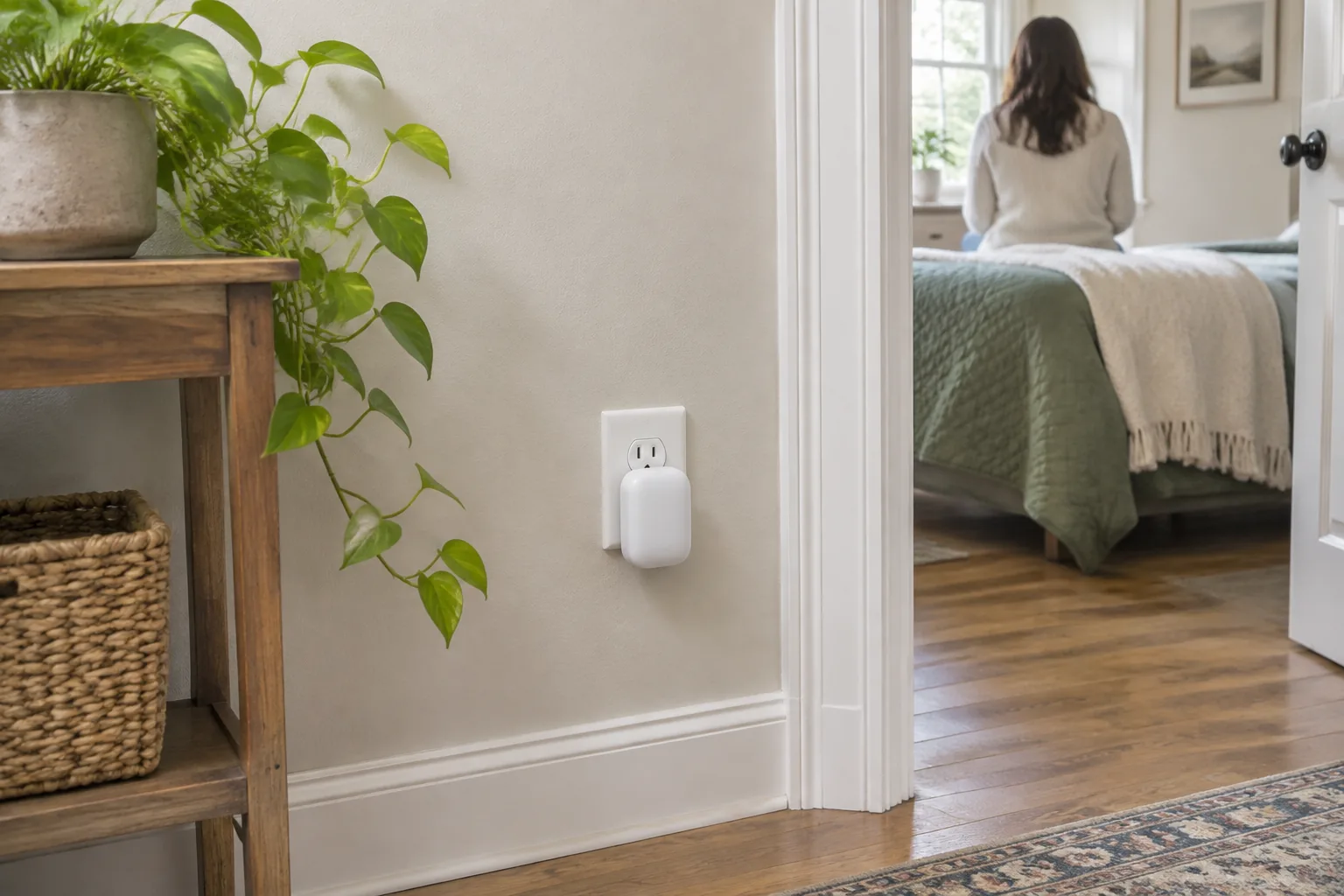
If your complaint is "the signal drops in the back bedroom" or "the patio has no WiFi", a new router with a newer label may not fix it. An extender or booster plugs in partway between the router and the weak spot and rebroadcasts the signal there. You keep the router you own, and you only change the rooms that need it.
The standard of the extender matters too. An extender can only link to your router using a standard both of them support, and a WiFi 7 extender needs a WiFi 7 router to use WiFi 7 features. That is why the checklist above starts with the router.
Extender, booster and repeater
These names are used for plug-in devices that take a router's signal and rebroadcast it, and a product page tells you how a given model is set up. Check which standards it joins, whether it has a LAN port, and whether it suits indoor or outdoor spots.
When an extender fits
- Your router is WiFi 6 or older and works well near it.
- One or two rooms, or an outdoor spot, are weak.
- You want a TV, console or streamer on a cable in a far room.
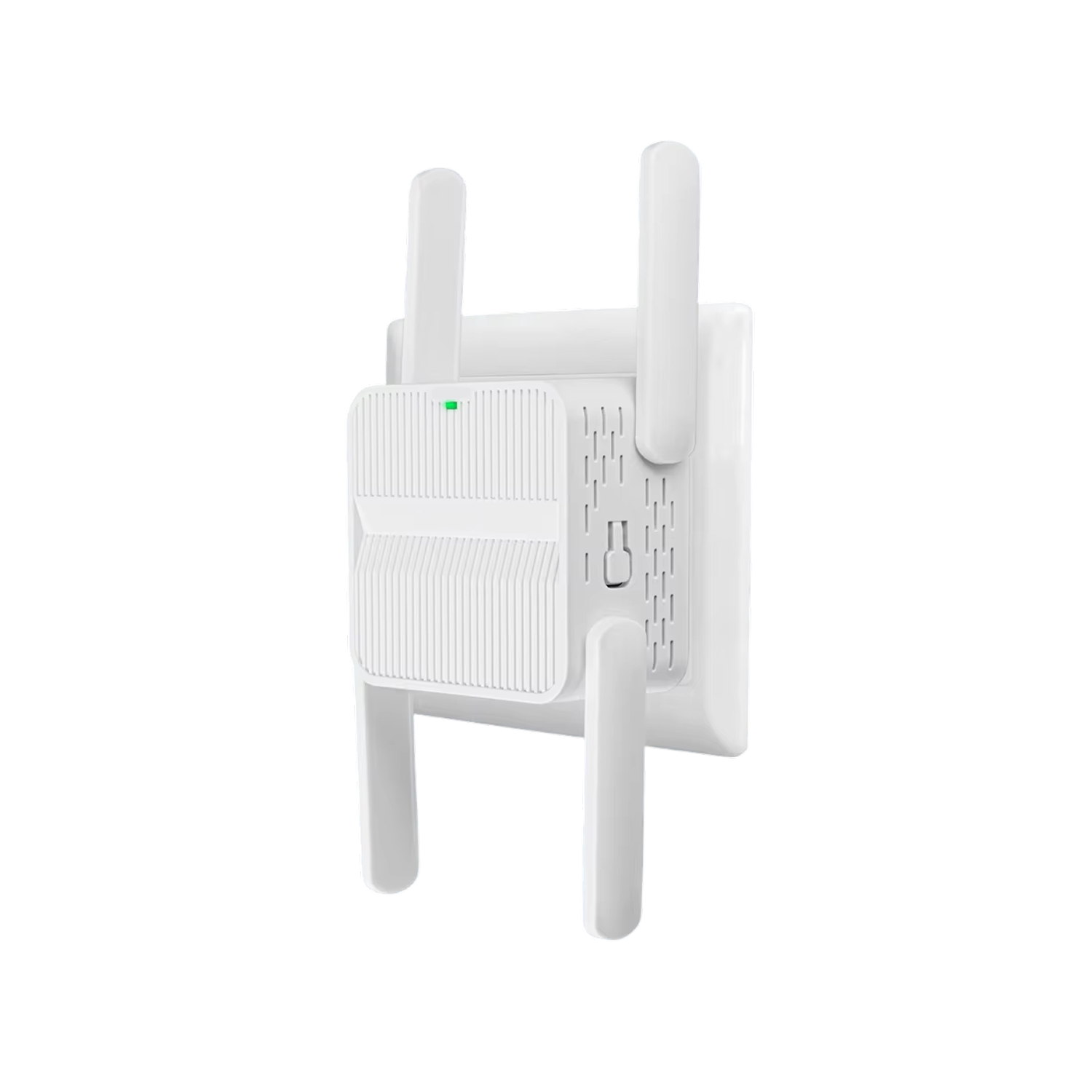
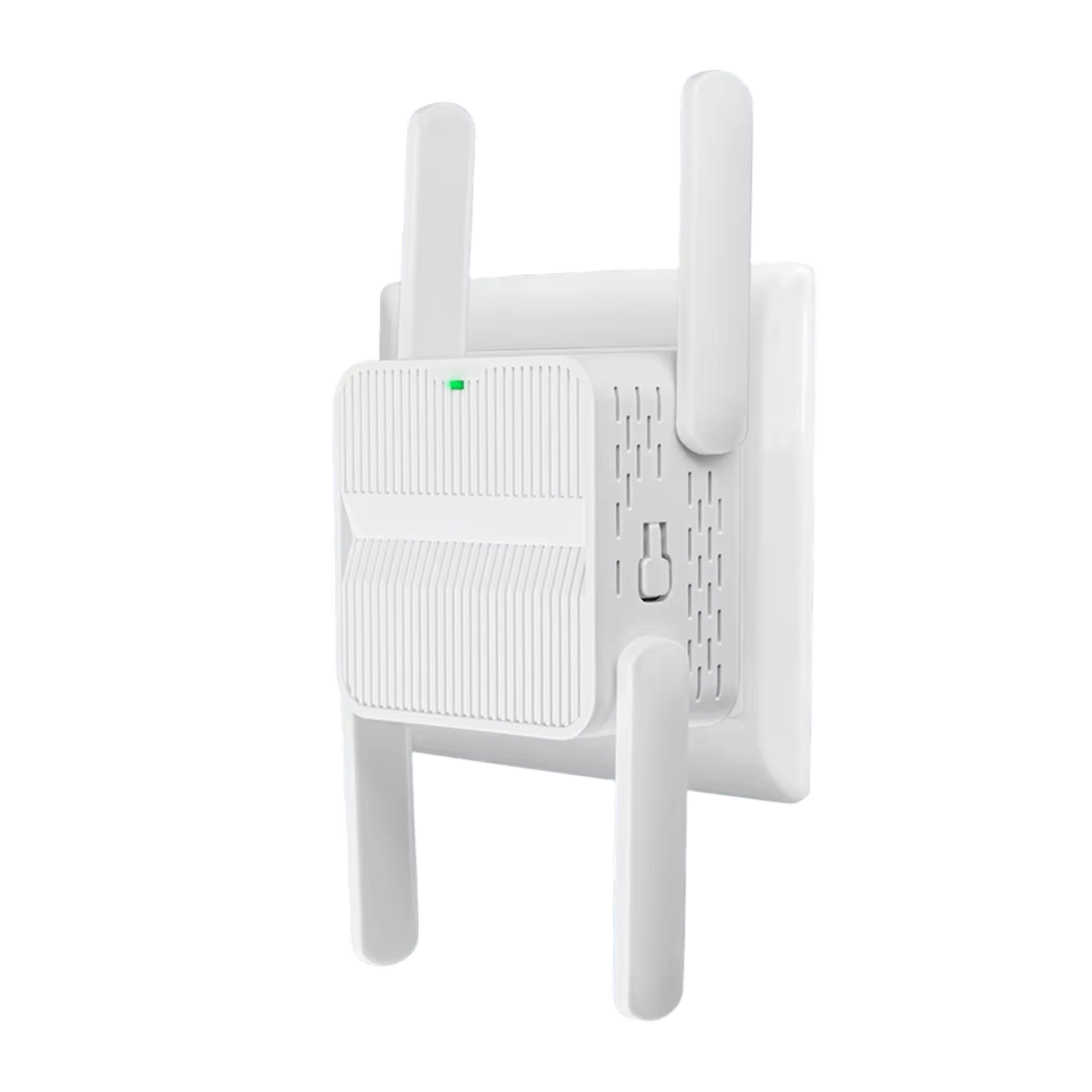
SignalNova is a plug-in WiFi amplifier that uses the 802.11ax WiFi 6 standard, so newer devices can connect to the extended network with the same standard your router speaks. It joins standard routers across 802.11ax, ac, n, g and b, includes an external antenna and a LAN port, and is set up from a phone or laptop with a step-by-step wizard. Walls and layout affect how far it reaches.
 In this guideSignalNova$69.99View
For a patio, yard or RV spot, SkyBridge Pro is a WiFi booster built from weather-resistant materials. It connects to your existing router's network and repeats it where the signal is weak, and it has a LAN port for a TV or console. The product page lists that it works with any router brand or WiFi standard. Plug it into an outlet within range of your router, then run its setup assistant. If you power it from a shared strip, see our guide to surge protectors and power strips.
 In this guideSkyBridge Pro$69.99View
Common mistakes and a setup order
Some disappointing upgrades come from a few predictable mistakes. Check this list before you order.
- Buying a WiFi 7 router while every device is WiFi 5 or 6. The devices connect using their own older rules.
- Ignoring the internet plan. A wide channel cannot send more data than the plan delivers.
- Placing the router low, in a cabinet or behind a TV.
- Putting an extender in the weak room. It needs a usable signal from the router to repeat.
- Leaving a console or desktop on WiFi when a cable run is possible.
A sensible order
- Confirm the router's standard using the label or admin page.
- Move the router to an open, central spot and check the dead rooms again.
- Use a cable for fixed devices such as a TV, console or desktop; some extenders have a LAN port for this.
- If a room is still weak, add an extender or booster from the WiFi & Networking collection.
- Replace the router only when your devices and plan can use what a newer one offers.
The short answer on wifi 6 vs wifi 7
Keep a working WiFi 6 router unless you own WiFi 7 devices and a plan that can use wider channels. Address weak rooms with placement, a cable or an extender first. When a WiFi 7 router does make sense, your device list will show it.