Good Wireless Headphones for TV: How to Choose Lag-Free Sound
Good wireless headphones for TV depend on your TV's outputs. Check them first, then compare connection type, lip-sync delay and fit.
The Folio & Current Team
November 12, 2026 · 6 min read
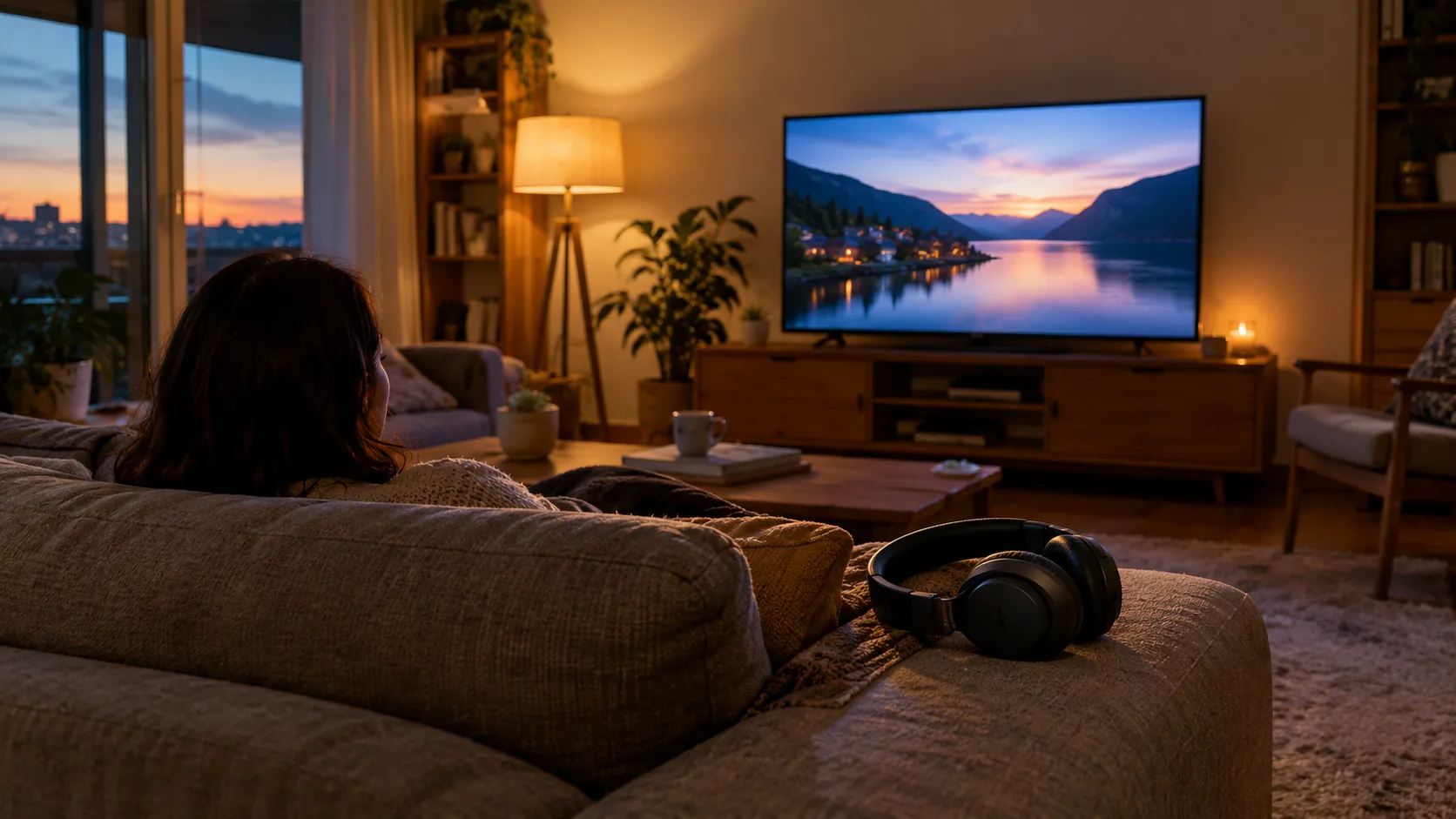
Good wireless headphones for TV connect through a transmitter plugged into your TV's audio output, or through Bluetooth if your TV supports it. Check your TV's outputs first, then choose a connection type, then look at fit and at how the set handles the gap between picture and sound. This guide gives you the steps in that order.
A TV is not a phone. Some TVs have no headphone jack, some have Bluetooth that pairs with only certain devices, and audio can arrive a moment after the picture. A short checklist sorts this out before you buy.
Step 1: Check what your TV supports
Do this before comparing any headphones. Use the TV remote and look at the back panel.
- Open the sound or audio menu and look for an option such as speaker selection, audio output, or Bluetooth. A TV with a Bluetooth audio option can pair with some headphones directly.
- Look at the back and side panels for a headphone jack, a digital optical output, red and white RCA outputs, or a 3.5mm AUX output.
- Check the same menu for an audio delay or lip-sync setting. Note whether it exists, because it matters later.
- If you use a soundbar or game console, find which device sends the sound. You can connect a transmitter to its outputs instead.
- Write down every output you found. This list decides which headphones fit.
If your menu shows no Bluetooth option, you can still listen privately. A set with its own transmitter works as wireless headphones for a TV without Bluetooth, because the TV only needs one wired audio output.
Good wireless headphones for TV: connection types compared
Three routes carry TV sound to headphones. The table shows what each needs from your TV.
| Route | What it needs | Check before buying |
|---|---|---|
| TV's built-in Bluetooth | A Bluetooth audio option in the TV menu | Whether the TV pairs with headphones at all, and whether it has a delay setting |
| Bluetooth transmitter on an output | An optical, RCA or AUX output on the TV | Whether the transmitter and headphones share a matching setup |
| Base station with its own wireless link (RF or 2.4GHz) | An optical, RCA or AUX output on the TV | Which cables are included and which output you will use |
The second and third routes both work when the TV has no Bluetooth, since they take sound from a cable. A base station that comes with its headphones is made to work as one set, so there is no separate transmitter to match.
Can you connect any wireless headphones to a smart TV?
Not always. Headphones with Bluetooth can pair with a smart TV only if the TV offers Bluetooth audio output. If it does not, add a transmitter to an audio output, or use headphones that come with their own base. Earbuds made for phones follow the same rule, so confirm the TV menu first. Our guide to connecting Bluetooth devices covers pairing steps and fixes.
Lip-sync delay: what to check
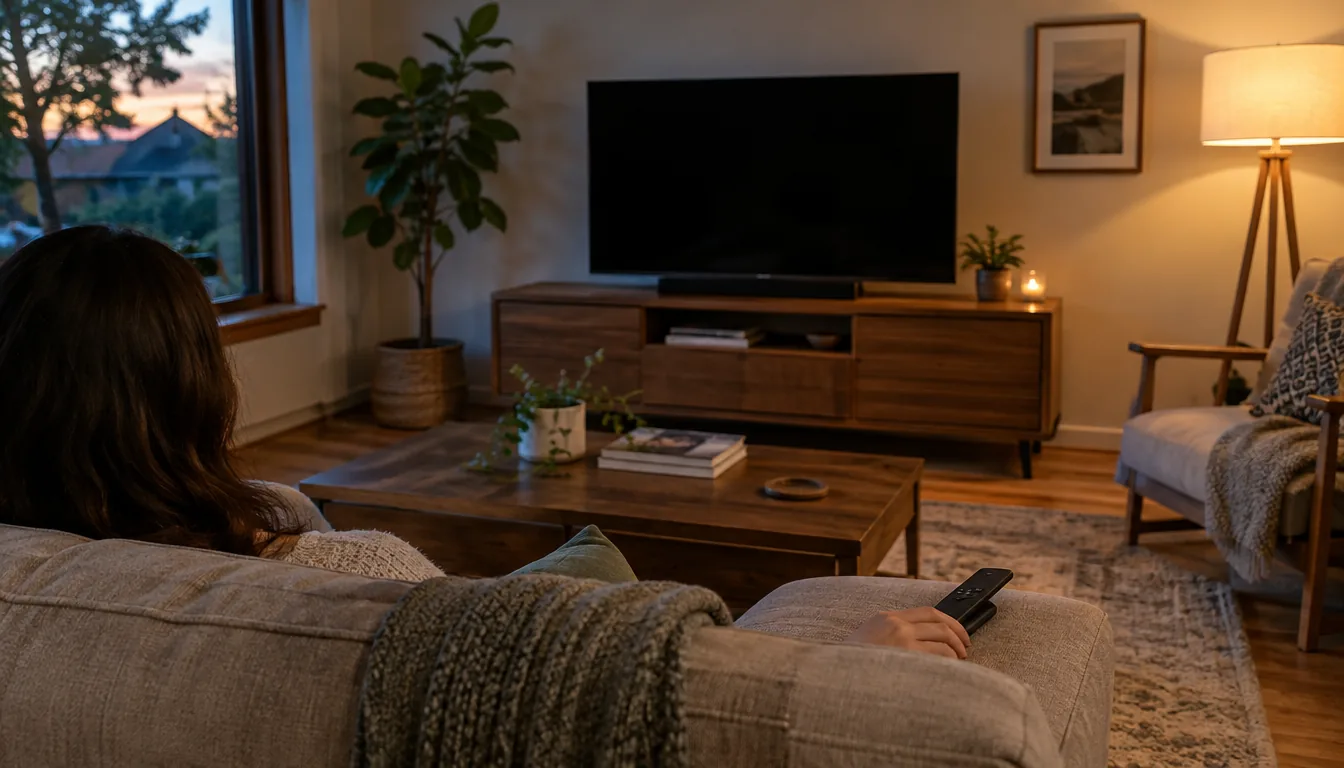
Lip-sync delay is the gap between a speaker's mouth moving and the voice reaching your ears. Some wireless links add a short delay, and some TVs add more when processing audio. Dialogue scenes show it first.
A few checks help you spot and adjust a mismatch:
- Choose a set that connects by cable to the TV and sends sound over its own dedicated link, rather than relying on the TV's menu pairing.
- Look for an audio delay or lip-sync adjustment in the TV or the soundbar.
- Watch a scene with close-up speech right after setup, then adjust.
If speech sounds muffled rather than late, the cause may be the TV's sound mode and not the headphones. Our walkthrough on fixing muffled TV dialogue lists the settings to try.
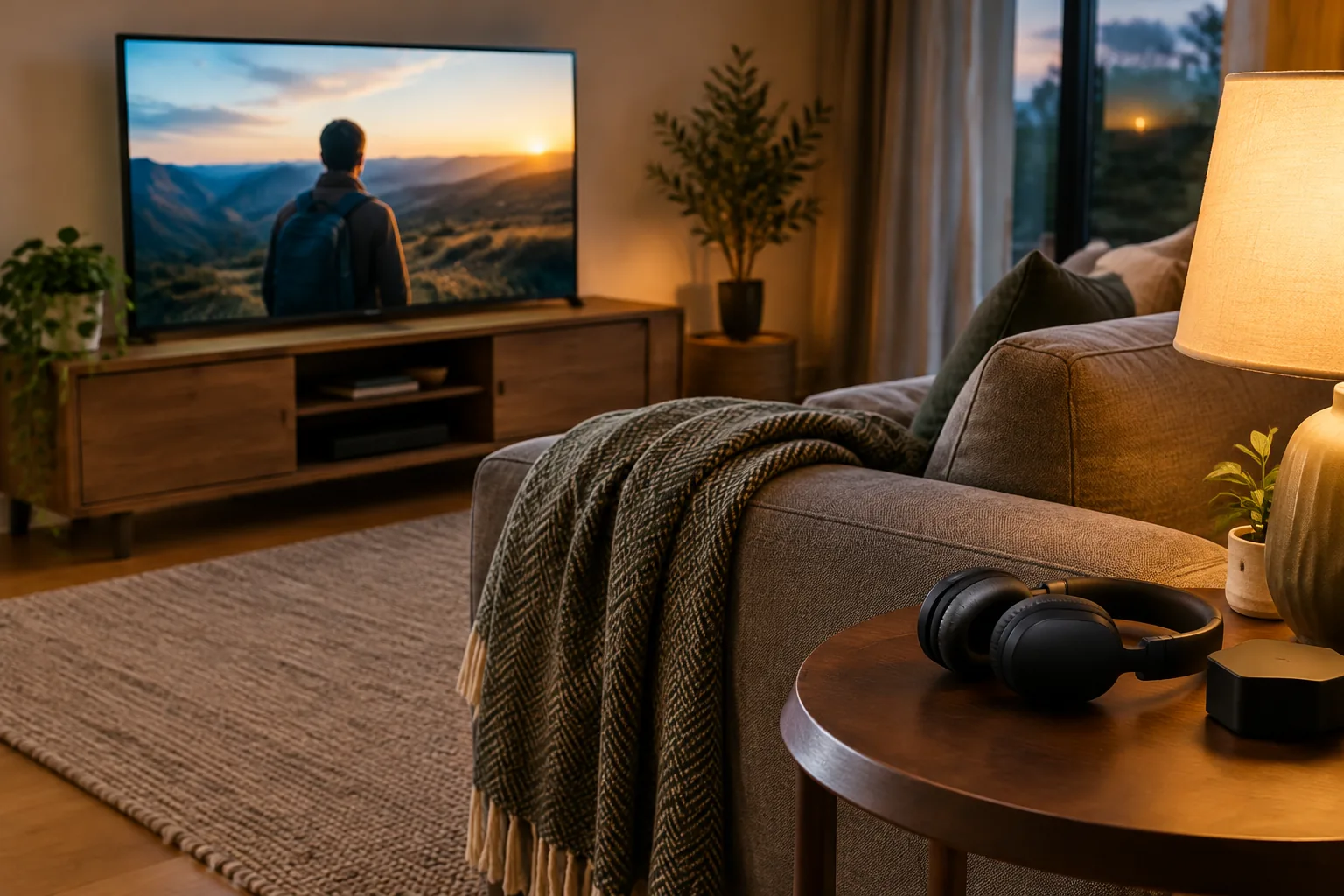
Comfort and private listening
TV sessions can mean a full movie or several episodes in one seat, so fit matters as much as connection.
What to look for in the fit
- Over-ear cushions with soft padding, such as memory foam, spread the contact area around the ear.
- Check the weight listed on the product page against how long you sit.
- Look for an adjustable headband so different head sizes fit.
- Check that the volume control is easy to find by touch.
How can you hear your TV without disturbing others?
Use headphones that play at their own volume while the TV stays on. Some sets include a pass-through feature that lets the TV speakers keep playing at room level, so one person listens privately while others share the speakers. If the room should be quiet, lower or turn off the TV speakers in the sound menu if your TV allows it, and check your set's manual.
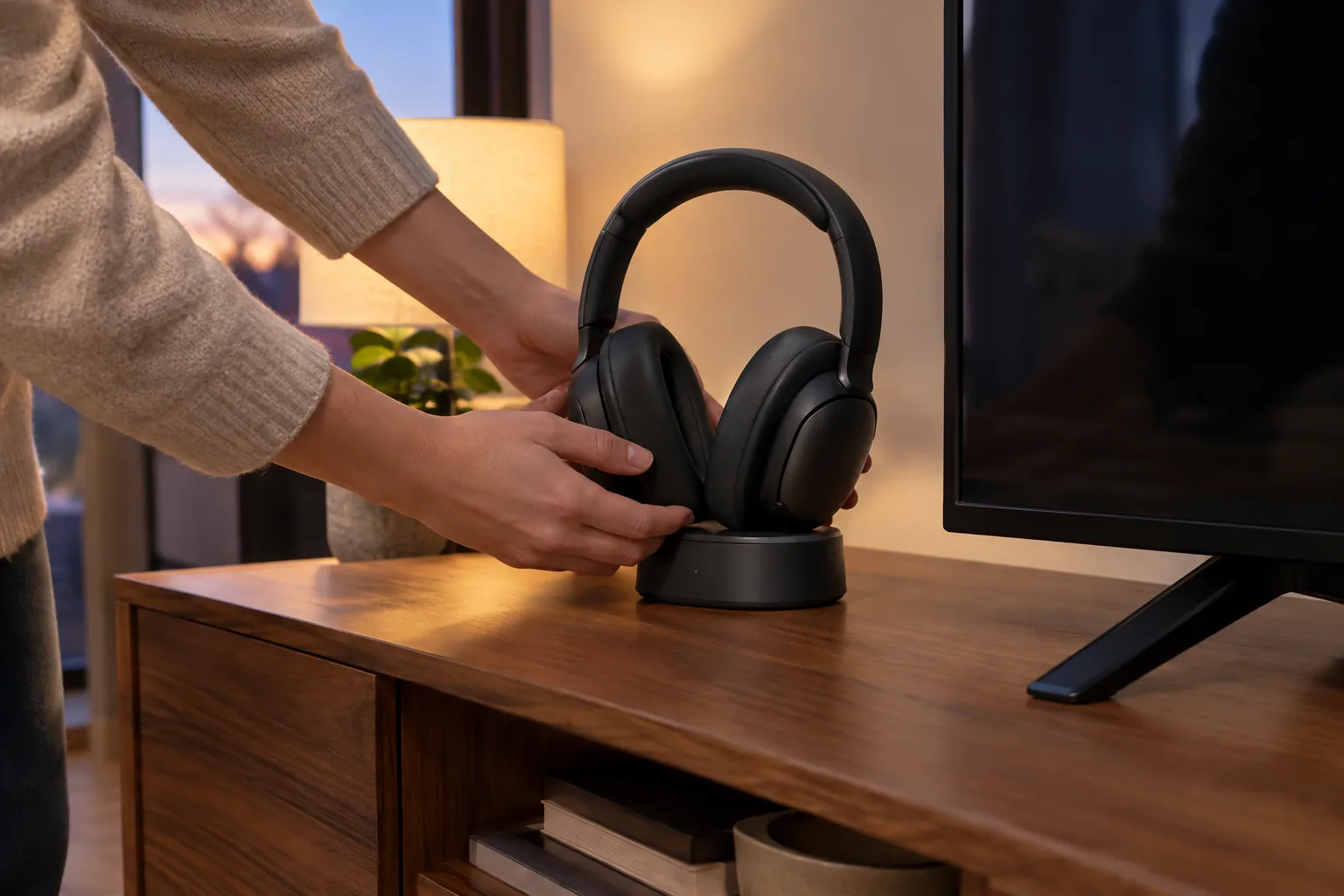
Also look at the charging method. A dock that holds the headphones between sessions keeps them in one place, so you are not searching for a cable before the show starts.
A TV headphone set we stock
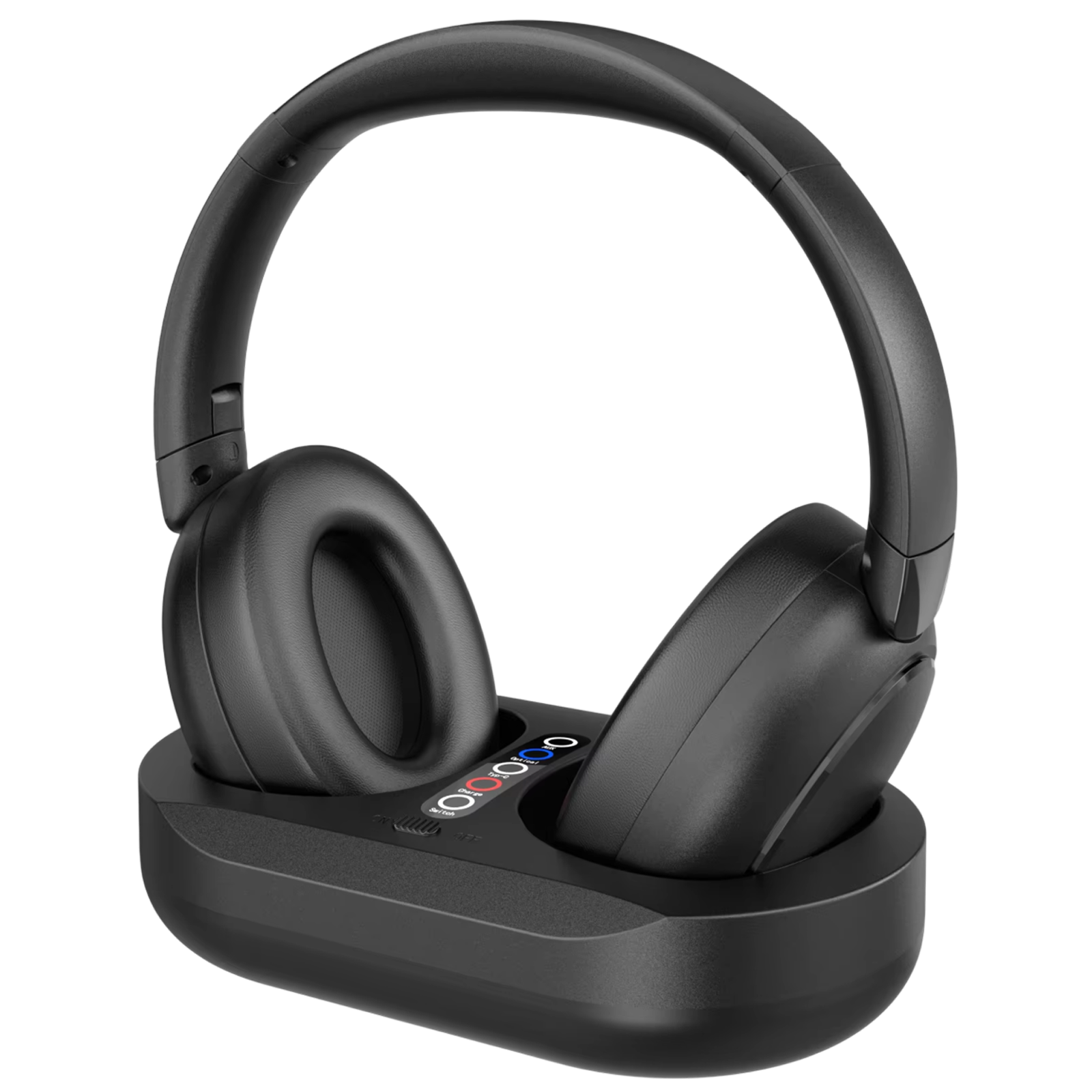
The ClariTone set has over-ear headphones with memory-foam cushions and a transmitter base. The transmitter sends TV audio to the headphones over a dedicated 2.4GHz RF channel, and the base takes an optical TOSLINK, RCA red/white or 3.5mm AUX cable, so it suits TVs with or without Bluetooth. All three cables are in the box, along with a USB-C power cable for the base.
The headphones also have Bluetooth 5.3, so a smartphone can be connected separately. With pass-through audio, the TV speakers can keep playing at the room volume while the wearer sets a private headphone volume. The headphones rest on contact pins on the base to charge, so no small cable plugs into them.
 In this guideClariTone$144.99View
For other styles, browse the Headphones & Earbuds collection. Keep in mind that a pair made only for phones needs Bluetooth on the TV or a separate transmitter.
Decision checklist for TV headphones
Work through these in order and follow the If no column when a step does not apply.
| Step | Question | If yes | If no |
|---|---|---|---|
| 1 | Does the TV menu offer Bluetooth audio? | Bluetooth headphones can pair directly | Go to step 2 |
| 2 | Does the TV have an optical, RCA or AUX output? | Pick a set with a transmitter base | Check the soundbar or console outputs |
| 3 | Does the set include the cable that matches your output? | Ready to connect | Get the matching cable separately |
| 4 | Is there a lip-sync or delay setting? | Use it to adjust after setup | Choose a dedicated link and watch speech scenes |
| 5 | Will you wear them for long sessions? | Check cushion material and weight | Compact styles may do |
| 6 | Will someone share the room? | Look for pass-through audio or lower the TV speakers in the sound menu | Any private mode works |
Field note
Before you buy, photograph the back of your TV and the ports on your soundbar. Compare the photo with the cables listed on each product page.
Common mistakes to avoid
- Buying phone earbuds without checking that the TV offers Bluetooth audio.
- Ordering a set without checking which output your TV has: optical, RCA or AUX.
- Placing the base behind the TV, inside a cabinet, or next to other wireless gear. Keep it in the open.
- Skipping the lip-sync check and judging only music or action scenes.
- Leaving headphones off the dock between sessions, then finding the battery empty.
Follow the manual for your set, and unplug the transmitter before moving it or cleaning around its ports.
Setup and care checklist
- Connect the base to the TV output with the matching cable.
- Plug the base into a wall outlet with the USB-C power cable.
- Press the power button on the headphones; a pre-paired set links to its own base.
- Raise the headphone volume slowly while a speech scene plays.
- Adjust any TV delay setting if the voice and picture differ.
- Rest the headphones on the dock between sessions, wipe the cushions with a dry cloth now and then, and keep the dock contacts free of dust.
If you also use earbuds around the house, our guide on how to clean earbuds covers mesh and cases. Keep a dry cloth near the dock for the cushions.