How to Record a Cassette Tape From a Computer, Phone or Mic
Connect your source to the line input of a cassette deck, set the record level on the meters, then press record and play together. This guide covers laptop, phone and microphone.
The Folio & Current Team
November 23, 2026 · 6 min read
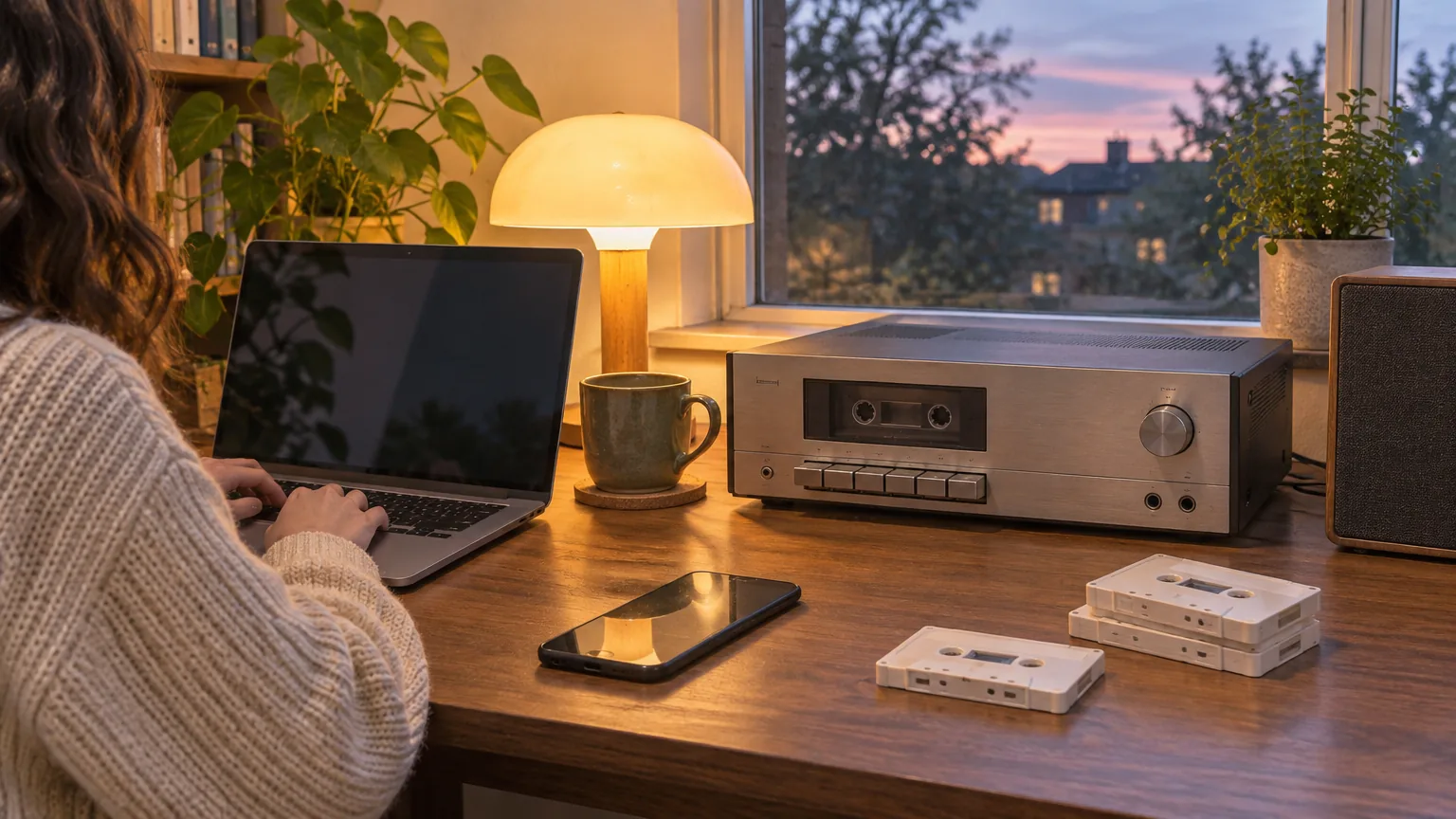
To learn how to record a cassette tape, connect your sound source to the line input of a cassette recorder, insert a blank tape, set the record level so the meters stay out of the red, then press record and play at the same time. A laptop or phone connects with a 3.5 mm to stereo RCA cable, and a microphone goes into the deck's mic jack. The steps below follow each source in turn.
Only record music and audio you have the right to copy.
What you need before you record
You need a cassette deck or recorder with a record function, a blank tape, and the cable that matches your source. A player that only plays back cannot record onto tape, so check the front panel for a record button and level controls.
| Source | Cable or adapter | Plug into |
|---|---|---|
| Laptop or desktop | 3.5 mm to stereo RCA cable | Line in on the deck |
| Phone with headphone jack | 3.5 mm to stereo RCA cable | Line in on the deck |
| Phone without headphone jack | Adapter for the phone port, plus the cable above | Line in on the deck |
| Microphone | Mic cable that fits the deck's mic jack | Mic in on the deck |
| Boombox | None for the built-in mic, or a line cable if it has an aux input | Aux or line in |
Choose the tape and check the tab
Use a blank cassette and check the tape type switch on your deck. Match the switch to the type printed on the cassette, as the manual explains. Look at the top edge of the cassette too: if the record tabs are broken out, the deck will not record until you cover the openings with tape.
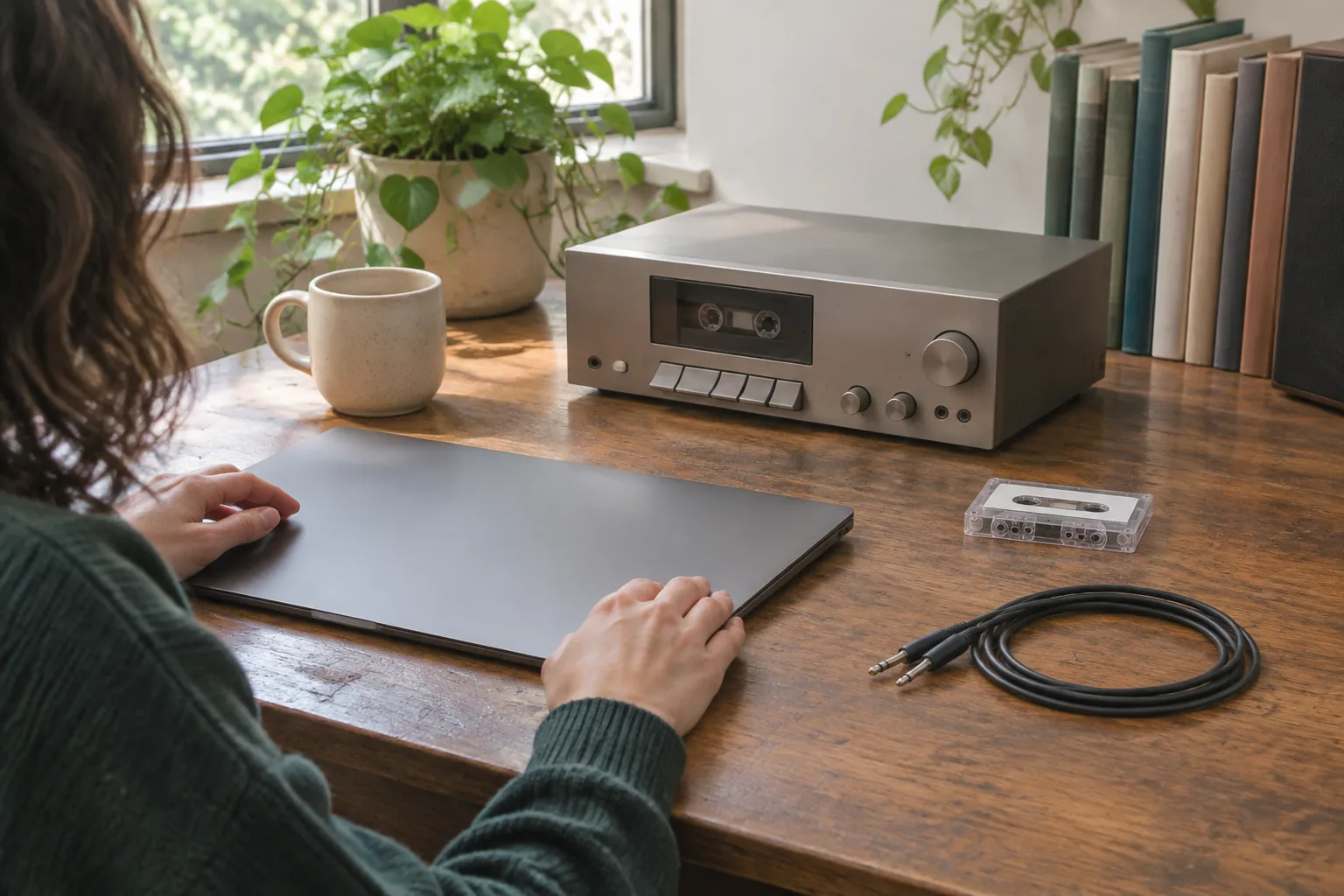
How to record a cassette tape from a laptop
- Plug the 3.5 mm end of the cable into the laptop's headphone jack and the RCA ends into the deck's line in, matching left and right colors.
- Set the deck's input selector to line, if it has one.
- Insert the blank cassette and wind it past the clear leader tape, since the leader does not hold a recording.
- Open your music player and set its volume to a moderate level. Raise the record level on the deck, not the computer, as you play a loud passage.
- Press record and play on the deck together, then start the track on the computer.
If your laptop has no headphone jack, use a USB audio adapter. Our guide to a type C audio interface shows how to connect one. For recording the computer's own sound in the other direction, see how to record audio from a computer.
Record from a streaming service or a CD
Streaming playlists work the same way: the laptop or phone is the source, and the deck records what comes out of the headphone jack. Turn off notification sounds first so they do not land on the tape. For a CD, connect the line out of the CD player to the deck's line in, then use the same level steps.
Record a cassette tape from a phone
The steps match the laptop route. Plug the cable into the phone's headphone jack, or into an adapter if the phone has only a charging port. Put the phone in airplane mode or do-not-disturb so calls and alerts stay off the tape.
Phone outputs can be louder than a laptop's, so start with the phone volume at about the middle and adjust the deck's record level. Queue your playlist, press record and play on the deck, then start playback on the phone.
Record from a microphone or a boombox
For voice, an interview or a live instrument, plug a microphone into the deck's mic jack. Many decks use a 3.5 mm or quarter-inch mic input, so check the manual for the plug type. Set the input selector to mic, if there is one.
Place the microphone close to the sound and away from fans and hard walls. Speak or play at your normal level and watch the meters while you adjust the record knob.
How to record a cassette tape on a boombox
Many boomboxes have a built-in mic, and some have an aux or line input. Insert the blank tape, hold the record button while pressing play, and start the sound. With the built-in mic the tape picks up the whole room, so keep the space quiet. If there is an aux input, use it for a cleaner path from a laptop or phone.
Set the input level and check the recording
The record level controls how loud the signal is written to tape. Too low and the tape sounds thin and hissy. Too high and the peaks distort. Play the loudest part of your source and adjust until the meters reach near the top of the scale without sitting in the red.
| What you hear | Likely cause | What to change |
|---|---|---|
| Crackly, harsh peaks | Record level too high | Lower the record knob and the source volume |
| Quiet with constant hiss | Record level too low | Raise the record knob |
| One channel only | Loose or mismatched RCA plug | Reseat the plugs and check left and right |
| Dull, muffled sound | Wrong tape type setting | Match the switch to the cassette |
| Humming | Cable run beside a power cord | Move the cables apart |
Make a short trial recording first. Rewind, play it back through the deck, and listen on headphones for distortion, dropouts and balance. Only then record the full side.
Field note
Leave a few seconds of silence between tracks by pressing pause on the deck, then release it just before the next track starts.
Common mistakes when you record to tape
- Starting on the leader tape, so the first seconds of the song are missing.
- Recording over a tape you want to keep, because new audio replaces what was there.
- Setting the level on a quiet intro and then clipping on the chorus.
- Leaving a noise reduction switch on when you play the tape back on a deck without it.
- Forgetting to flip to side B before the first side runs out.
Label each cassette with the track list and which noise reduction setting you used, so playback matches the recording.
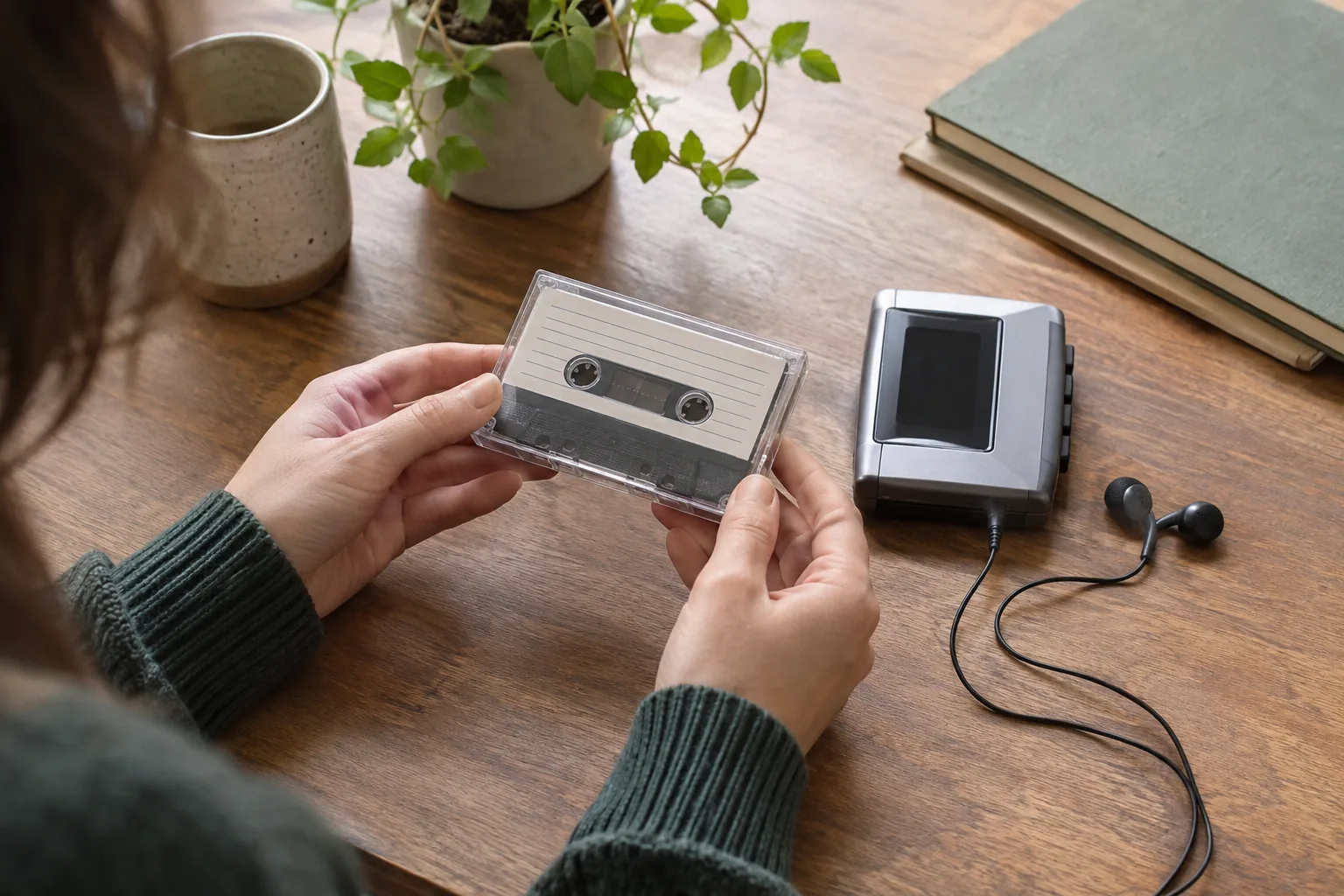
Keep a digital copy of the finished tape
A cassette wears with use, so a digital copy of a mix is a useful backup. ReelWave is an audio cassette player with auto-reverse playback and a USB connection. Connect it to a computer with the USB cable, open the software, insert a cassette, press play and save each track as an MP3 file. It runs on USB power or batteries and plays through a built-in speaker or the supplied earphones.
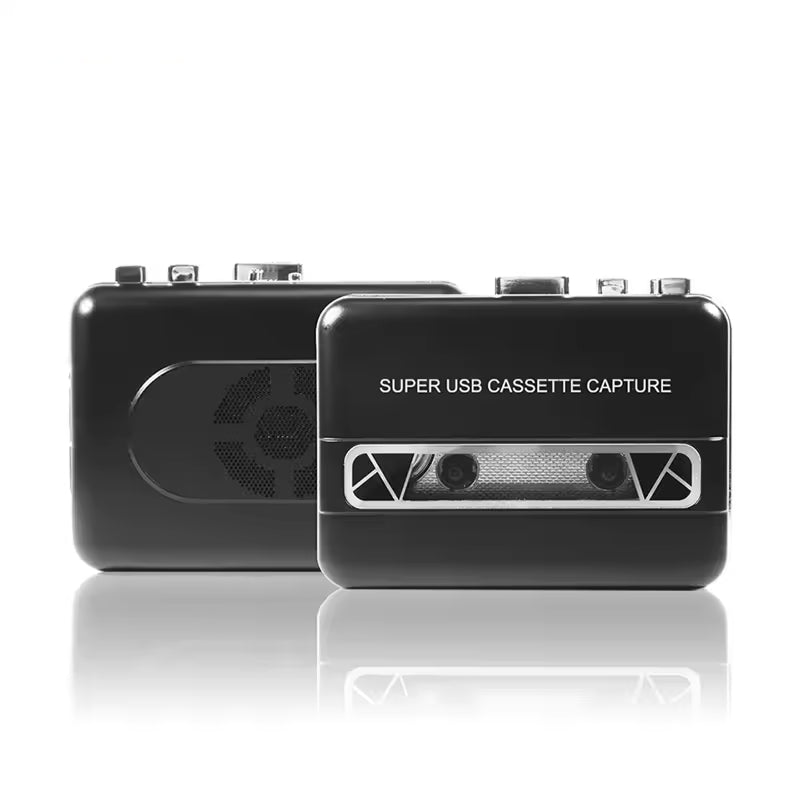 In this guideReelWave$99.99View
You can browse more devices in Music & Playback Devices. If you would rather not do the transfer yourself, a transfer service handles it for a fee that depends on the provider and the number of tapes, so ask for a quote.