Handheld Retro Game Console With Built-In Games: How to Choose
Choose a handheld retro game console with built in games by checking the library, screen, controls, battery and TV output, in that order. A checklist table is included.
The Folio & Current Team
November 26, 2026 · 6 min read
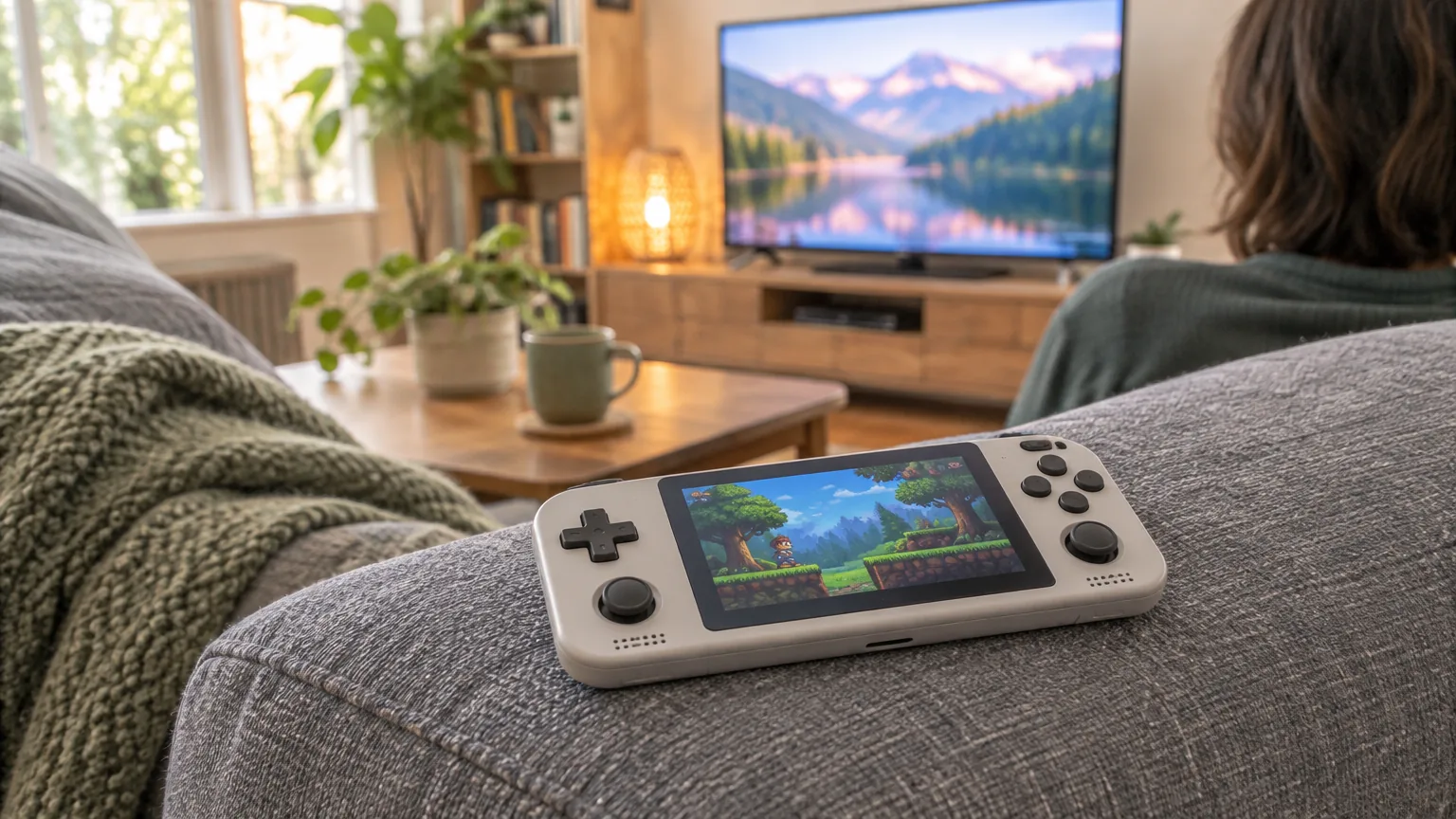
A handheld retro game console with built in games is a pocket-size device that ships with a game library already loaded, so you power on, pick a title and play. To choose one, check five things in order: the library, the screen, the controls, the battery and the TV output. This guide walks through each check, then gives a table you can use while you compare listings.
Most consoles in this category run emulation, which means software that imitates older systems. That is why the library, the storage, the processor and the menu matter as much as the shell and the buttons.
What a handheld retro game console with built in games includes
These devices have a small color screen, a directional pad, face buttons, shoulder buttons and a card slot or internal memory that holds the games. Some list very large libraries across many older systems, from arcade classics to early home consoles. A long list tells you how much is loaded, not how each game plays.
Look at what is in the box too. A device with a pre-loaded microSD card is ready to play on arrival, while a device with an empty slot needs files before the first session.
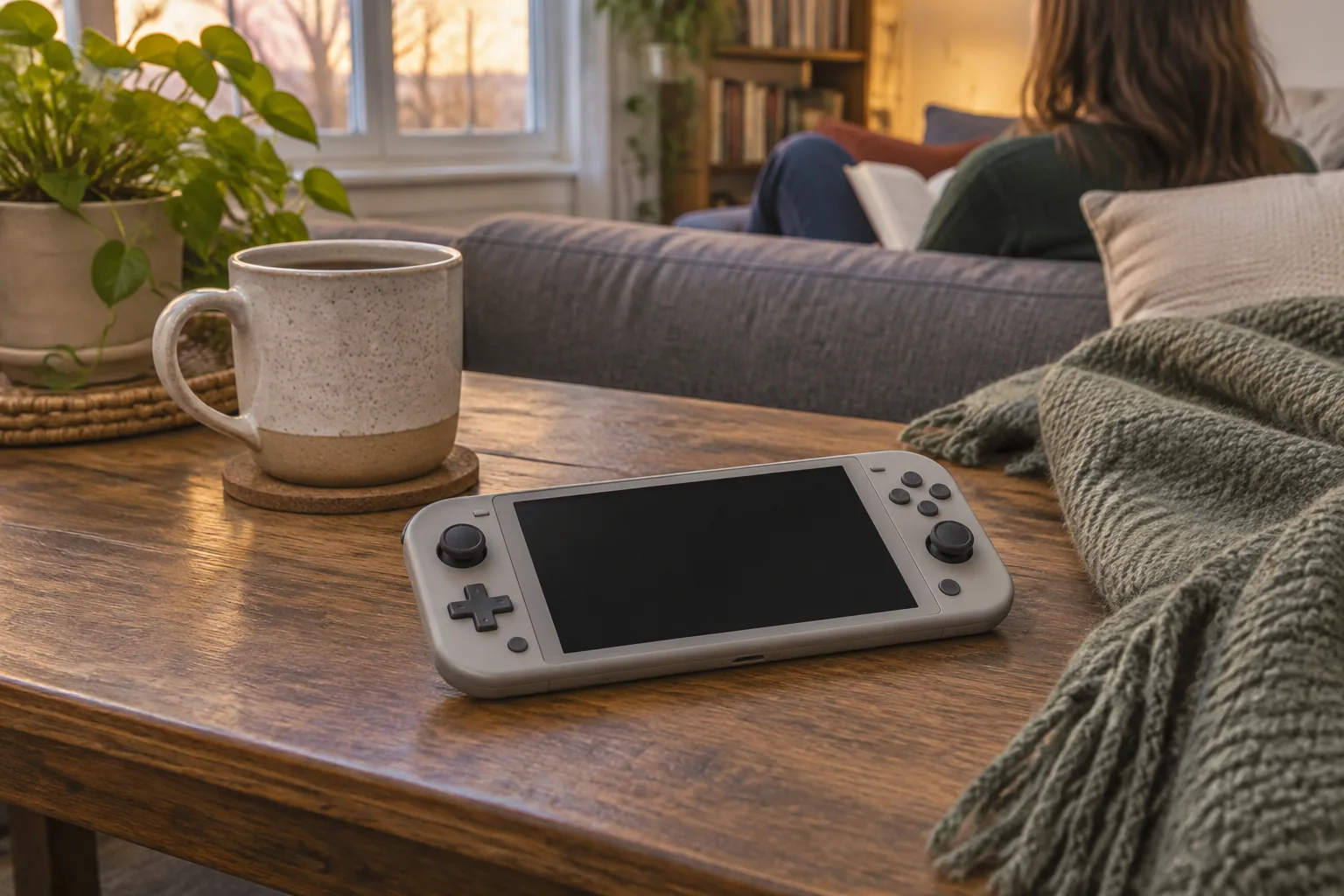
How to choose: five checks in order
Step 1: Check the game library
Start with the platforms, not the total count. Ask which systems the menu covers and whether titles are sorted by genre or platform, since a sorted menu groups games so you can browse by system instead of one long flat list.
- Look for a games list on the product page, or a menu description that names the systems.
- Check whether duplicates inflate the count; the same title can appear under several regional names.
- Confirm you can add your own files through a card slot, so the library is not fixed.
If you want to add games, use only files you have the right to use, and follow the manual for the folder layout on the card.
Step 2: Look at the screen and controls
Older games were made for small, low-resolution displays. Check the screen size and panel type in the specs, and look for a scratch-resistant surface if the device will travel in a bag. Screen shape matters too: a wide display and a squarer one show classic games with different borders.
Controls decide whether a game plays the way you expect. Check that the directional pad suits platformers and fighters, that the face buttons are spaced for your hands, and that shoulder buttons exist if you want games from systems that used them. A device with only two face buttons limits what you can play.
Step 3: Match the processor and operating system to your systems
Older 8-bit and 16-bit systems ask little of a device, while 3D-era systems need more processing power to run. If your wish list includes those later systems, check the spec list for the chip and for memory before you buy, and read the product page for which systems are named.
The operating system shapes the menu, the way save states work and how you add files. Look for a description of the interface and for the manual, since both tell you how the device is meant to be used.
Step 4: Check battery, charging and build
Find the battery capacity in the specs, usually listed in mAh, and check how the device charges and which cable it uses. Do not rely on a single runtime claim from a listing; the manual and the product page are the sources to check.
For build, look at the corners, the buttons and the shell. Reinforced corners matter if the console rides in a backpack or a coat pocket.
Step 5: Decide whether you need TV output
A small screen suits a commute, but a long session at home may call for a television. Look for an AV output and check what cable it uses, since the TV needs a matching input. Some TVs have these inputs, while others may need an adapter.
If you do not plan to play on a TV, you can skip this check and put the budget toward other features. If you want a second player on the couch, check whether the device supports a second controller or wireless play.
Checklist table: compare any handheld retro console
| Check | What to look for | Where to confirm |
|---|---|---|
| Library | Named systems, genre or platform menu, room for your own files | Product page, menu description |
| Screen | Size, panel type, scratch-resistant surface | Spec list |
| Controls | Directional pad, face and shoulder buttons | Product photos, spec list |
| Processor and system | Chip, memory and operating system for the systems you want | Spec list, manual |
| Battery | Capacity in mAh, charging method | Spec list, manual |
| TV output | AV output and the cable it needs | Product page, manual |
| Storage | microSD slot, pre-loaded card | What is in the box |
| Save states | Save and resume from the same point | Menu description, manual |
| Connectivity | Wi-Fi if you want downloads or online play | Spec list |
Save states, storage and updates
A save state stores your exact spot in a game, so you can stop and resume from the same point. Some older games had no save feature at all, so this is useful on a device you carry around. Keep saves on a card you can swap if the device allows it.
Storage works the same way. A fixed library fills up once you want more, while a microSD slot lets you add compatible files and keep saves on a card you can replace. Wi-Fi is worth checking if you want to download new titles or play with friends online.
If you are weighing a built-in library against streaming games from a server, read what cloud gaming is and whether your connection is ready.
Where RetroVolt fits the checklist
RetroVolt is a retro handheld game console with built-in games on a pre-loaded microSD card, with a built-in color screen. You power on, browse the games by genre or platform, choose one and start playing. Here is how it maps to the checks above:
- Library: pre-loaded card, so you can play from the box.
- Storage: a microSD slot adds room for your own compatible ROM files and save states.
- TV output: the AV output connects it to a television.
- Connectivity: Wi-Fi is included, so you can connect without adding a separate adapter.
- Build: reinforced corners and a scratch-resistant screen.
For battery capacity, screen size, the chip and the full systems list, check the product page before you order. The box holds the console and the pre-loaded card.
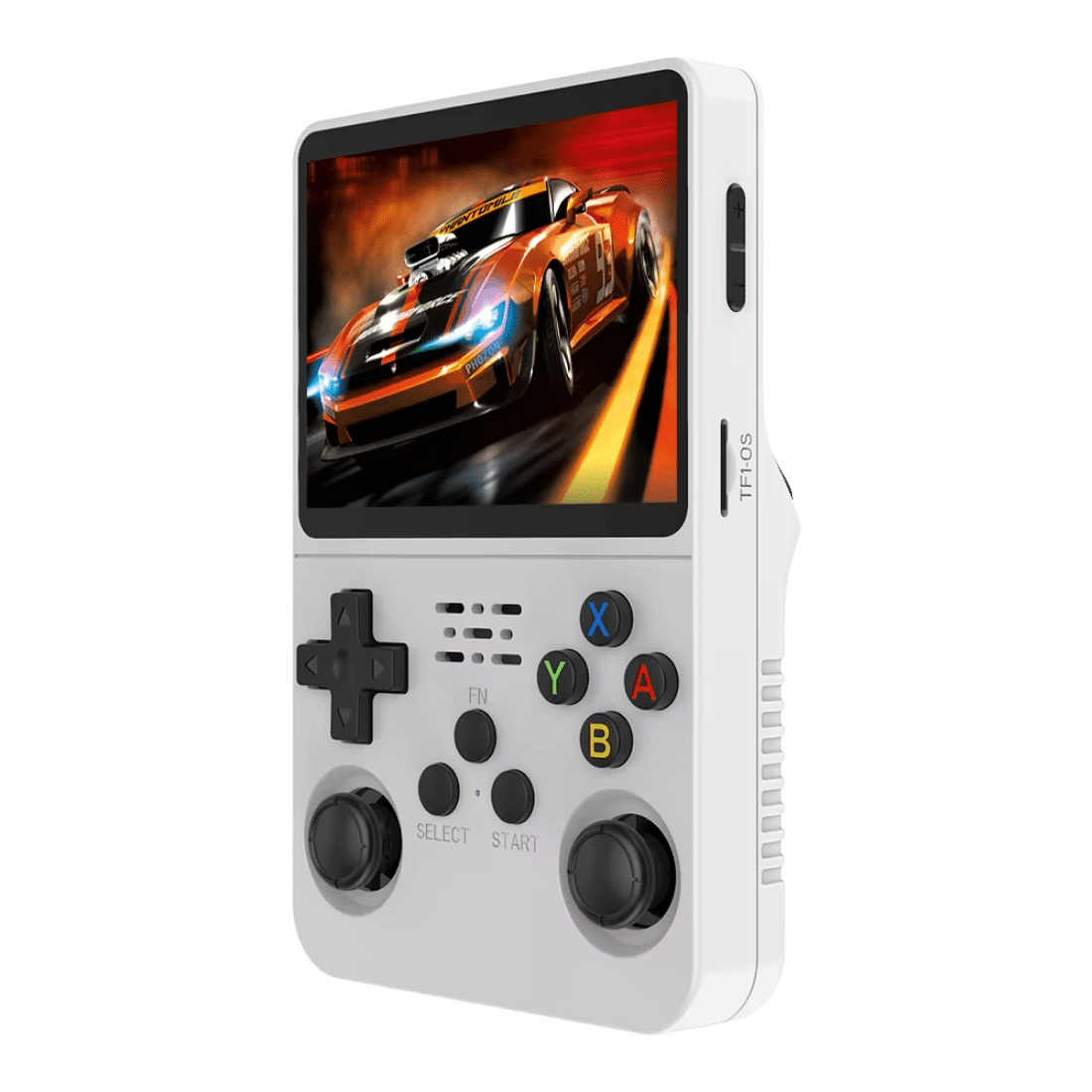 In this guideRetroVolt$139.99View
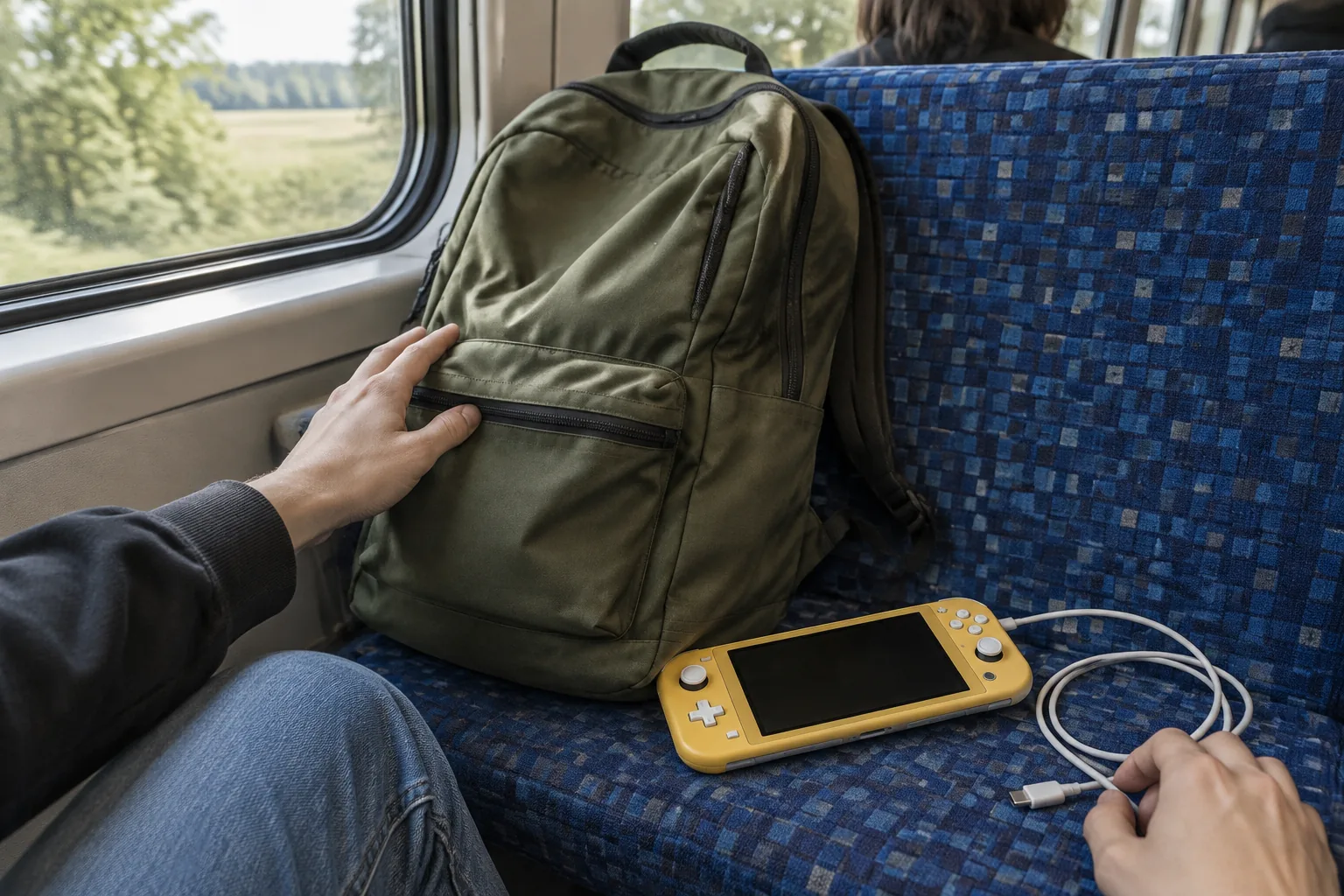
Common mistakes and basic troubleshooting
- Choosing by the game count alone and skipping the system list.
- Skipping the controls check, then finding the buttons do not suit the games you like.
- Assuming TV output is included without confirming the cable and the TV input.
- Buying a device with no card slot, then wanting more games.
- Ignoring the charging method until the first trip.
If a game does not load, check that the card is seated in its slot and that the file format matches what the manual lists. If the TV shows no picture, recheck the cable and the input selected on the TV.
Once you have a shortlist, run it through the table. A handheld retro game console with built in games that clears every row fits the way you play. If you also want add-ons for the device, browse the Gaming Accessories collection.
Field note
Write down the three games you most want to play, then check that each one is in the menu or can be added through the card slot before you decide.