What Is a Good 3D Printer for a Beginner? A Decision Checklist
A good beginner 3D printer is a filament (FDM) model that is simple to set up, prints PLA, and fits your desk. Use these steps to decide, then follow the ventilation and first-print checklists.
The Folio & Current Team
November 15, 2026 · 7 min read
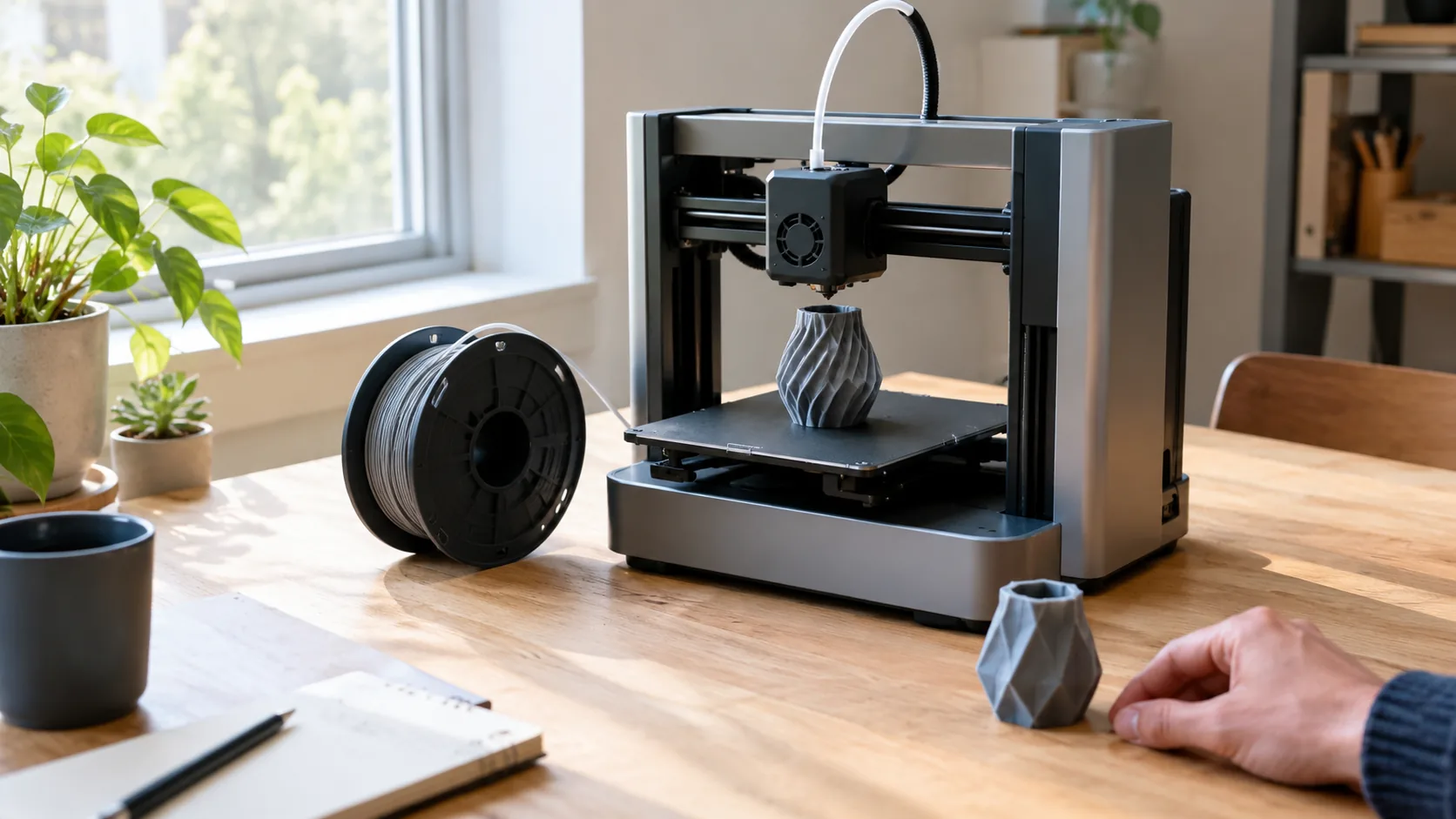
What is a good 3D printer for a beginner? One that is simple to set up, prints a common filament such as PLA, and fits the space you have. Start with a filament (FDM) printer rather than resin, pick a build size that matches the objects you want, and check how the bed is leveled before you buy.
This guide walks through those decisions in order, then gives you a ventilation checklist and a first-print checklist. It also answers what people print at home and whether a printer draws a lot of electricity.
Step 1: What is a good 3D printer for a beginner, filament or resin
Filament printers melt a plastic strand and build an object layer by layer. Resin printers harden liquid resin with light. For a first machine, filament printing is a sensible starting point because the materials are solid spools and the cleanup is dry.
Resin can produce fine surface detail, but it adds steps: washing prints, hardening them under light, handling liquid resin and disposing of waste. Resin fumes and skin contact call for care, so read the manual, wear gloves and ventilate the room. If you are new to the hobby, you can add resin later once you know the basics.
Quick comparison
| Question | Filament (FDM) | Resin |
|---|---|---|
| Material | Solid spools such as PLA or TPU | Liquid resin in a vat |
| Extra steps | Remove the print, trim any supports | Wash, harden under light, handle liquid, dispose of waste |
| Typical uses | Brackets, toys, props, prototype parts | Small figurines with fine detail |
| Handling | Hot nozzle and moving parts | Gloves, ventilation, wash station |
Step 2: Check leveling, extruder and enclosure
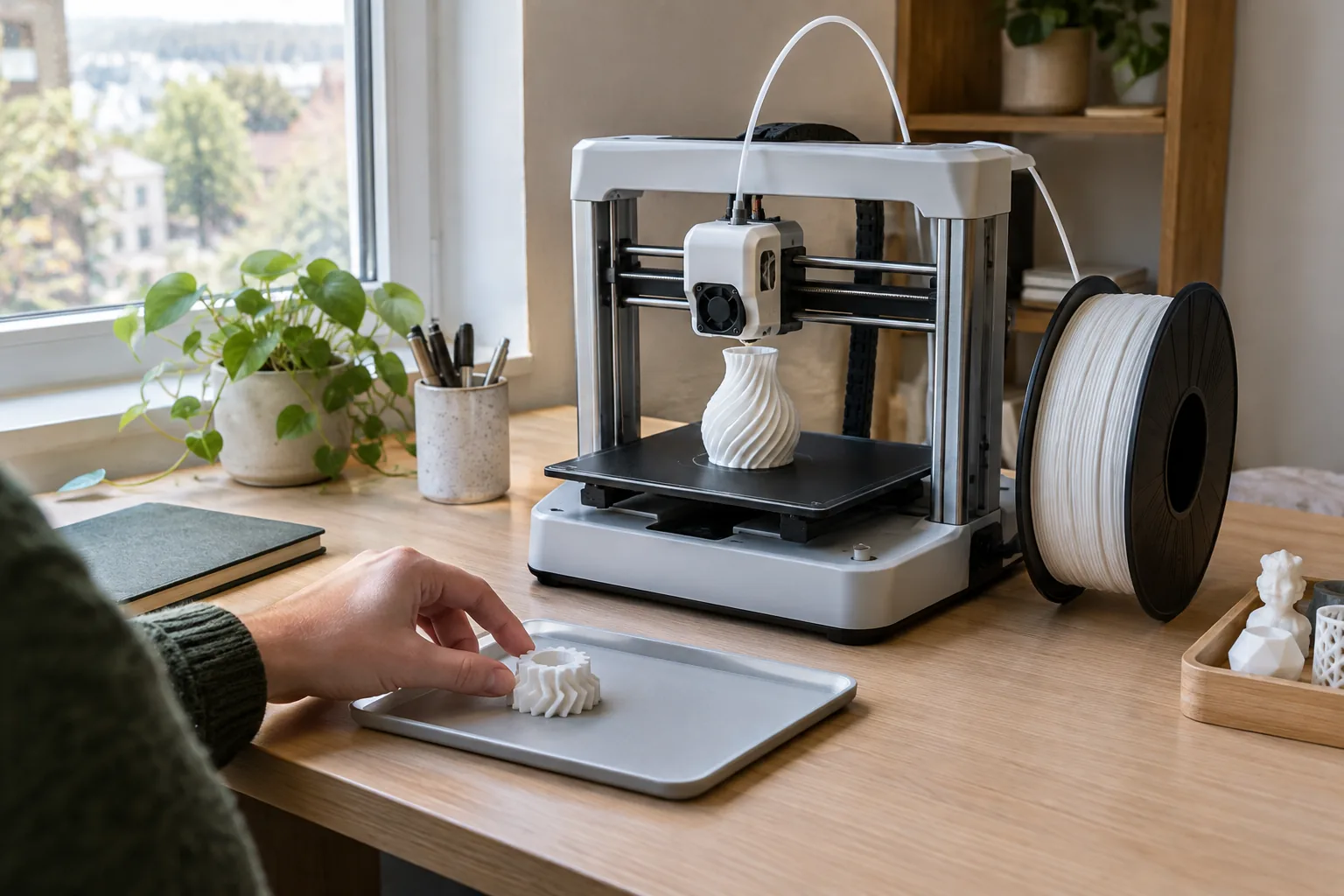
These features decide how much setup work a printer asks of you. Use the table below to compare the models you are considering.
| Feature | What it means | What to check |
|---|---|---|
| Bed leveling | The nozzle must sit at a consistent distance from the bed | Automatic bed leveling does this with a sensor; manual leveling means adjusting the bed yourself |
| Extruder | The part that pushes filament to the nozzle | A direct drive extruder sits on the print head and is often named when flexible filament is listed |
| Heated bed | Warms the platform during printing | Check which filaments the maker lists; some printers skip the heated bed |
| Enclosure | A cover around the print area | Check the manual for heat and ventilation notes |
| Software | A slicer turns a design into printer instructions | Find out if you need a slicer or can print straight from a card |
A heated bed widens the list of materials you can print, while a printer without one prints the filaments its maker lists. Read the product page for the exact filament types before you buy.
When an enclosure helps
An enclosure is a cover around the print area. It can shield a print from drafts, keep dust off the platform and keep curious hands away from the nozzle and moving parts. It also changes how air moves around the machine, so follow the manual's ventilation notes for your model.
Step 3: Pick a build size that fits your projects
The build volume is the largest object the printer can make in one piece. A bigger volume handles larger parts, but the machine takes more desk space and weighs more. A small volume suits figurines, phone grips, cable clips and prototype parts.
Measure the objects you want to make first. If they fit in a cube about 4 inches on a side, a compact machine covers them. Larger items can often be split into pieces and joined, but that adds work.
A compact starter kit to consider
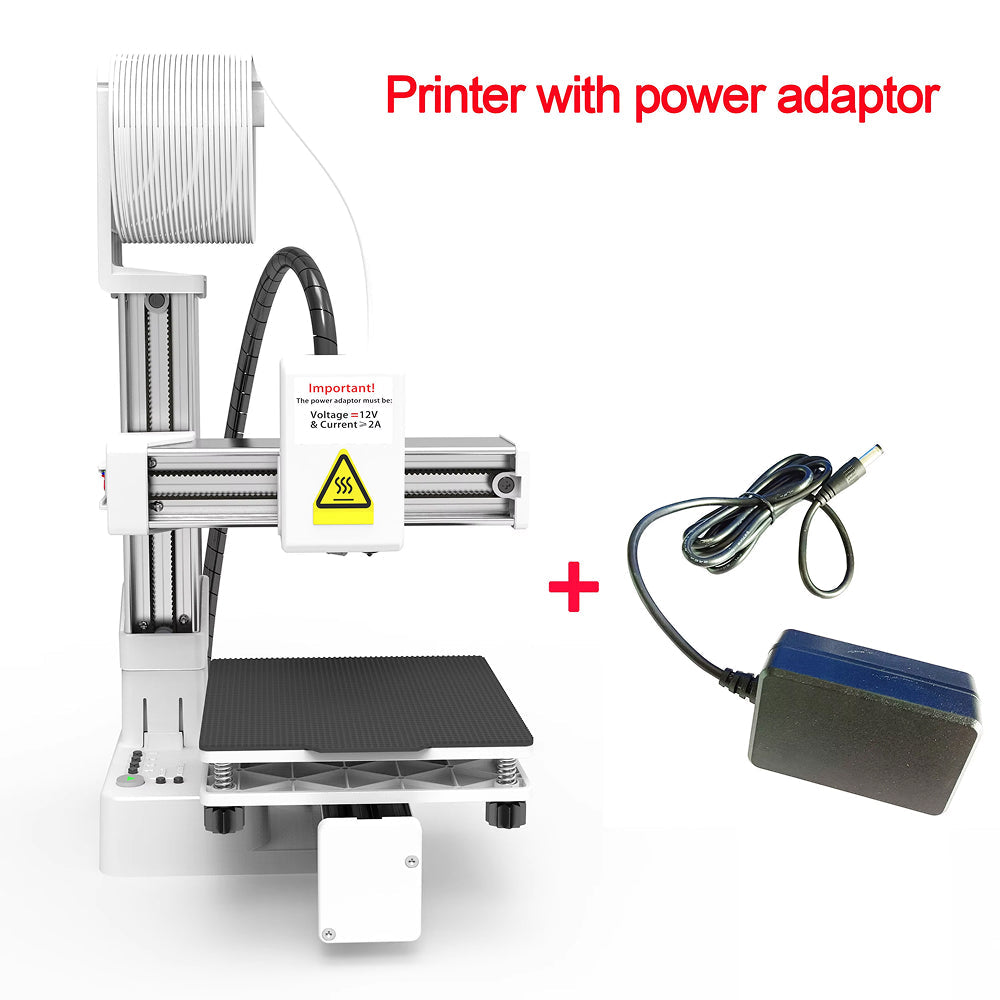
If you want a simple card-based workflow to start with, the FormaCrest is an FDM kit for first-time users. You insert a TF card, choose a design from the menu and press the single start button. The workflow needs no slicer software, and the platform has no heated bed to set up.
It prints PLA and flexible TPU filament at a 0.1mm (about 0.004 in) layer height. The build volume is 100 x 100 x 100mm (about 3.9 in per side), and the frame weighs under 1kg (about 2.2 lb), so it fits a desk, dorm room or apartment shelf. The box includes the frame, control box and print head, Y-axis and build platform, filament holder, Z-axis support, screwdriver and assembly tools, and a TF card with video tutorials. It is a kit, so plan time to assemble it.
 In this guideFormaCrest$299.99View
What normal people use 3D printers for
Home users print practical and creative items. Jobs include small household parts, brackets, hooks, cable organizers, toys, game pieces, props for costumes and prototype parts for a project. With flexible TPU you can make items such as phone grips and bendable parts.
Classrooms and families also use printers for learning projects. If a child will use the machine, an adult should supervise because the nozzle gets hot and the parts move. You can find more starter gear in the Beginner & Educational Tech collection.
What to print first
- A small calibration cube or test shape, to confirm the machine runs.
- A simple figurine or keychain, which uses little filament.
- A cable clip or desk organizer, so the first print has a use.
- A flexible item in TPU, once your first PLA prints turn out cleanly.
Pick designs that fit inside your build volume and need few overhangs. Smooth, flat-bottomed shapes give the first layer a wide contact area with the platform.
Do 3D printers use a lot of electricity?
A desktop printer draws power to heat the nozzle and, on some models, the bed, plus run small motors. Draw varies by model, so check the wattage on the power label on the back of the printer or in the manual.
To estimate your own use, multiply the wattage by the hours of a print, then divide by 1,000 to get kilowatt-hours. Your utility bill lists the rate per kilowatt-hour.
Field note
Write down the printer's wattage from its label, then multiply by print hours and your utility rate. You will know the running cost before you commit to a long print.
Ventilation and setup checklist
Heated plastic and resin both call for care. Follow the manual for your model and set the printer up in a place you can ventilate.
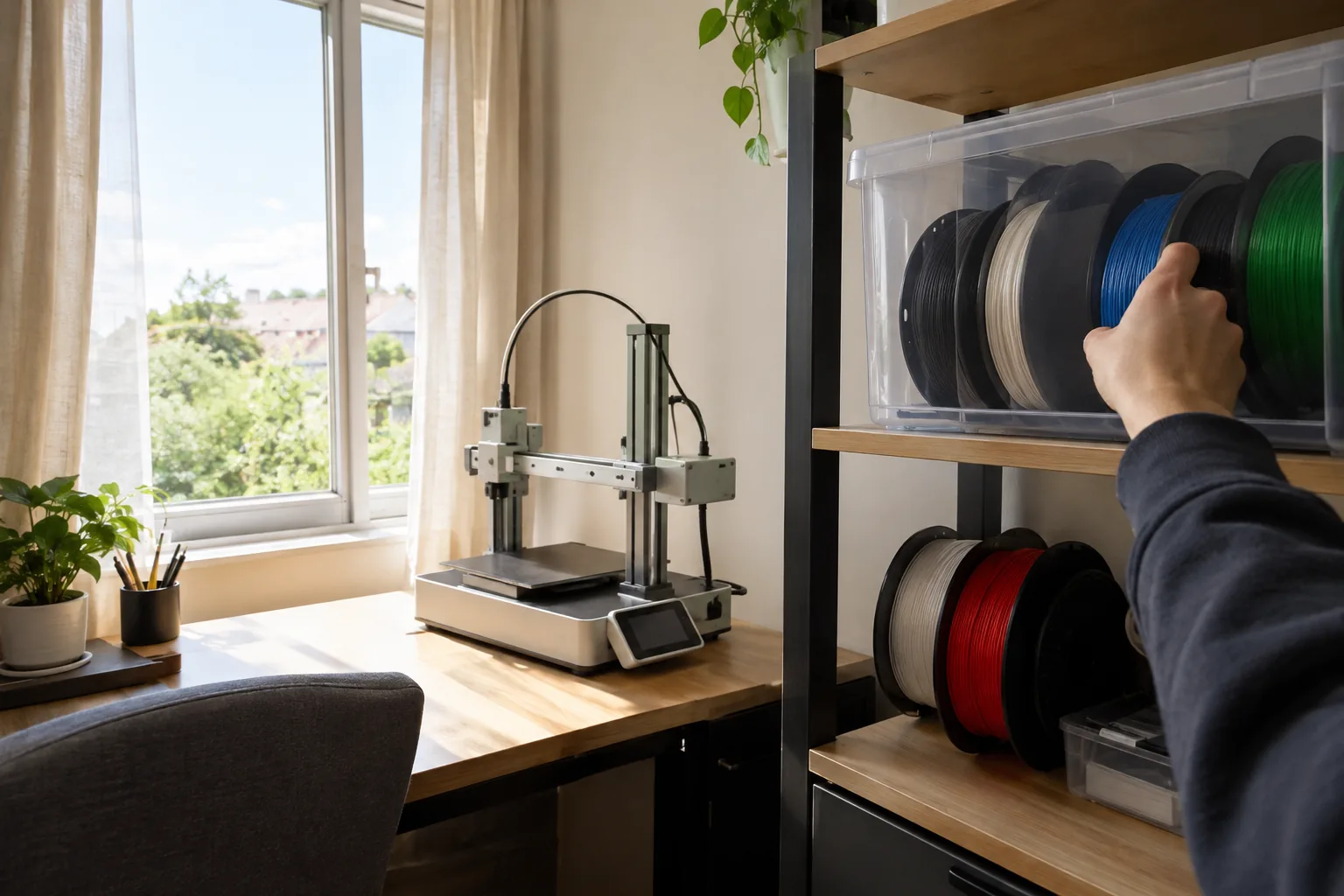
- Choose a flat, stable desk away from bedding, paper and curtains.
- Keep a window open or use a room with airflow, especially with resin or any unfamiliar filament.
- Leave space around the printer so the moving parts do not hit walls or cables.
- Unplug the printer before you adjust wiring, swap parts or clean inside.
- Keep children and pets away from the hot nozzle and moving axes.
- Stay nearby while the printer runs and follow the manual's guidance on supervision.
- Store filament in a dry container and resin sealed, per the maker's instructions.
First-print checklist
- Assemble the kit and check that every screw is snug, using the included video tutorials or manual.
- Place the printer on a flat surface and plug it in.
- Load the filament your printer lists, such as PLA, through the filament holder and feed path.
- Level the bed if your model needs it, or confirm that the automatic process finished.
- Insert the TF card or send a sliced file, and choose a small design.
- Watch the first layer. It should look continuous and stick to the platform.
- Let the print cool, then remove it from the platform.
If the first layer does not stick, stop the print, clean the platform and try again. Check the first layer closely, since the rest of the print builds on it.
Common mistakes to avoid
When you ask what is a good 3D printer for a beginner, the answer depends on avoiding these errors:
- Buying a large machine before you know what you will print.
- Skipping the filament list and loading a material the printer does not support.
- Ignoring ventilation, especially with resin.
- Choosing a model that needs a slicer when you want card-only printing, or the reverse.
- Starting with a complex design instead of a calibration shape.
If you only want printed photos rather than objects, see our guide to a portable 4x6 photo printer, which covers what to check before you buy.